All pages referring or tutorials for Microsoft 365.
This is the multi-page printable view of this section. Click here to print.
Microsoft 365
- Getting started with Microsoft 365 Backup
- What is MTA-STS and how to use it to protect your email flow
- Disable users' self service license trials
- Enhance email security with SPF/DKIM/DMARC
- Disable DirectSend in Exchange Online
- Set a domain alias for every user in Microsoft 365
- Configure DNSSEC and SMTP DANE Microsoft 365
- Solved - Microsoft 365 tenant dehydrated
- Create a Catch all mailbox in Exchange Online
- Microsoft 365 create a shared mailbox with same alias
- Migrate data to SharePoint/OneDrive with SPMT
- Dynamic Distribution Groups in Microsoft 365
Getting started with Microsoft 365 Backup
Microsoft 365 Backup ensures that your data, accounts and email is safe and backed up into a separate storage space. A good and reliable…
Microsoft 365 Backup ensures that your data, accounts and email is safe and backed up into a separate storage space. A good and reliable back-up solution is crucial for any cloud service, even when having versioning and recycle bin options. Data in SharePoint or OneDrive stays data in one central place and any minor error is made within seconds.
In this guide, I will explain how Microsoft 365 Backup works and how you can start using it.
Requirements
- A Microsoft 365 environment with Global Administrator permissions
- An Azure Subscription with PAYG capabilities
- Around 30 minutes of your time
- Basic knowledge of Microsoft 365
What is Microsoft 365 Backup?
Microsoft 365 Backup is an integrated solution of Microsoft to backup Microsoft 365 items. This applies to these items:
- Exchange Mailboxes
- OneDrive accounts
- SharePoint sites/Teams
Microsoft 365 Backup can be used to extend the retention period of certain data. By default, spaces like SharePoint sites have a retention of 93 days if you count the recycle bin and versioning. But this is not really a backup, only some techniques to quicky restore a single file or folder. This doesn’t include things like permissions, which Microsoft 365 Backup does.
If having any site-wide problems, data loss or change in permissions, you will be doomed.
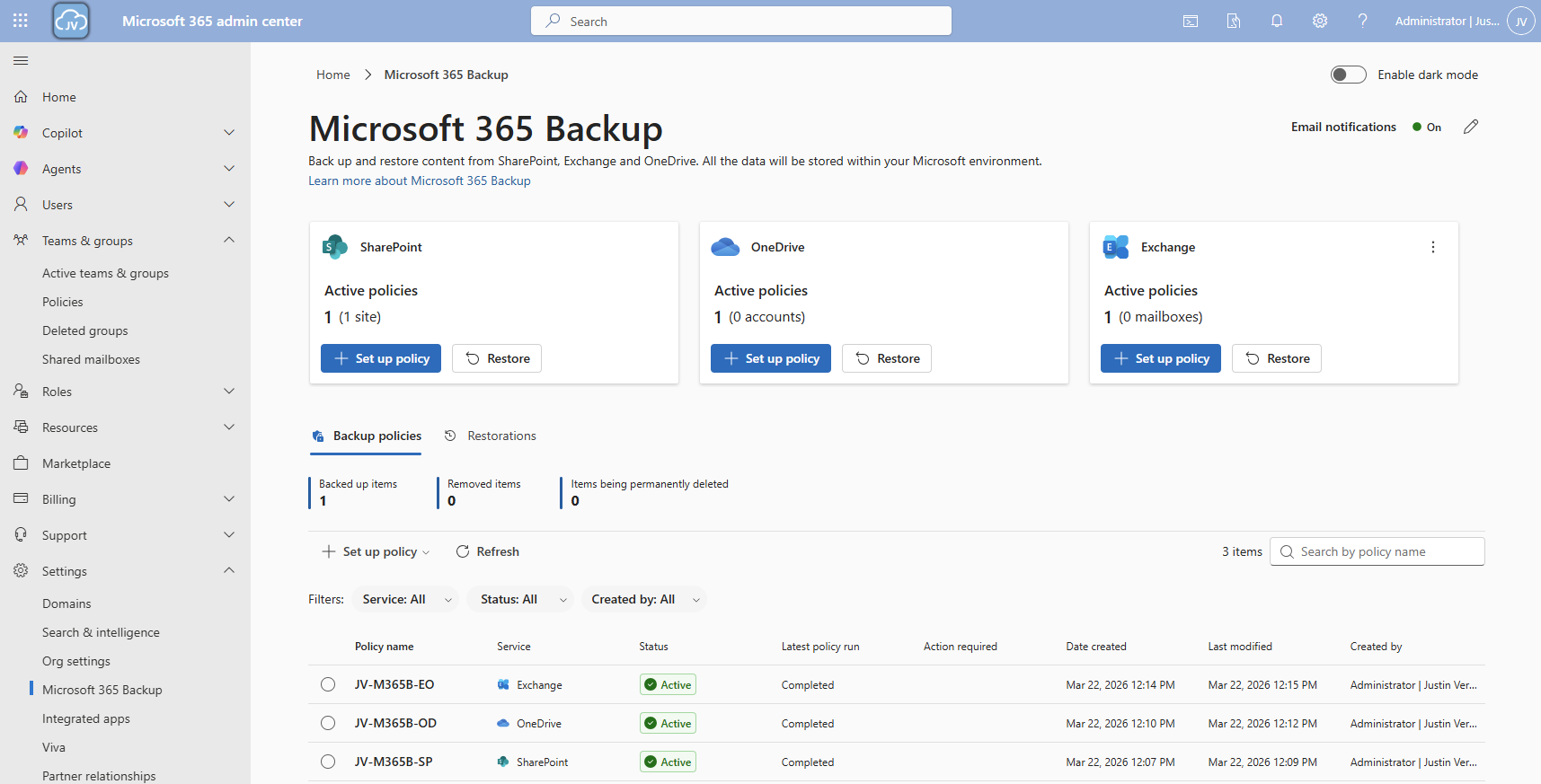
Microsoft 365 Backup has the following details:
- Retention up to 1 year
- 10 minute backup retention of 14 days
- Weekly backup retention of 365 days
- Backup frequency of every 10 minutes (RPO)
- 1TB to 3TB restore speed (RTO)
Microsoft 365 Backup Pricing
The pricing of Microsoft 365 Backup is $0,15 per month per stored gigabyte. This means every gigabyte that is protected is being billed. This is billed using the payment method of Azure and will be on that invoice. You could also create a separate subscription to receive a separate invoice.
For example:
- 5 Mailbox of 25GB including deleted items
You will pay 5 x 25 x $0,15 per month which is $18,75 per month. The duplicate data that is being saved is not billed, as deduplication techiques are being used: Incremental backups.
An example of forecasted costs for an environment with backups enabled can be (with low and heavy users):
| Type | SharePoint size | Onedrive size | Mailboxes size | Total costs/month* |
| 5 users (low) | 25GB | 32,5GB | 32,5GB | $ 13,50 ($2,70/user) |
| 5 users (heavy) | 100GB | 125GB | 125GB | $ 52,50 ($10,50/user) |
| 25 users (low) | 100GB | 125GB | 125GB | $ 52,50 ($2,10/user) |
| 25 users (heavy) | 500GB | 625GB | 625GB | $ 262,50 ($10,50/user) |
| 250 users (low) | 500GB | 625GB | 625GB | $ 262,50 ($1,05/user) |
| 250 users (heavy) | 5000GB | 6.250GB | 6.250GB | $ 2.625,- ($10,50/user) |
*$ 0,15 per GB/month
As you can see, it totally depends on how many data is backed up, and selecting only crucial sites/users is crucial. You have to create a cost estimate based on the items you need the extra retention for. Maybe for most of the users, like frontline workers or people with only an email address and some OneDrive, the recycle bin and versioning options with 93 days of retention is more than enough.
You can find currect usage easily through the Microsoft 365 Admin center (https://admin.cloud.microsoft) and then to “Reports” and then “Usage”:
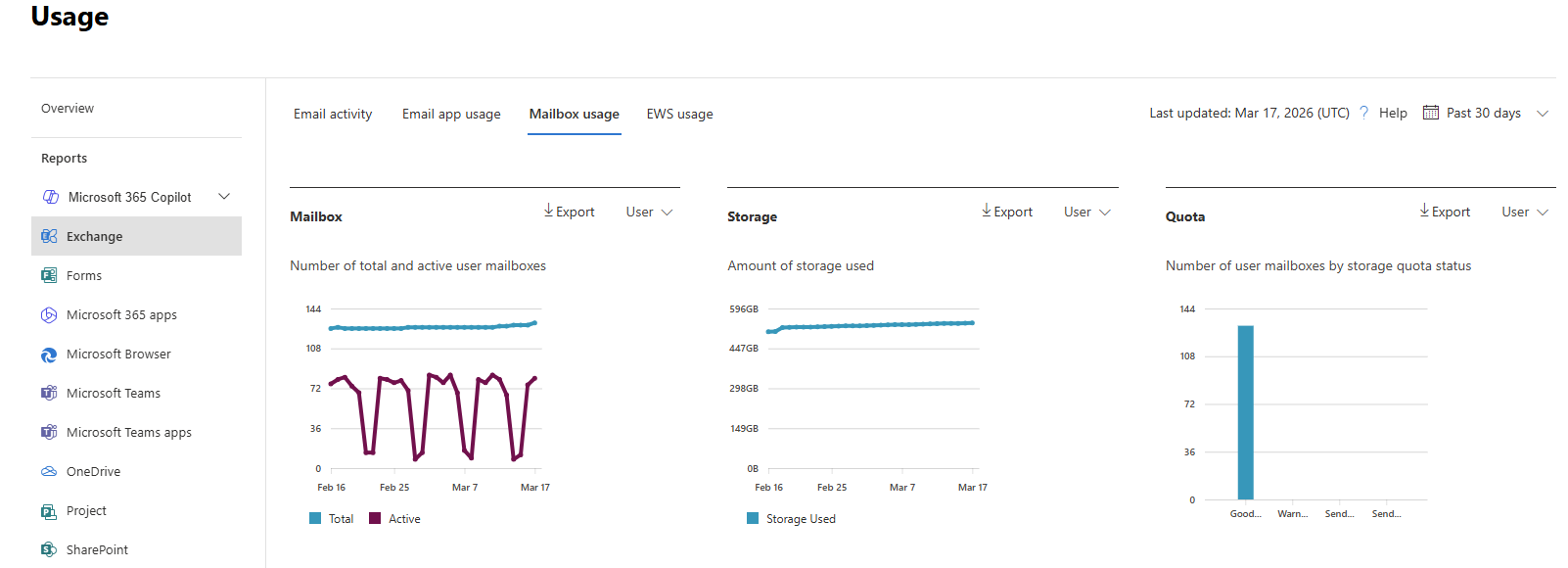
Tip: Calculate your actual data usage with this PowerShell scripts of Microsoft: https://learn.microsoft.com/en-us/microsoft-365/backup/backup-pricing?view=o365-worldwide#finding-the-sizes-of-stored-data
Required permissions for Microsoft 365 Backup
To be more prepared, let’s review the permissions/roles you need to configure and restore with Microsoft 365 Backup.
- SharePoint Administrator (least-privileged)
- Global Administrator (the boss of the tenant)
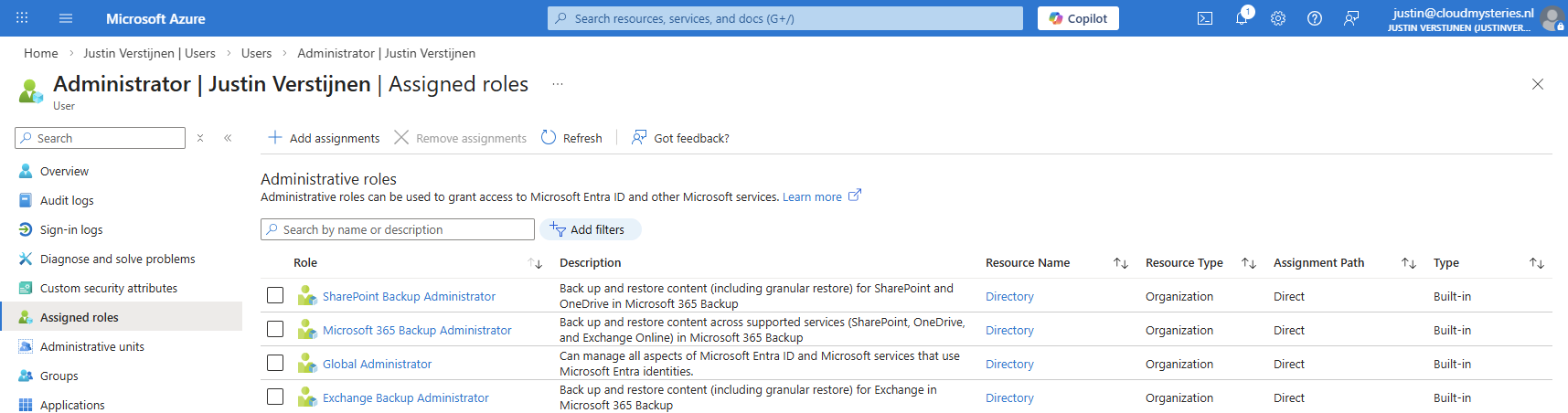
If you want to use the file level restore options, you need to have these roles assigned, even with Global Administrator permissions already assigned, keep this in mind:
- SharePoint Backup Administrator
- Exchange Backup Administrator
Step 1: Create a designated resource group
First we will creeate a separate resource group for our Microsoft 365 Backup policy. Go to the Azure Portal (https://portal.azure.com).
Then create a new resource group in your subscription:
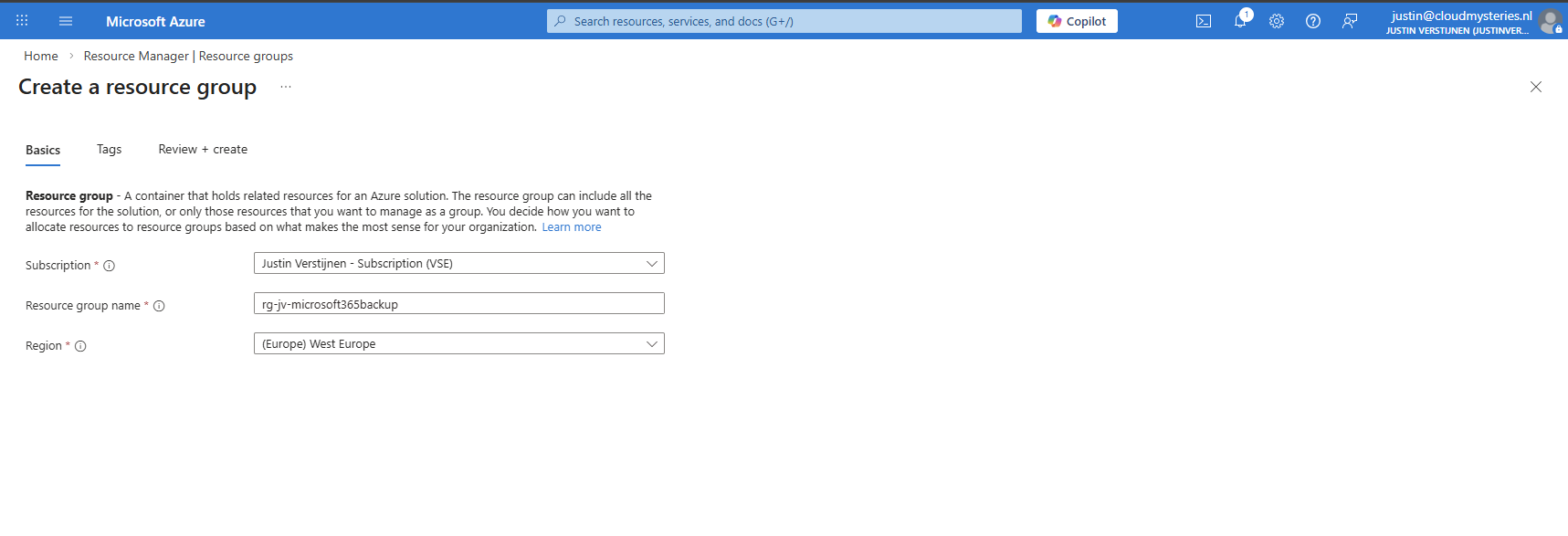
After creating the resource group, it will be ready to deploy resources into.
Step 2: Create a Billing policy
Now we can start by preparing Microsoft 365 Backup in your tenant. Go to the Microsoft 365 Admin center (or directly to: https://admin.cloud.microsoft/?#/Settings/enhancedRestore)
Then go to Settings -> Microsoft 365 Backup
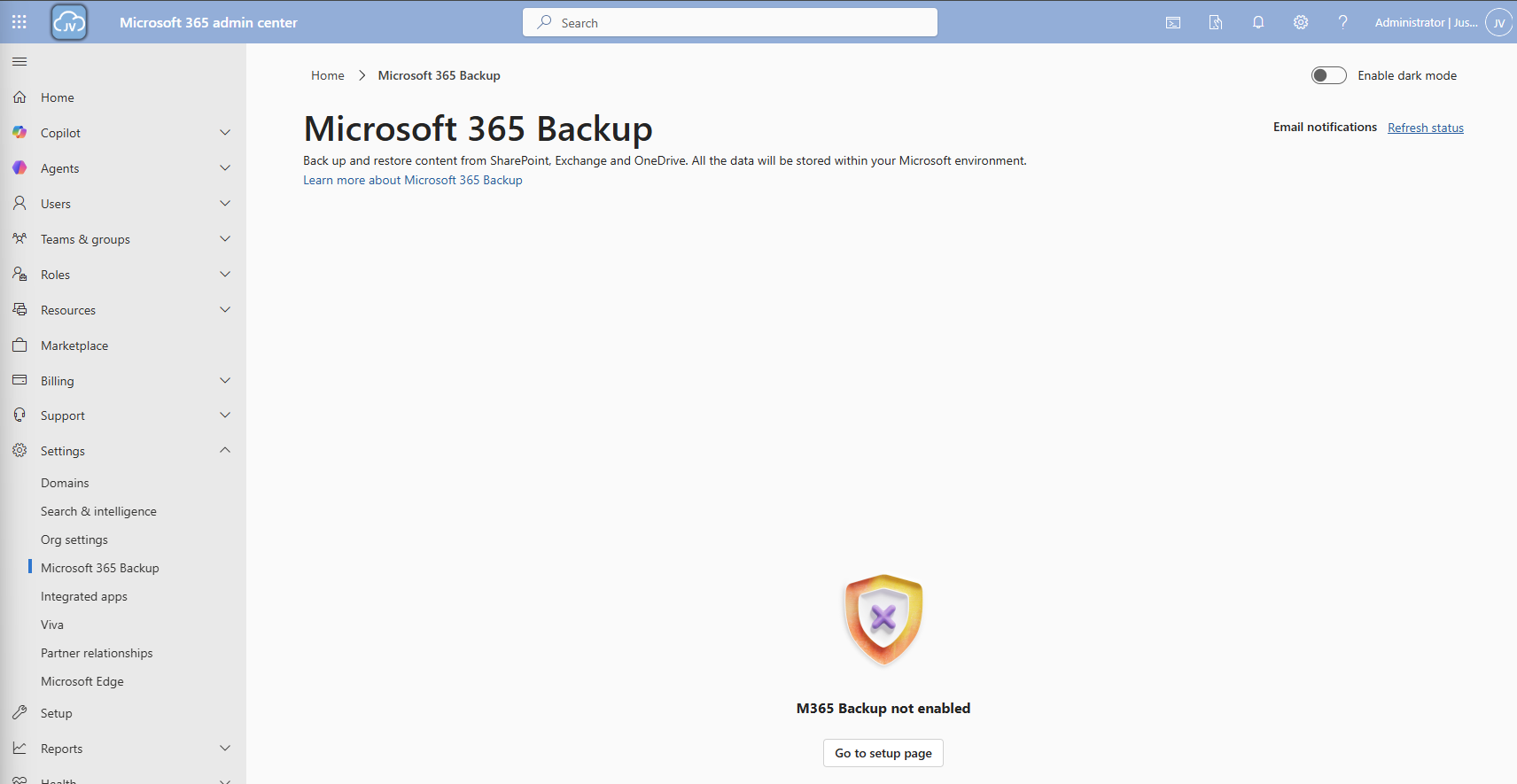
Then click on the “Go to setup page” button and you will be redirected to the billing options.
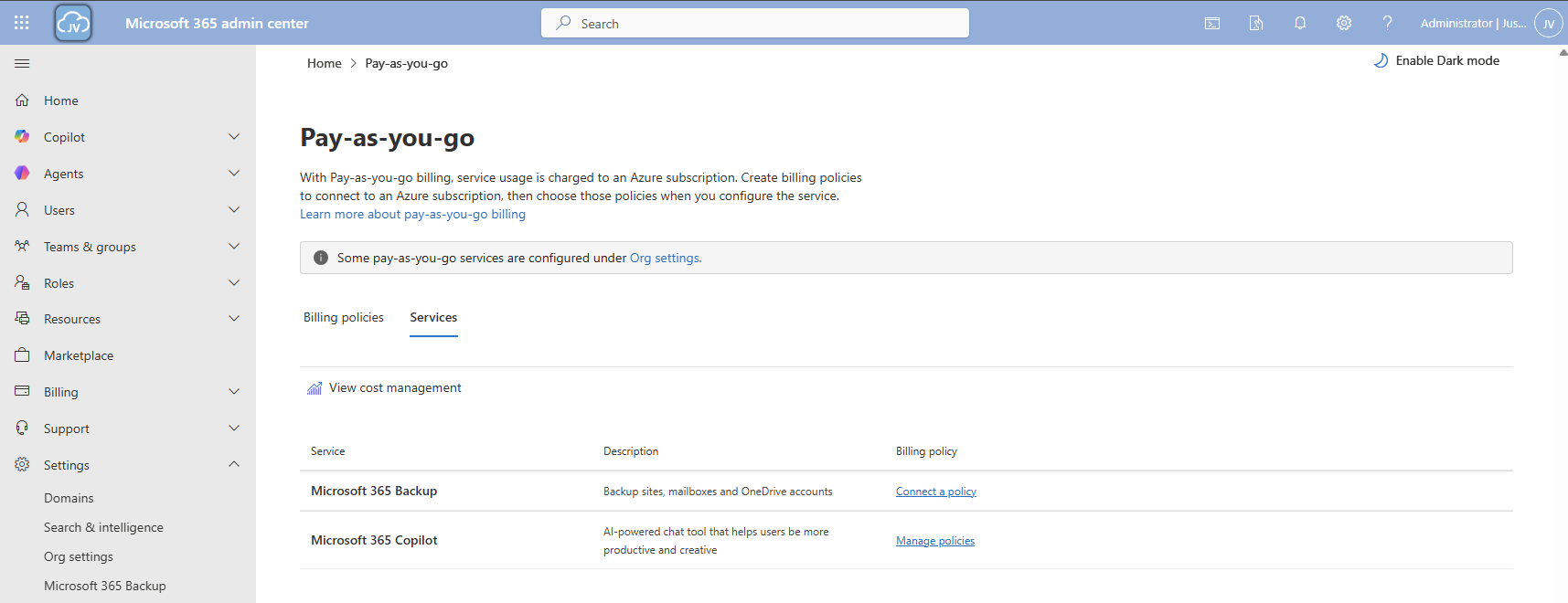
Click on the “Services” tab here and there we have Microsoft 365 Backup. To actually use Microsoft 365 Backup, we need to create a billing policy.
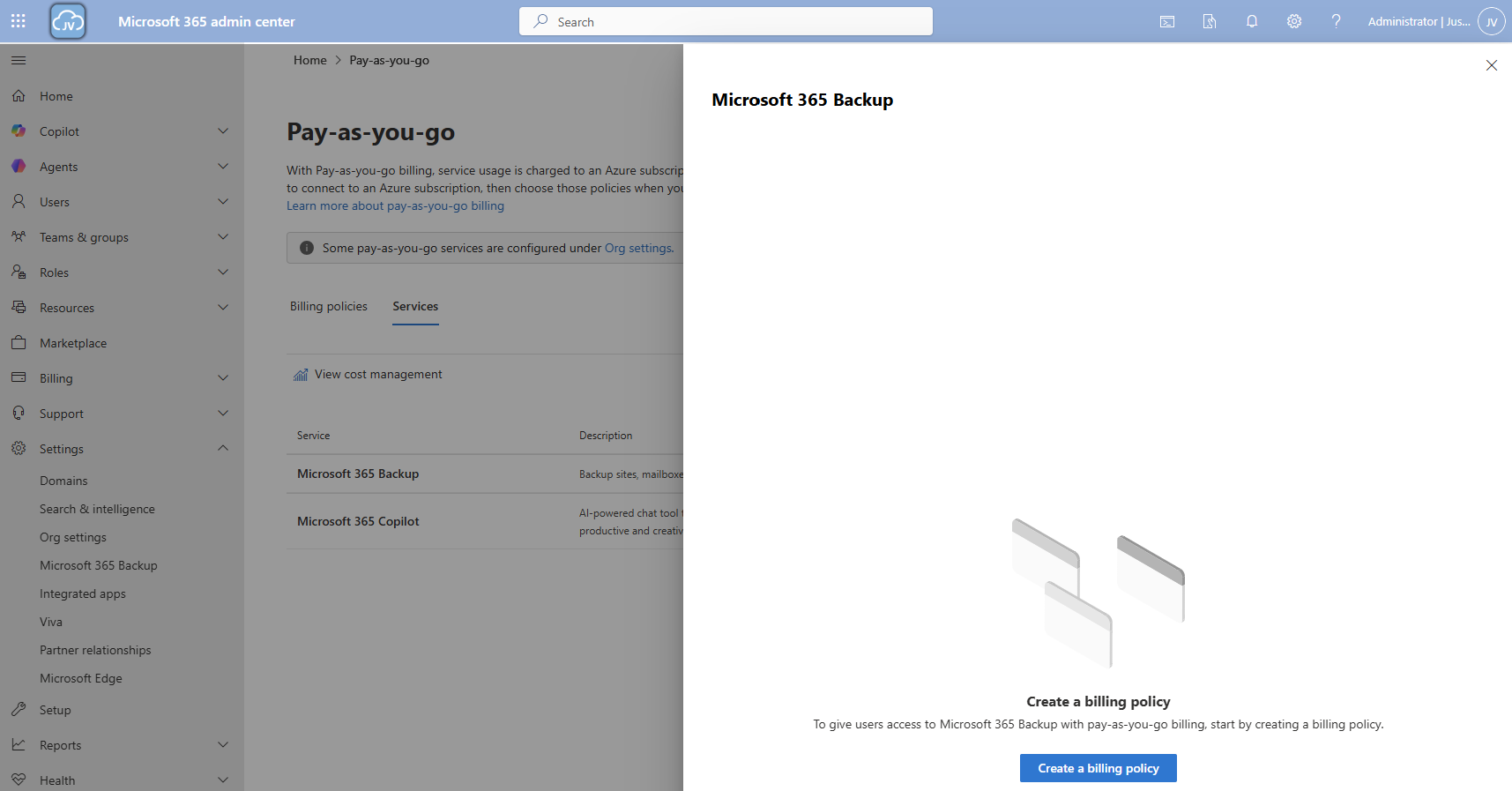
Click the “create a billing policy” button to create one.
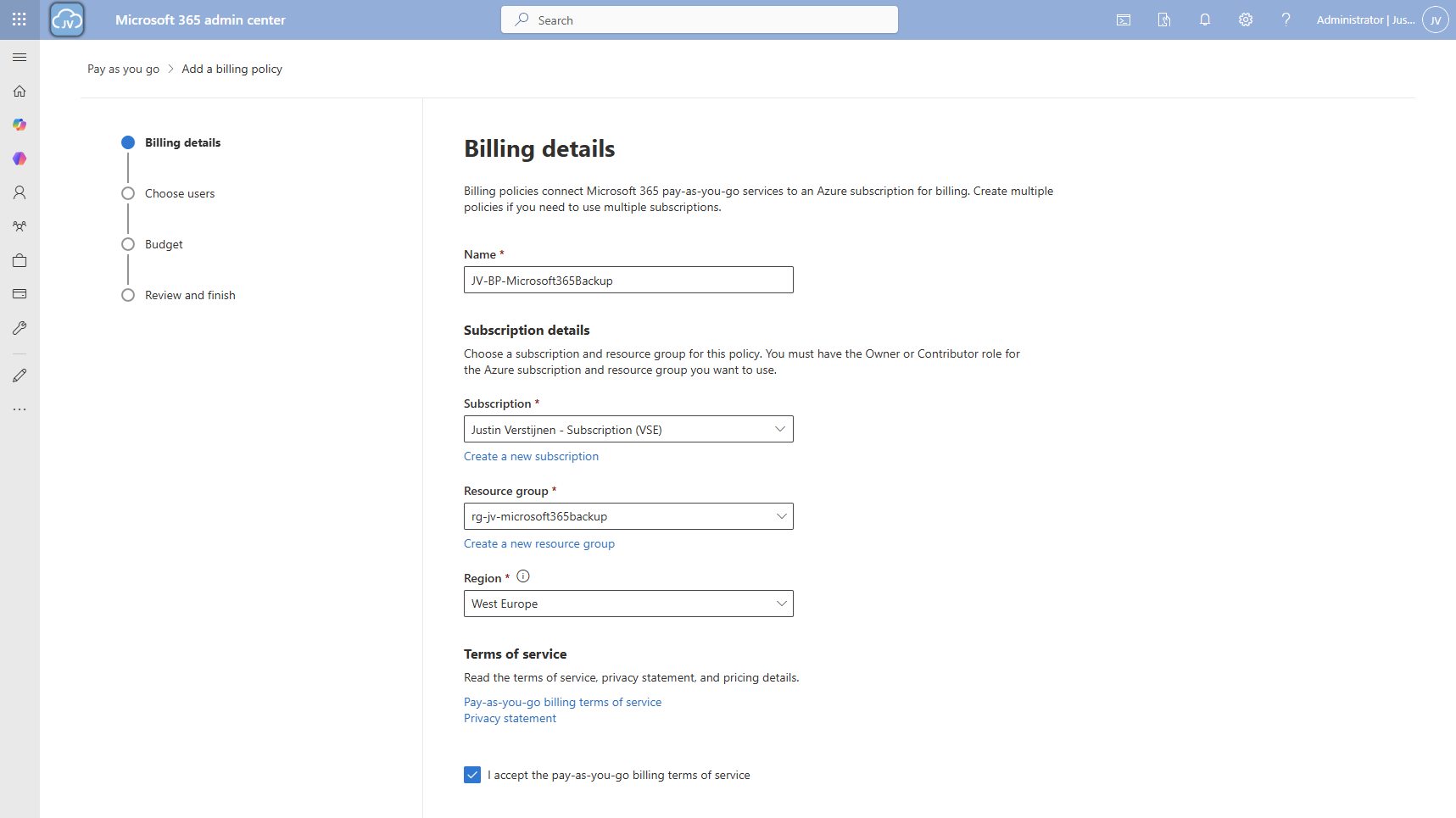
Fill in the details, and select your Azure subscription and just created resource group. The region can be any region of choice. Preferrably the closest one to you or what you need in terms of regulatory compliance.
Click “Next”.
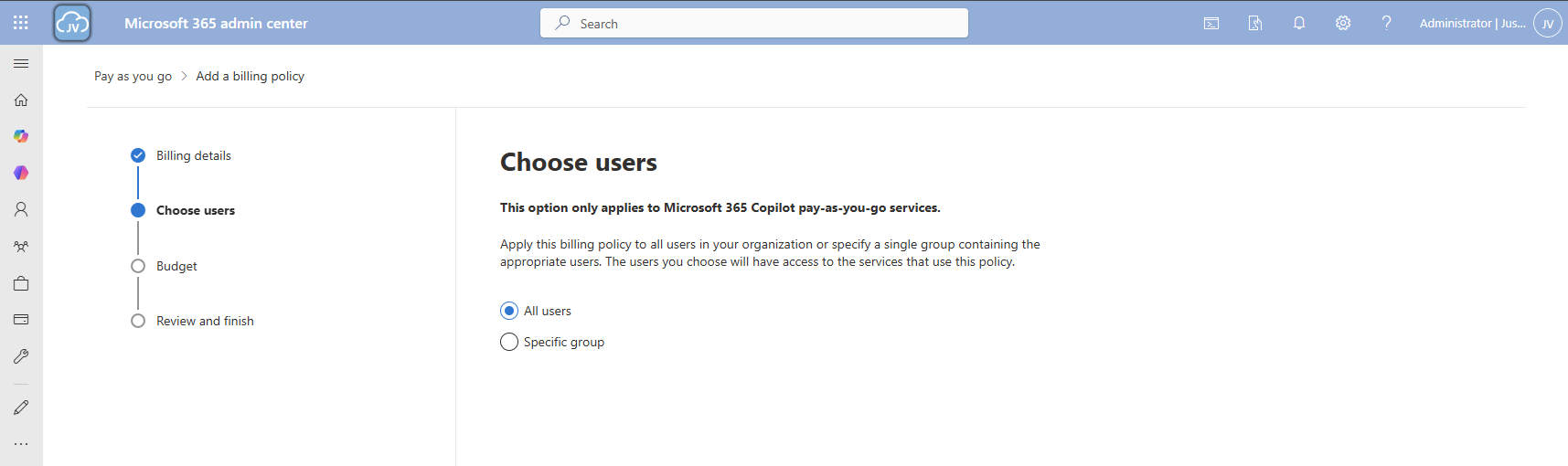
On the “Choose users” page choose one of the two options. I chose “All users”. Then click “Next”.
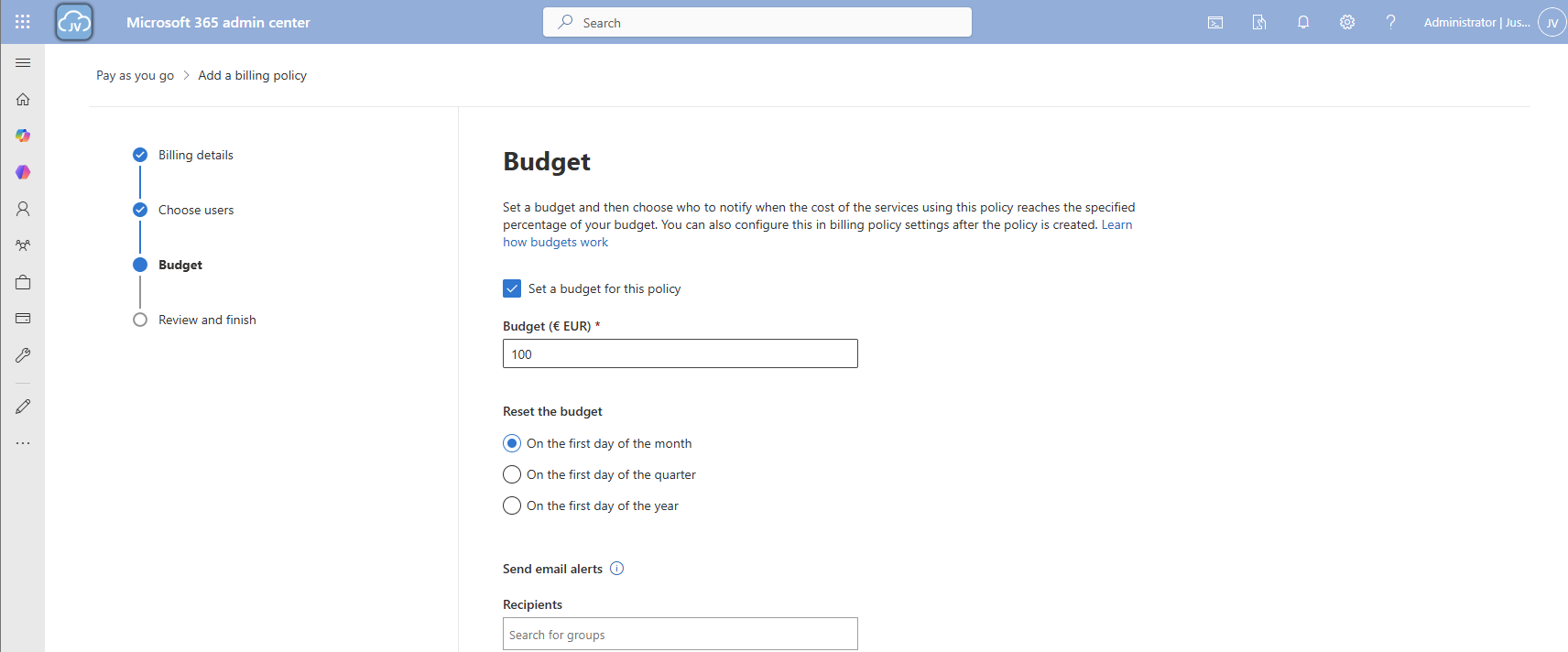
On the “Budget” page, you can set a budget, or maximum amount of money you want to spend on this solution.
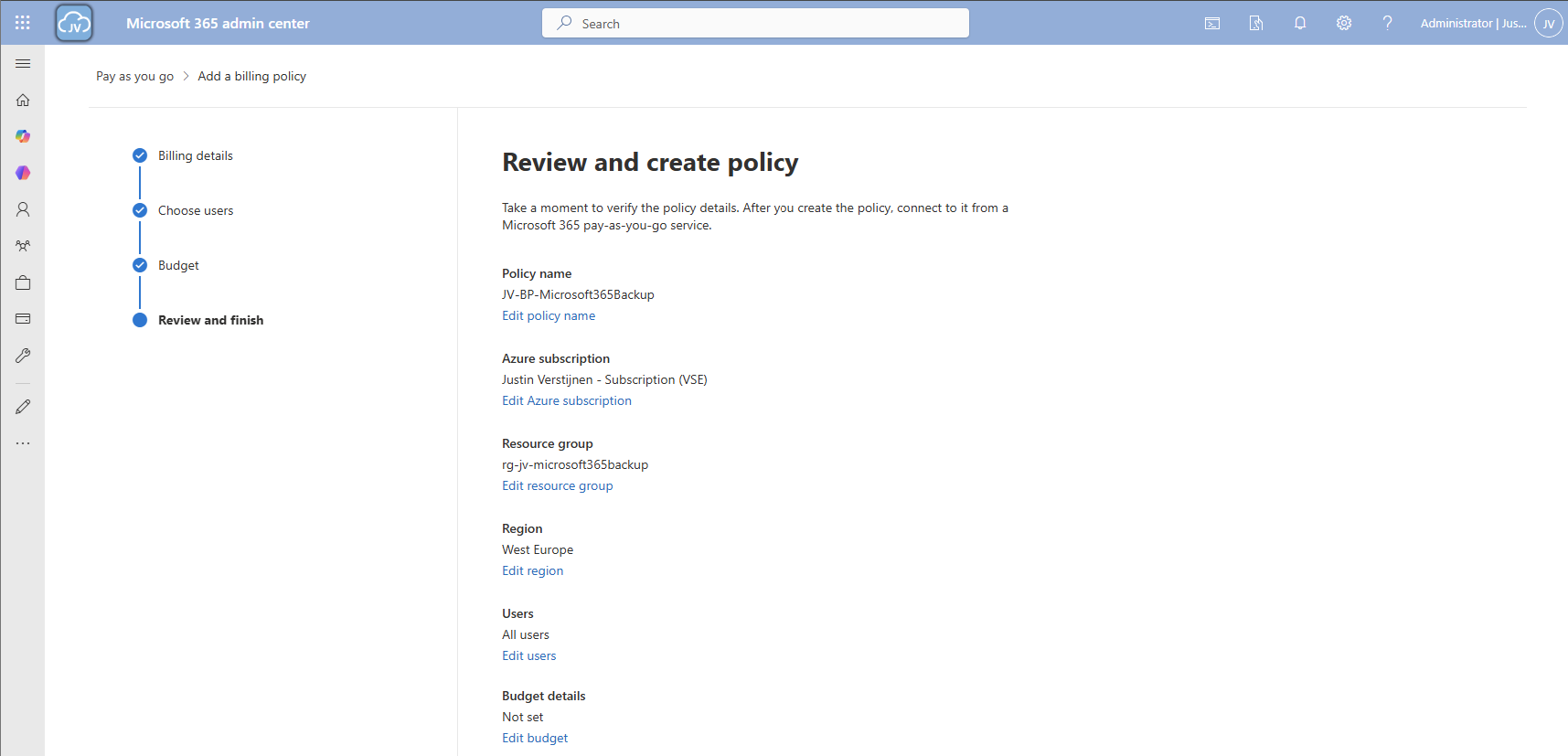
Finish the policy and we are ready to go.
Step 3: Connect Microsoft 365 Backup service to billing policy
Now that we have our billing policy in place, we can now connect the Microsoft 365 Backup service to this policy. On the “Billing policies page, click “Services” and then “Microsoft 365 Backup”.
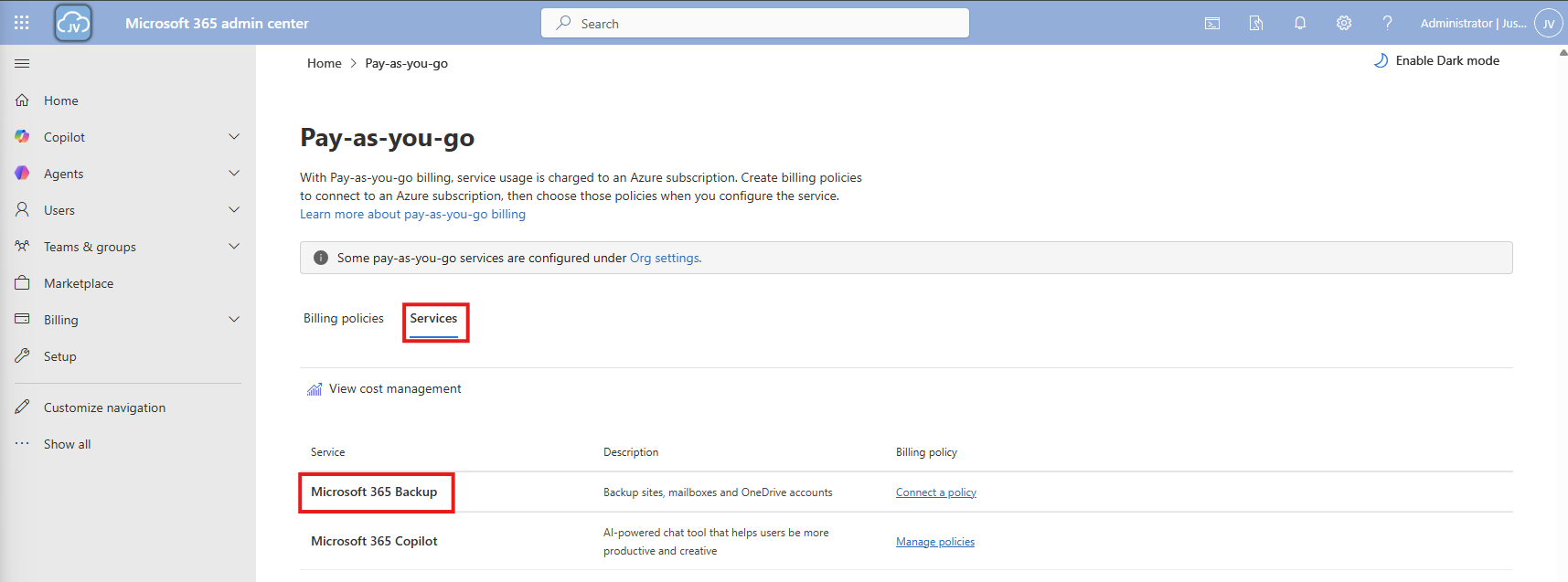
A blade will now come from the right. Select the “Billing policies” tab there and enable the switch to connect the service to your created billing policy.
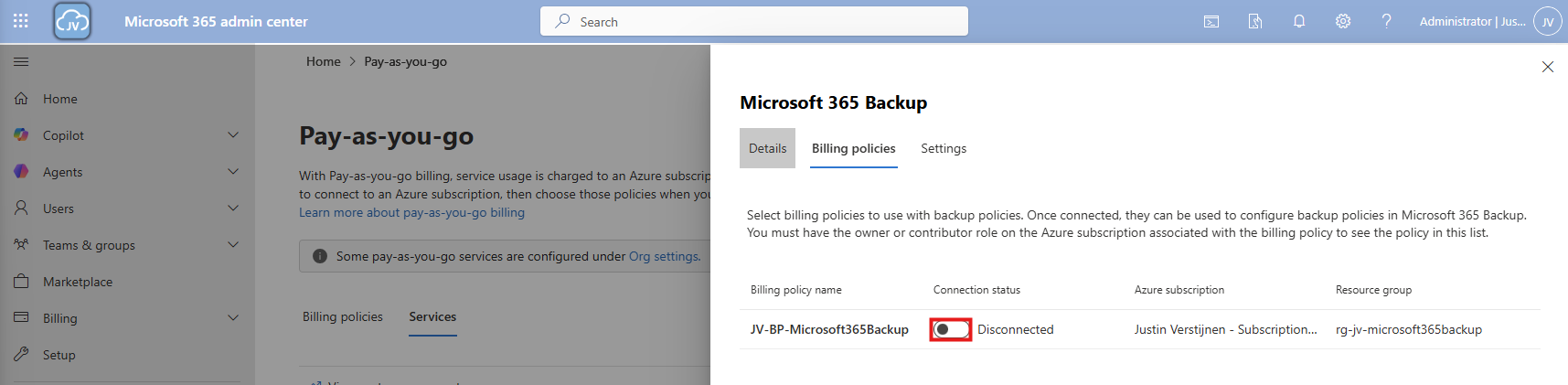
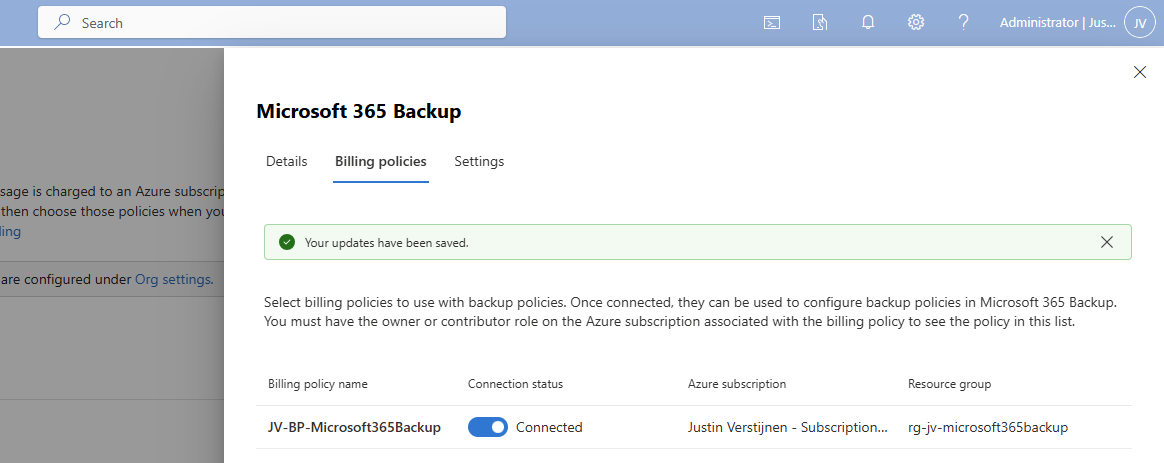
After enabling this and saving, the service is now linked to your billing policy.
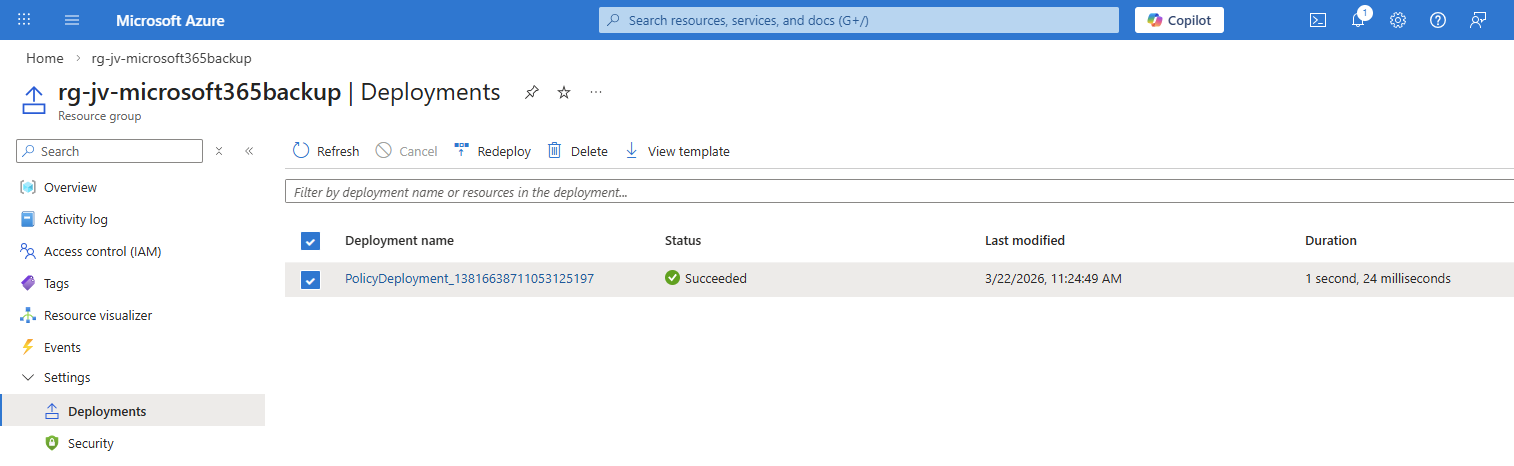
And as we can see in Azure, a policy is now deployed to our resource group:
Step 4: Configure Microsoft 365 Backup for SharePoint
Now that we have connected the service to our Azure subscription, we actually enabled the service but without any configuration. By going again to the Microsoft 365 Backup blade, we will be shown this:
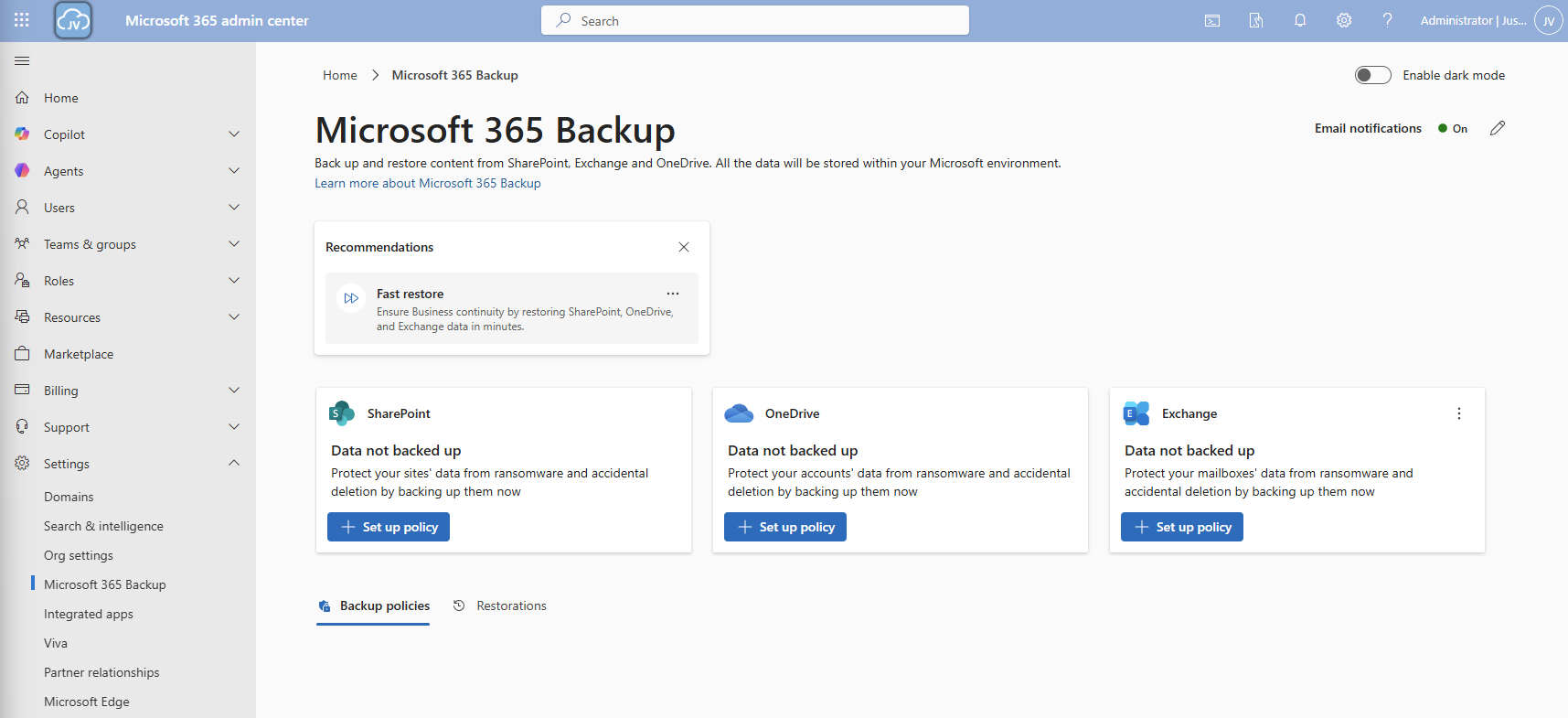
We will first configure a policy for SharePoint. Click on “+ Set up policy”. After that, click Next on the SharePoint backup policy page.
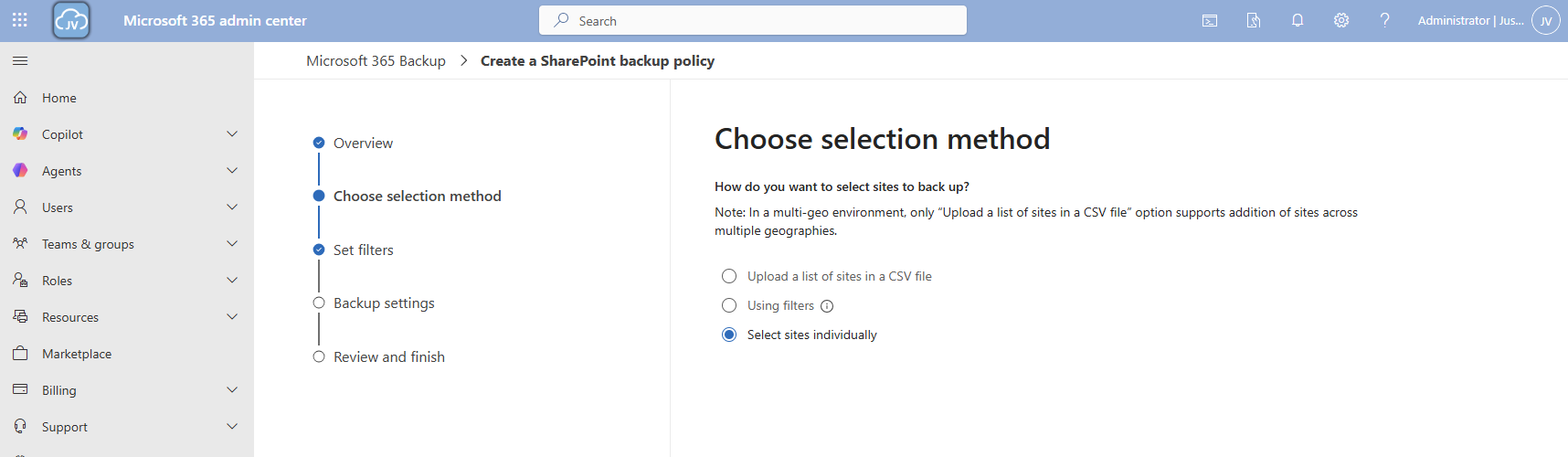
You can use the “filters” option, but you always need to add new sites manually. This is not a dynamic option. Therefore, the “Individual” option is more easy.
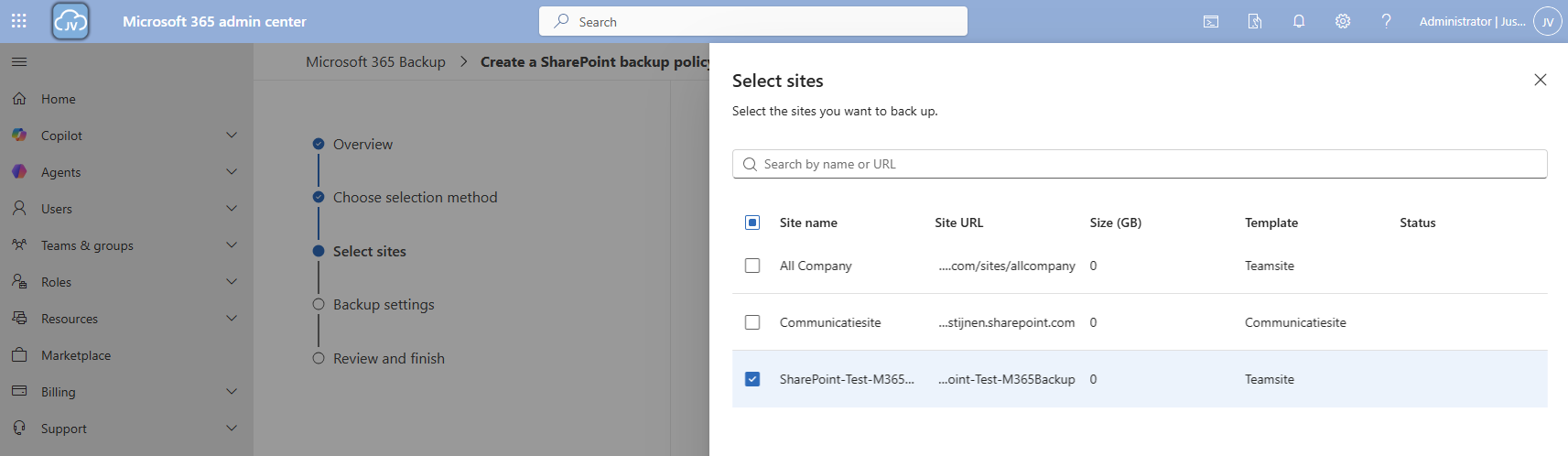
Here we can select how we want to select our SharePoint sites. I will use the “Individual” option here. Then select the sites you want to backup.
Then proceed to the “Backup settings” and give your policy a name.
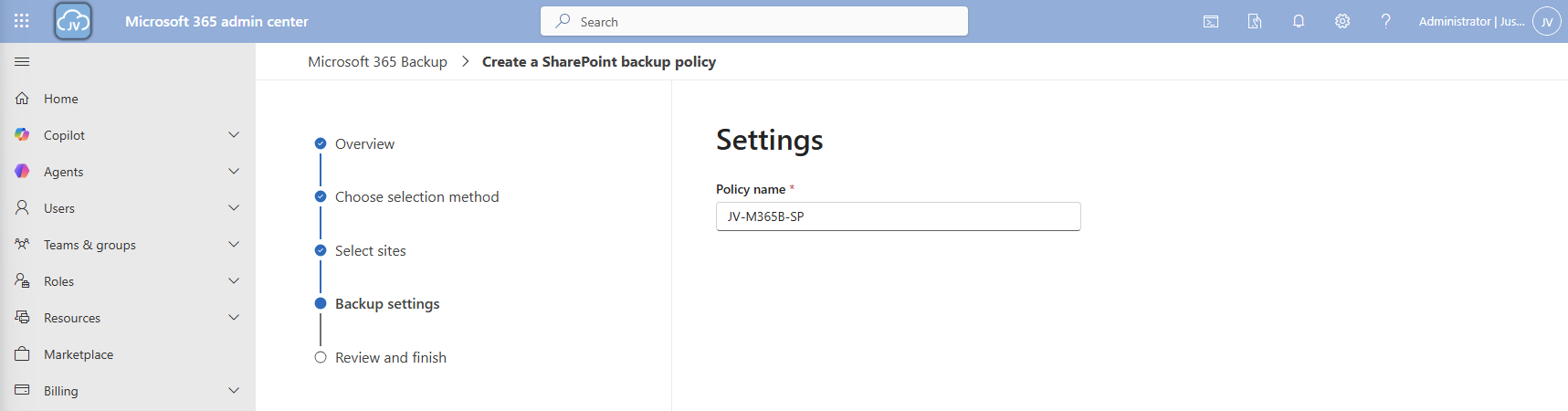
Then finish the wizard. The policy will directly start backing up your data:

Step 5: Configure Microsoft 365 Backup for OneDrive
Now we can configure the backup for OneDrive accounts. Click on the “+ Set up policy” button under “OneDrive”. Proceed to the wizard.
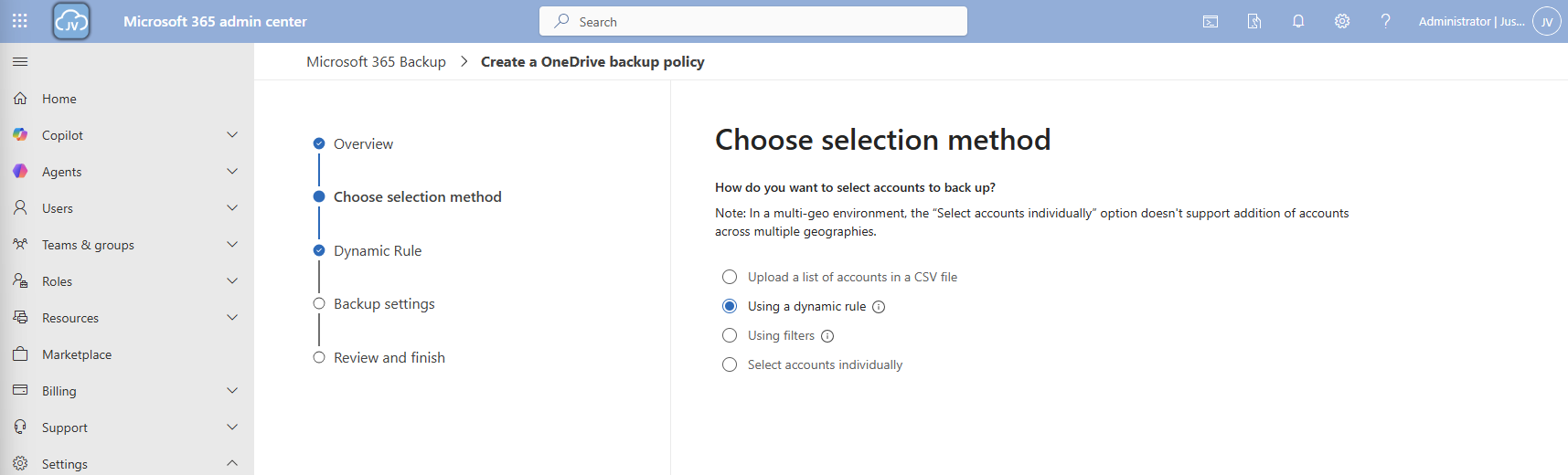
At the “Choose selection method” select the “Dynamic rule” option, as we want to automatically backup new accounts instead of changing the scope every time.
We can select two types here:
- Distribution lists
- Security groups
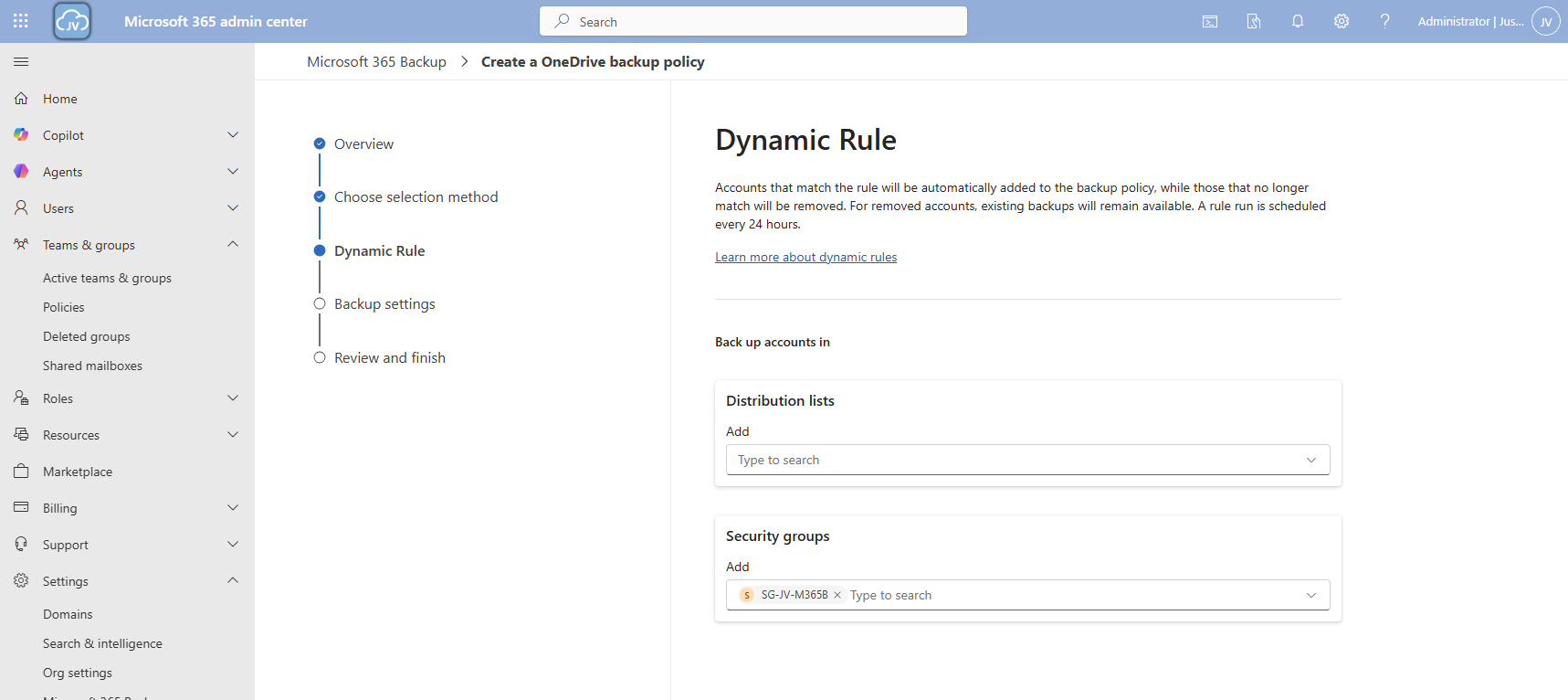
In my case, I created a dynamic security group containing all users. Then click “Next”.
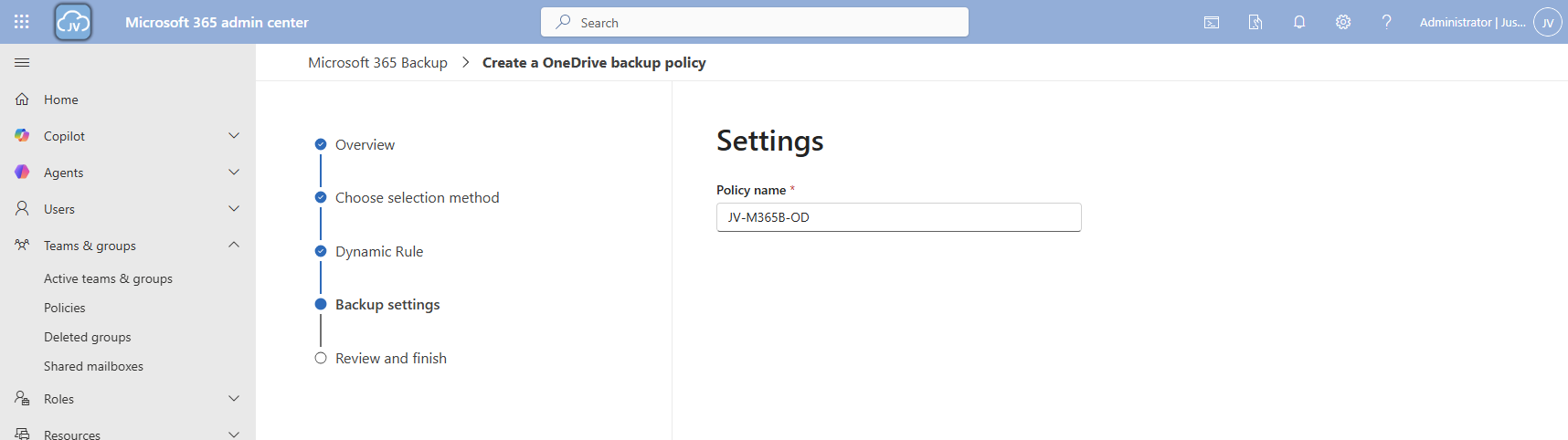
Give the policy a name and finish the wizard.
Now we have 2 policies in place:

Step 6: Configure Microsoft 365 Backup for Exchange
Now we can configure the backup for Exchange accounts. Click on the “+ Set up policy” button under “Exchange”. Proceed to the wizard.
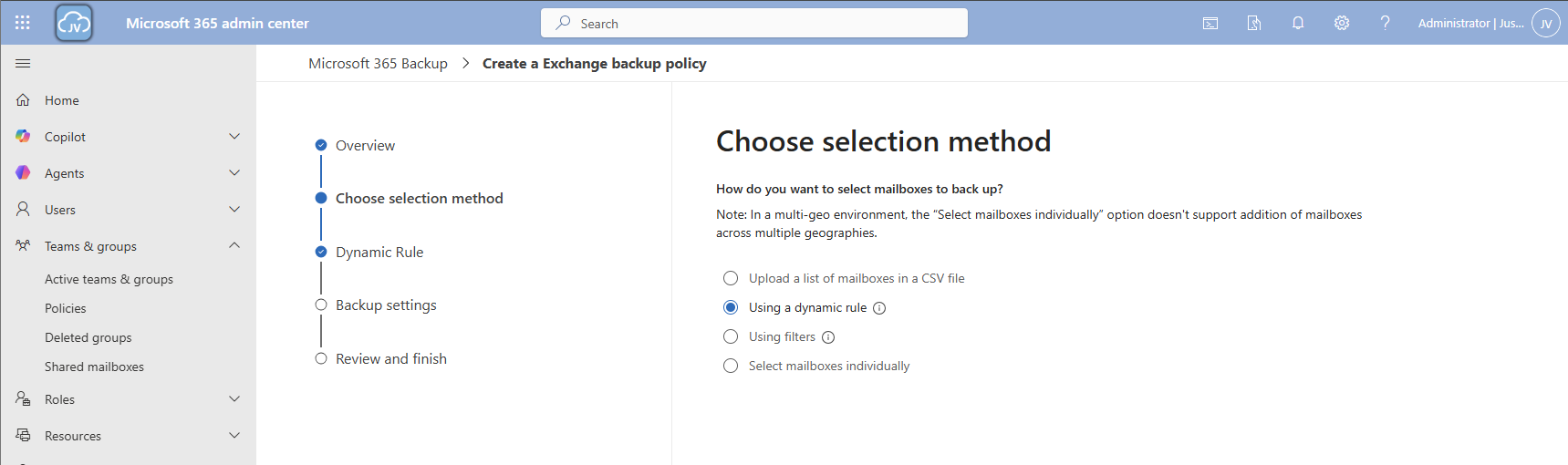
I once again use the dynamic rule option, to actually backup newly created accounts.
Here we can select two types of user sources similar to the OneDrive accounts:
- Distribution lists
- Security groups
In my case, I created a dynamic security group containing all users. Then click “Next”.
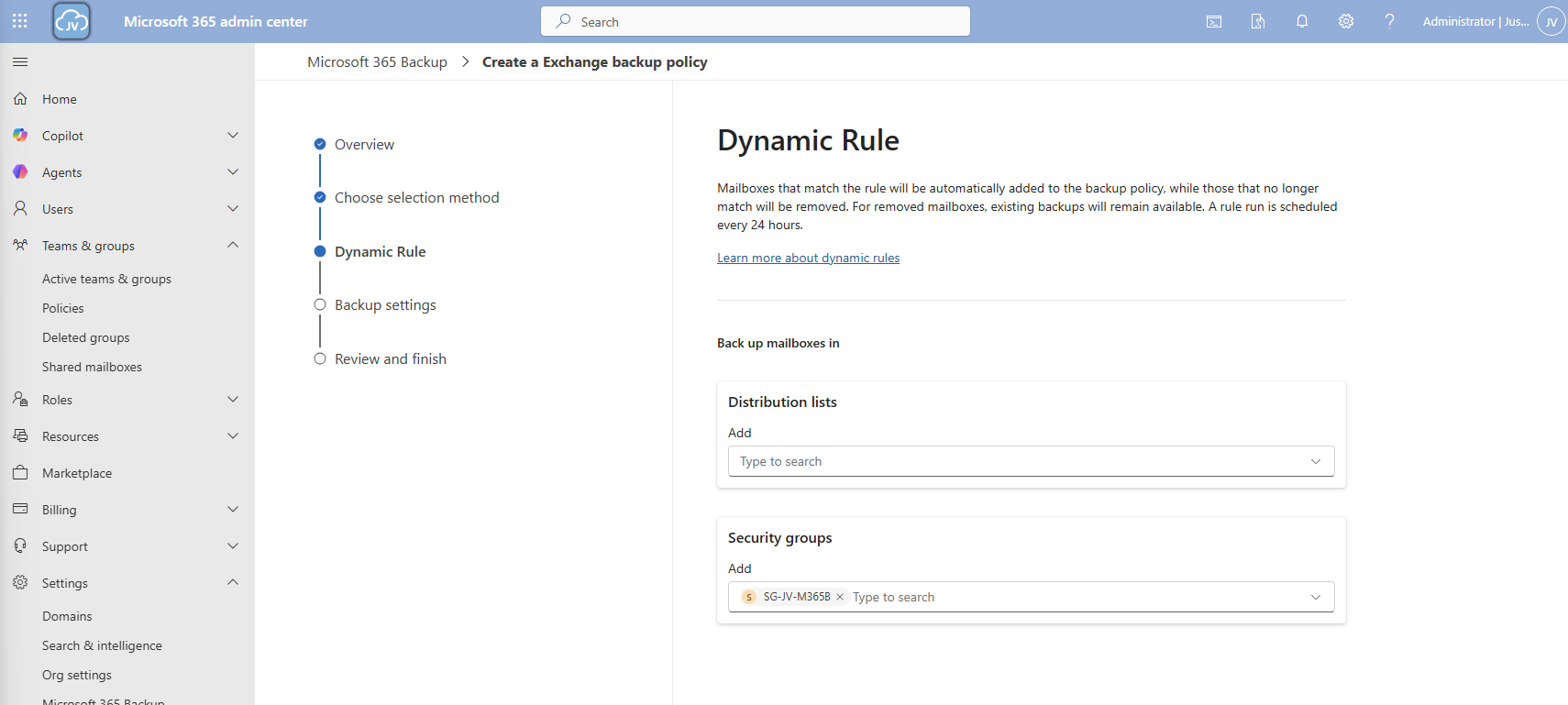
Click “Next”.
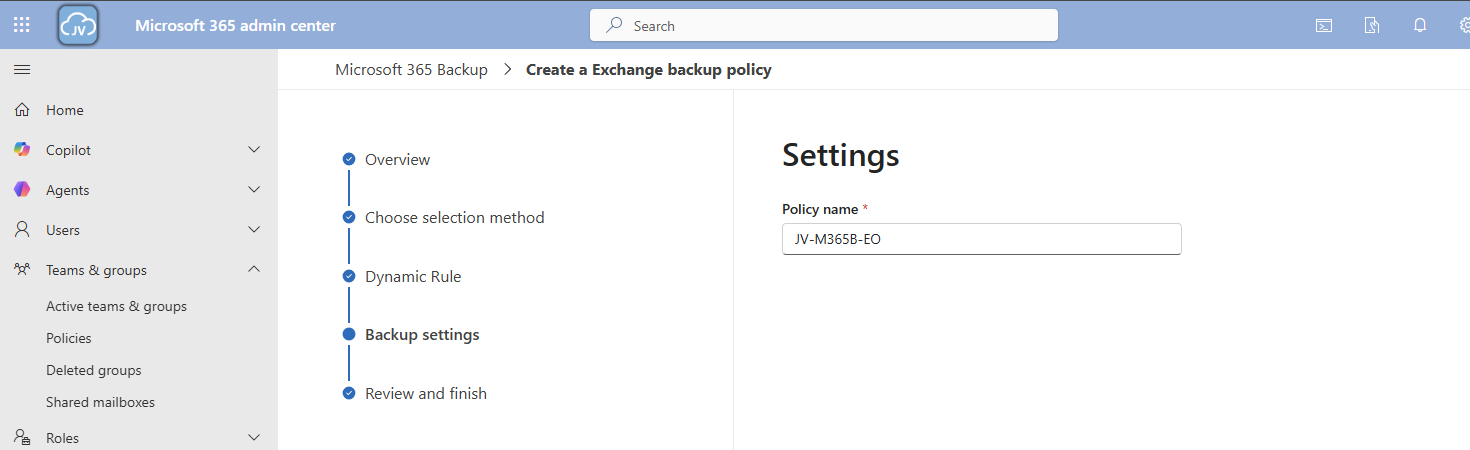
Give the policy a name and finish the wizard.
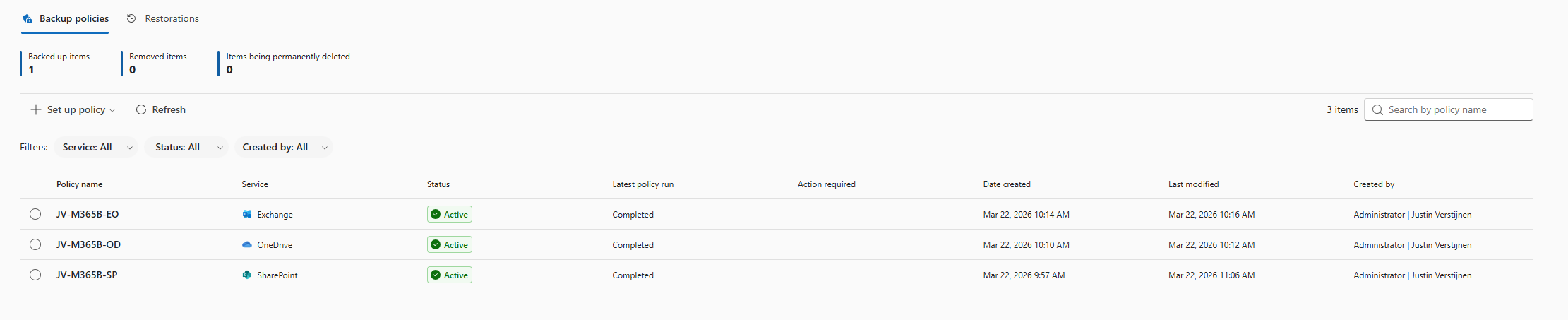
Now we have 3 policies in place:
Step 7: Restoring a full SharePoint Site
To actually test the backup method, we will place a file on the SharePoint site and restore the site. I placed a .zip file of around 200MB on the site I just selected and wait for Microsoft 365 Backup to backup the site:
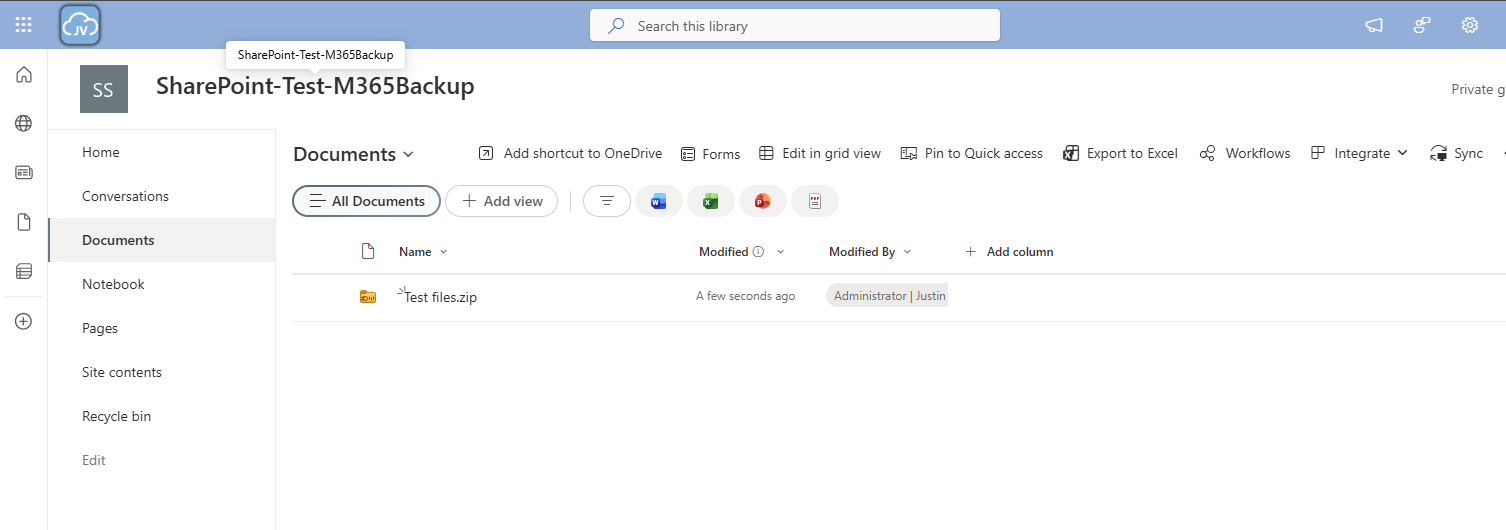
After around 10 minutes, this starts backing up:

And waiting for a few minutes will ensure the task has been completed:

Now we will delete the file from the SharePoint site:
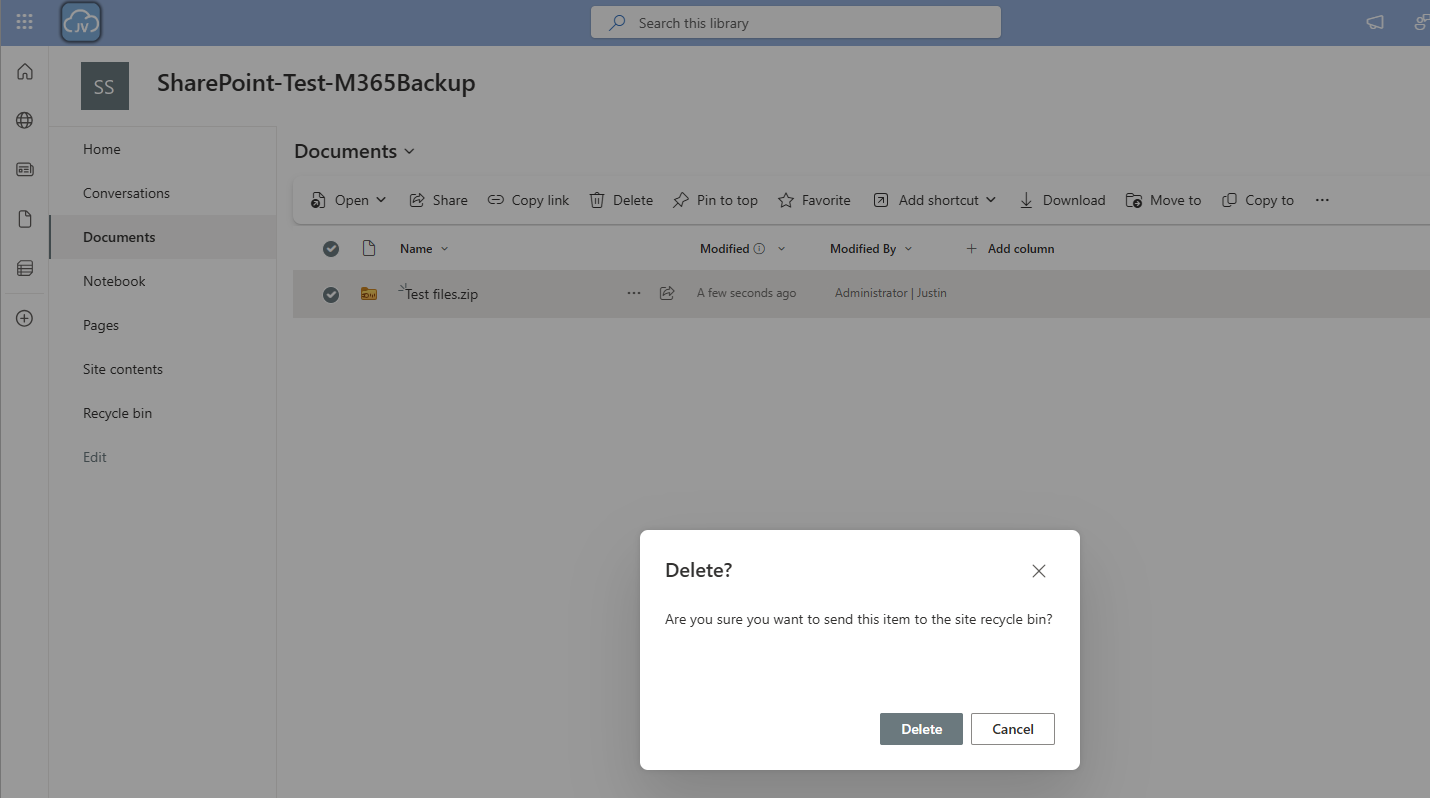

And let’s head back to Microsoft 365 Backup to actually restore the file. Under “SharePoint” I clicked on “Restore”
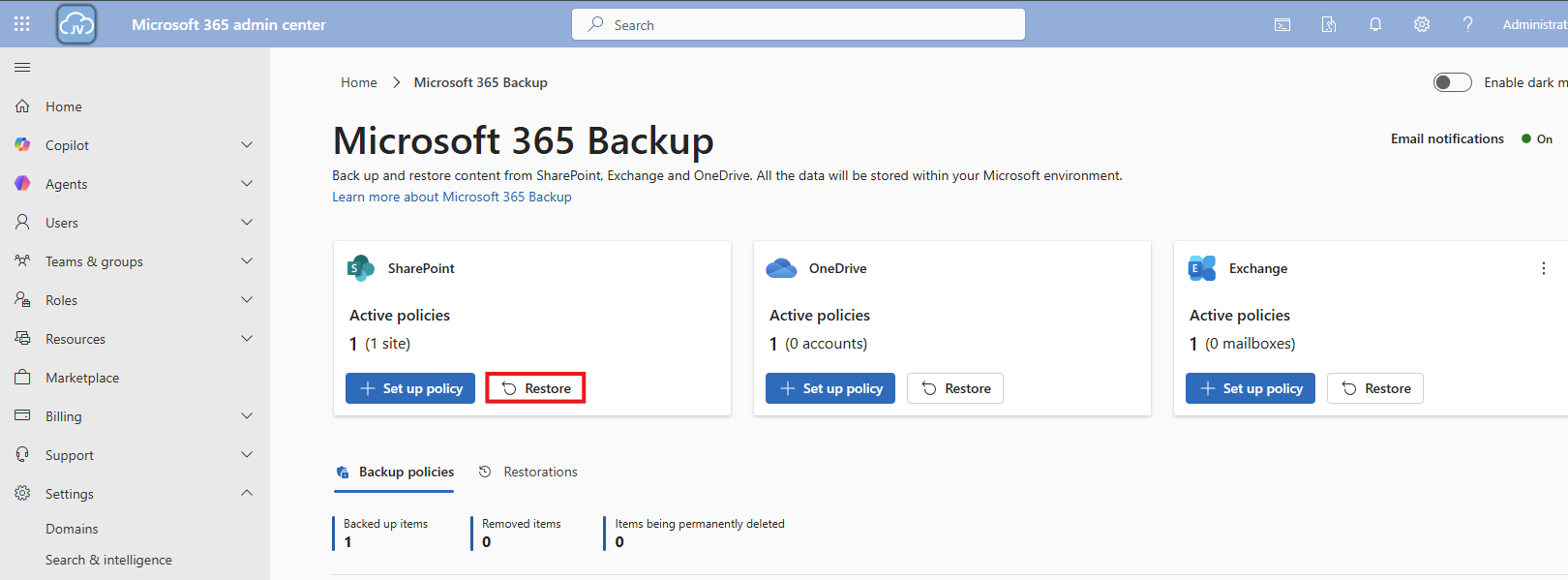
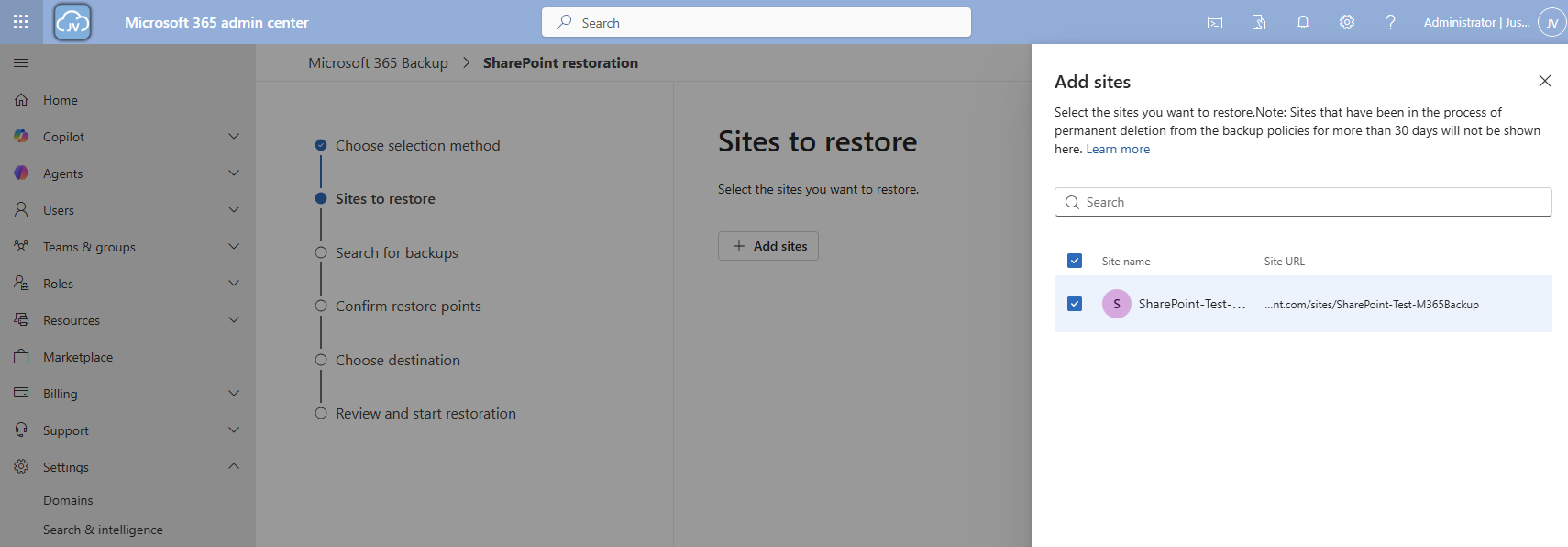
Follow the wizard by selecting your site where you want to recover files
Select your desired restore point, which will be obviously before any error or problem occurred. In my case, I deleted the file after 10:30 AM.
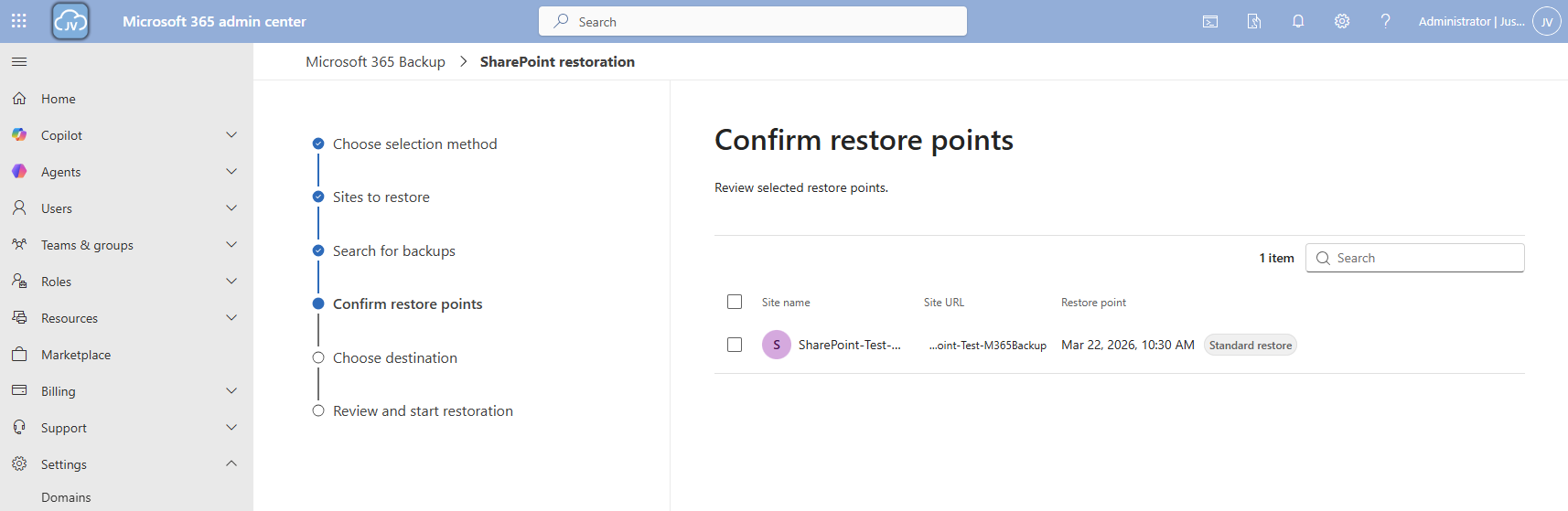
I selected this restore point and clicked “Next”.
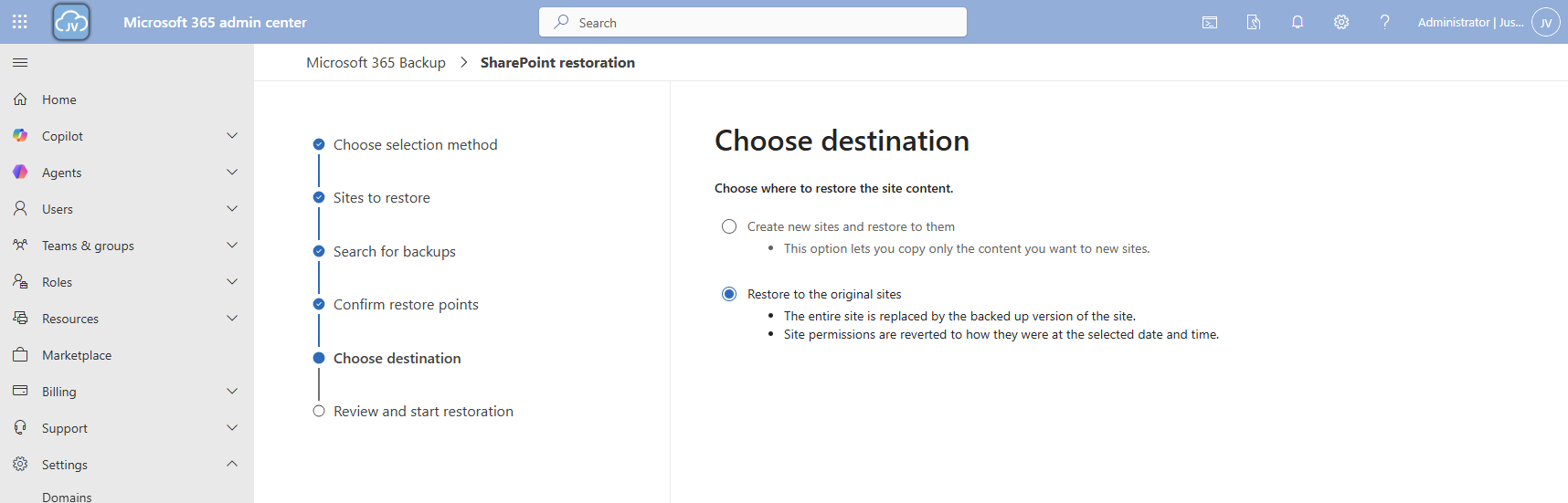
Now you can select to create a new copy SharePoint site with all the filed in it or to just restore it to the current site.
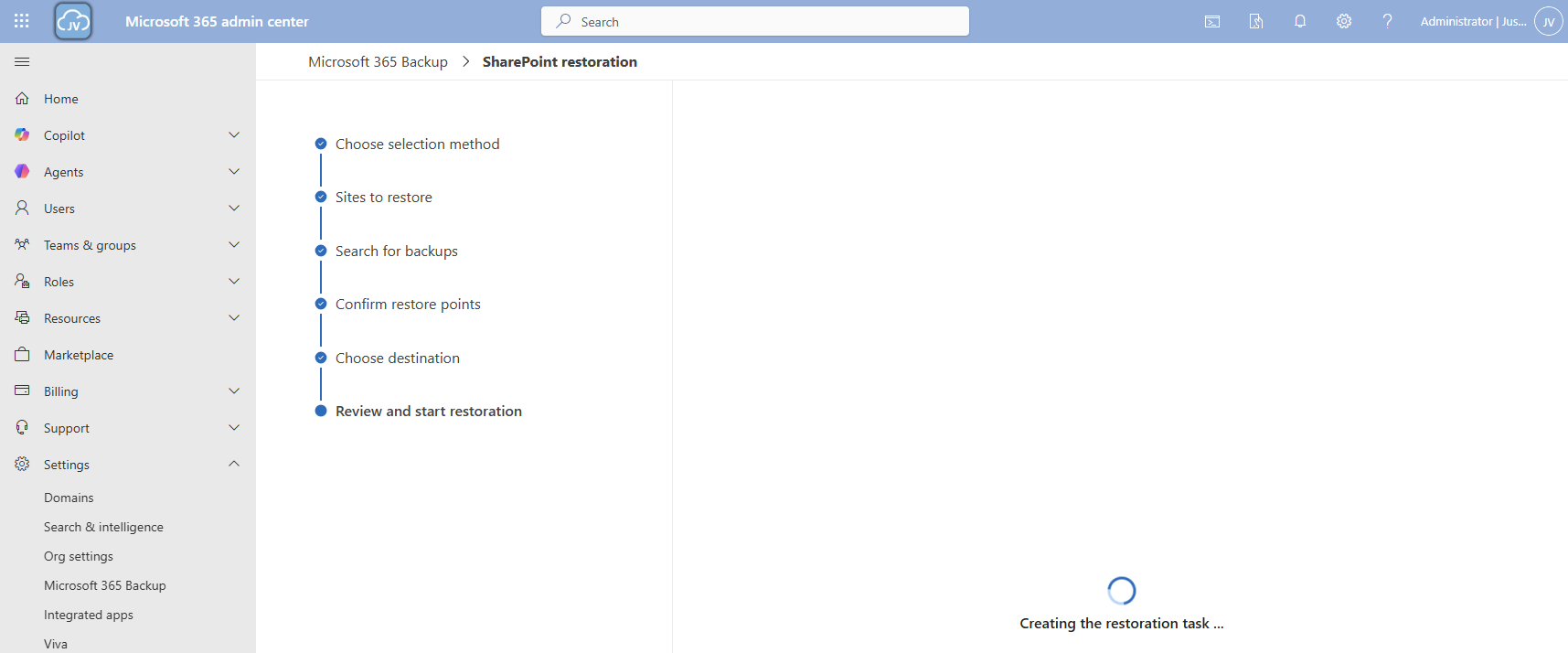
Now the restore action will be executed. In my case this took a while. Actually, around 3 hours:

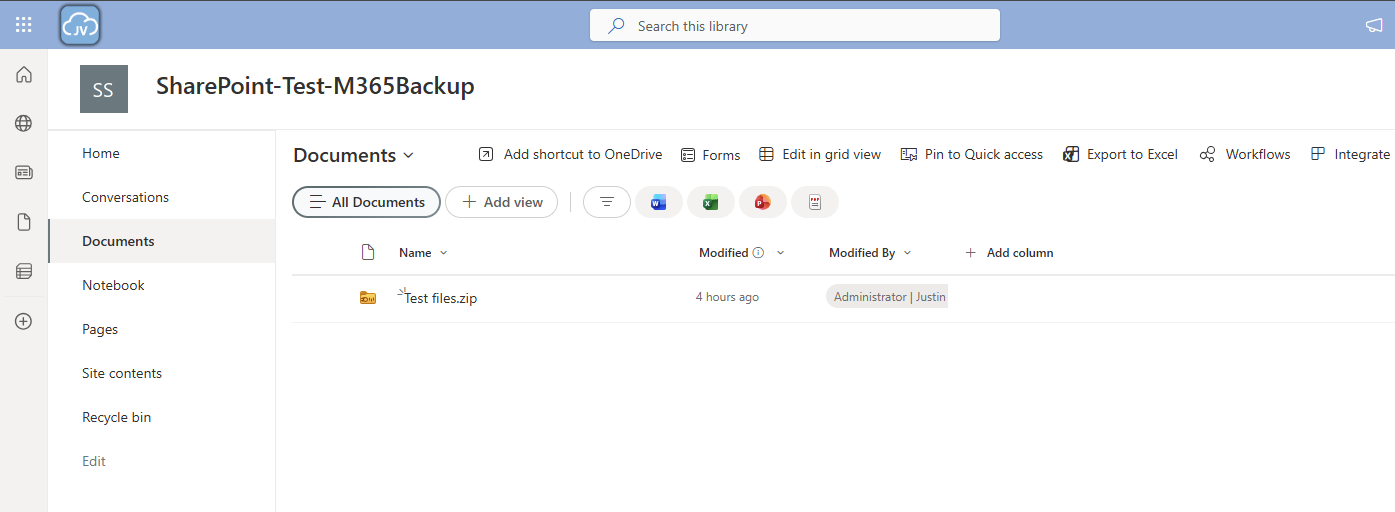
And as you can see, the file is back:
Step 8: Restoring a single file on OneDrive
Because we want also be able to restore a single file, let’s try to restore one single file in a OneDrive folder either.
Once again the reminder that your account needs these permissions to perform single-file restore actions for OneDrive:
- SharePoint Backup Administrator
In the Microsoft 365 Backup pane, under “Onedrive” click on “Restore”:
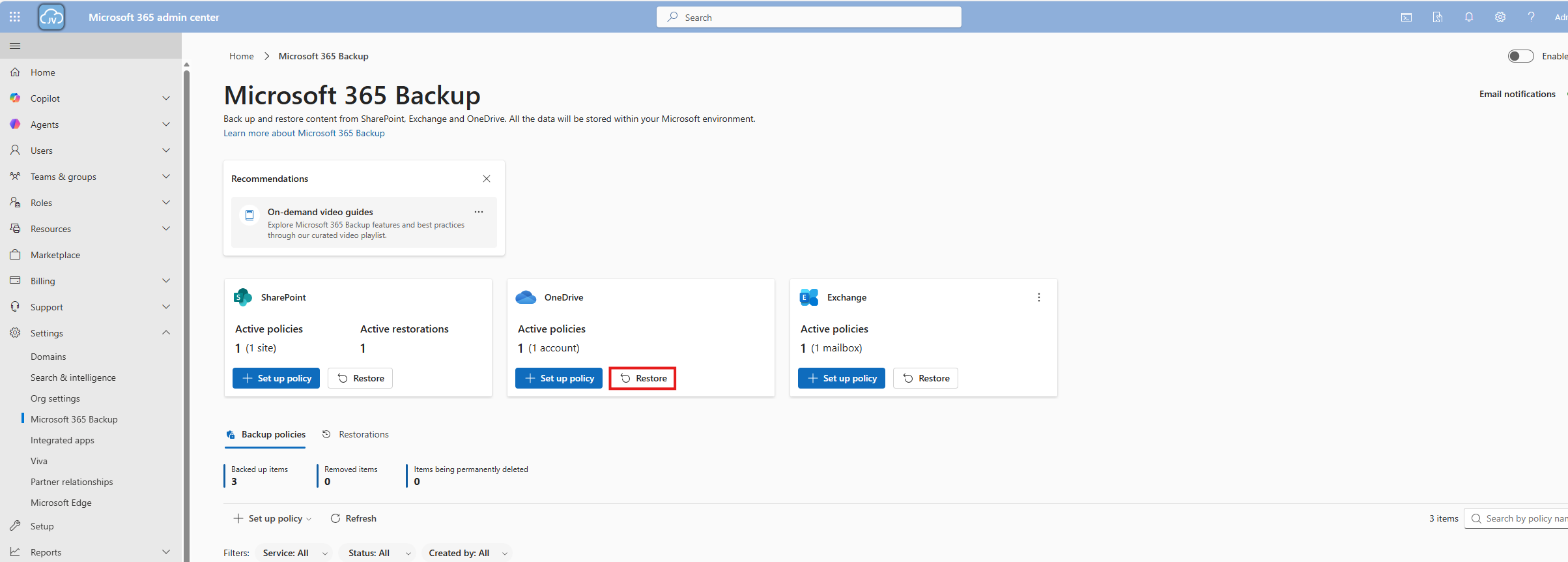
Use the “Restore specific files or folders” option.
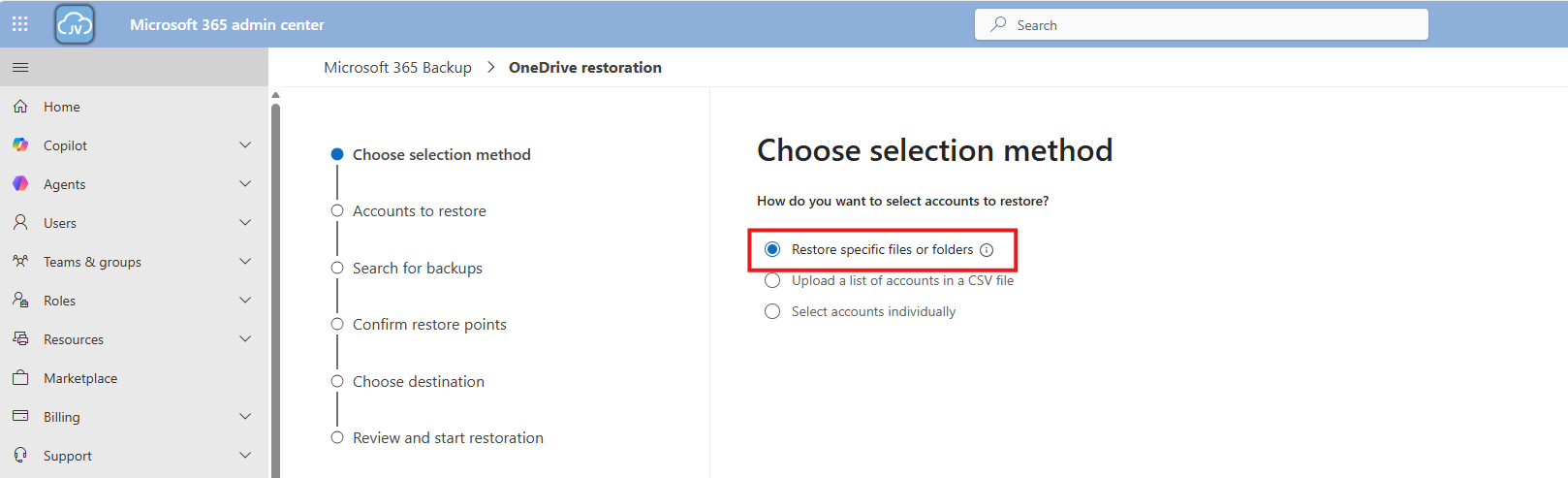
Then navigate to the account, desired restore point and file/folder. This would be pretty straight forward.
For the demonstration, I will delete the top folder (called Post 1462 - SPF-DKIM-DMARC), containing some files of an earlier blog post (around 40MB):
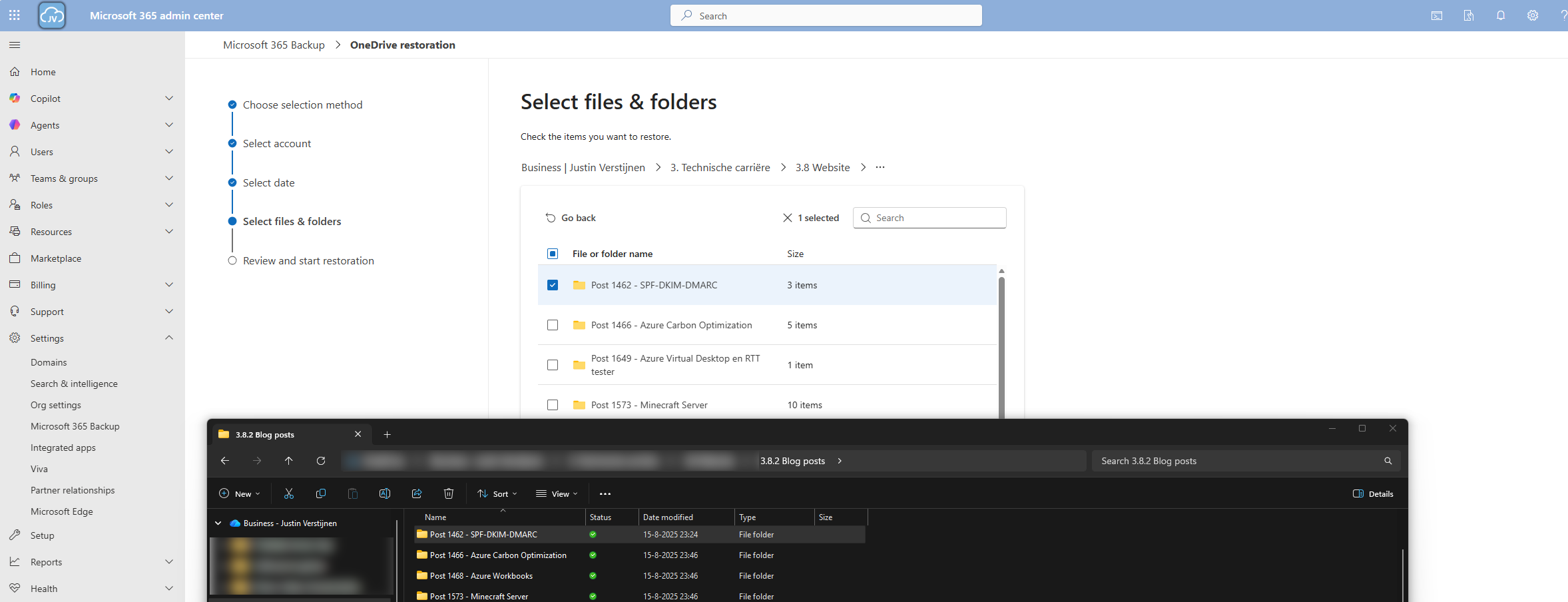
Thats gone.

Now let’s resume the restore action in the Microsoft 365 Backup portal.
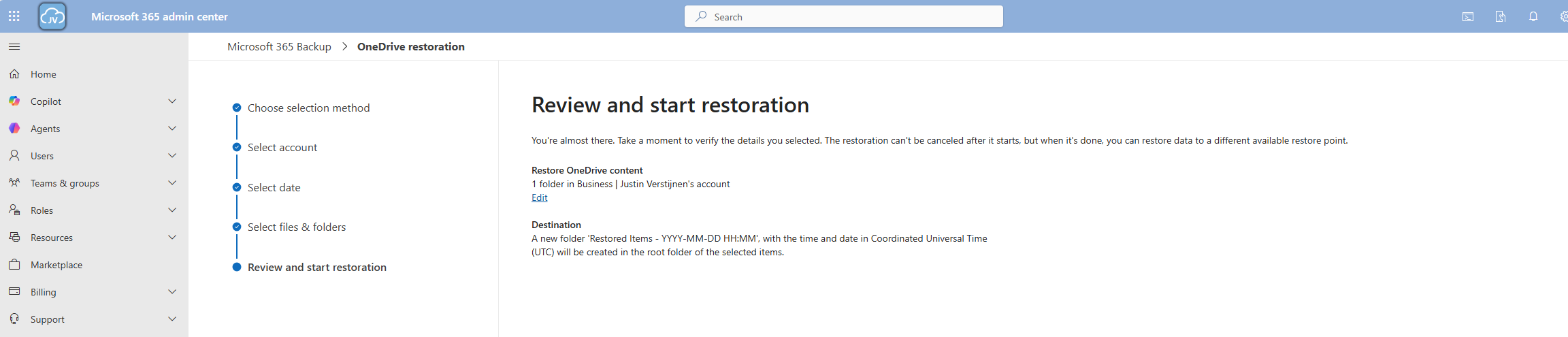
And the portal will inform us the restoration task has been started.

Now we can review the status of the restore action under the tab “Restorations”.
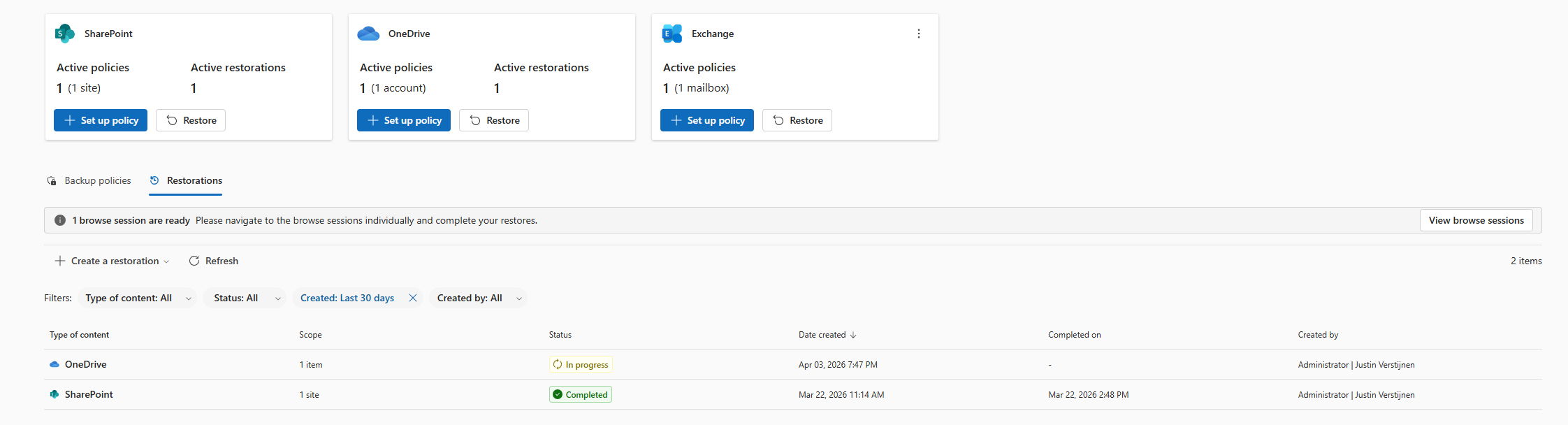
After a minute, the service has placed our files in a new folder in the root of the OneDrive folder, allowing us to manually place back the files. This is by design to prevent data loss.

And the folder contains our selected folder:

Downsides of Microsoft 365 Backup
As I researched this solution, I wanted to know the upsides and downsides of this solution. As no solution is perfect, you have to align with what you want and need for your workloads. I came with the following downsides of Microsoft 365 Backup:
- SharePoint sites must be selected manually, even when using dynamic filters
- Restore actions of a complete site are a bit slow
- Pricing is based on usage, where price per user would be more predictable
- This can be cheaper than 3rd party solutions but also more expensive
- As this is an integrated solution, this can be seen (by regulatory compliance) as single point of failure. Locked out of your tenant means no access to backups either
Summary
Microsoft 365 Backup is a great solution for organizations and people that need more restore options than the default recycle bin (93 days) and versioning. It greatly integrates with your Microsoft 365 environment and is easy to setup, using your current Azure subscription as billing method.
I honestly see this as a last resort, when actions are too destructive to rely on the built in recycle bin options where you want to restore a complete account/mailbox/site. If within 93 days of deletion, the recycle bin would be a much faster option. But its a great feature to extend the retention from 93 days to 365 days for organizations who need this.
Thank you for visiting this page and I hope it was helpful.
Sources
These sources helped me by writing and research for this post;
- https://learn.microsoft.com/en-us/microsoft-365/backup/backup-pricing?view=o365-worldwide
- https://learn.microsoft.com/en-us/microsoft-365/backup/backup-setup?view=o365-worldwide
- https://learn.microsoft.com/en-us/microsoft-365/backup/backup-restore-data?view=o365-worldwide&tabs=onedrive
End of the page 🎉
You have reached the end of the page. You can navigate through other blog posts as well, share this post on X, LinkedIn and Reddit or return to the blog posts collection page. Thank you for visiting this post.
If you think something is wrong with this post or you want to know more, you can send me a message to one of my social profiles at: https://justinverstijnen.nl/about/
If you find this page and blog very useful and you want to leave a donation, you can use the button below to buy me a beer. Hosting and maintaining a website takes a lot of time and money. Thank you in advance and cheers :)

The terms and conditions apply to this post.
What is MTA-STS and how to use it to protect your email flow
MTA-STS is a standard for ensuring TLS is always used for email transmission. This increases security and data protection because…
MTA-STS is a standard for ensuring TLS is always used for email transmission. This increases security and data protection because emails cannot be read by a Man in the Middle. It works like this for inbound and outbound email to ensure security is applied to all of the messages processed by your emailing solution and domains.
In this guide I will explain how it works. Because it is a domain specific configuration, it can work with any service and is not bound to for example Exchange Online. In this guide we use Azure to host our MTA-STS policy. I present you 2 different options for you to choose, and of course only one is needed. You can also choose to use another solution, its it supports HTTPS and hosting a single TXT file, it should work.
Requirements
- Around 30 minutes of your time
- Access to your domains’ DNS hosting to create DNS records
- An Azure Subscription if you want to publish your policy with a Static Web App
- A Github account if you use this option
- An Azure Subscription if you want to publish your policy with a Function App
- Basic knowledge of DNS records
- Basic knowledge of Email security
MTA-STS versus SMTP DANE
MTA-STS overlaps with the newer SMTP DANE option, and they both help securing your email flow but each in its own manner. Some differences:
| MTA-STS | SMTP DANE | |
| Requires DNSSEC at DNS hosting | No | Yes |
| Requires hosting a TXT file | Yes | No |
| Secures inbound and outbound | Yes | Yes |
| Fallback option if DANE is not supported | Yes | No |
The conclusion is;
- If you want to secure your email flow at all times: Configure both
- If you want to secure your email flow but your DNS hosting doesnt support DNSSEC: Configure MTA-STS
- If you want to secure your email flow without too much configuration and dependencies: Configure SMTP DANE
My advice is to configure both when possible, because not every email service does support SMTP DANE and MTA-STS is much more broadly supported. This will be used then as fallback. If the sender does not support MTA-STS, email will not be delivered and the sender gets an error message.
Deep dive into how MTA-STS works
MTA-STS (Mail Transfer Agent Strict Transport Security) is a standard that improves email security by always using SMTP TLS encryption and validating certificates during email transmission. It’s designed to prevent man-in-the-middle (MitM) attacks, ensuring email servers cannot be tricked into falling back to insecure delivery. This increases security and protects your data.
MTA-STS works very similar to how HSTS works for webservers.
MTA-STS consists of the following components:
- Policy publication: A domain publishes its MTA-STS policy by using a DNS record and a TXT file which is publicly accessable to publish its policy
- Policy fetching: A mailserver that sends to our protected domain checks our DNS record and then our policy from the published TXT file
- Policy enforcement: A mailserver that sends to our protected domain ensures that it matches our policy.
- If it doesn’t match, we can reject the mail based on the policy settings
Steps to configure MTA-STS
Like described in the previous section, we must configure 2 things for MTA-STS to work:
- A DNS record
- A policy/TXT file
For the policy we can use Azure Static Web Apps or Azure Functions to publish the policy, but you can use any webhosting/HTTP service of choice. The steps will be different of course.
Configure the DNS record
We log into our DNS hosting environment and we have to create a TXT record there. This must look like this:
JSON
_mta-sts.yourdomain.com. 3600 IN TXT v=STSv1; id=20250101000000Z;The first part must contain your domain instead of yourdomain.com and the last part after the ID contains the timestamp of the record being published.
Tip: you can use my (Microsoft 365) DNS Record Generator tool for customizing your MTA-STS record: https://tools.justinverstijnen.nl/365recordsgenerator
I have logged in into the DNS hosting and added my TXT record there. My record looks like this:
JSON
_mta-sts.justinverstijnen.nl. 3600 IN TXT v=STSv1; id=20250511000000Z;After filling the form, it looks like this:

The domain is automatically added by the DNS protocol and from v=STSv1 to the 0’s and the Z; is the value part.
Configure the Policy
Now we must configure the policy for MTA-STS. We start by creating the TXT file and defining our policy. The TXT file must contain the information below:
JSON
version: STSv1
mode: enforce
mx: justinverstijnen-nl.r-v1.mx.microsoft
max_age: 1209600- The version must be v1 and exactly the same.
- The mode can be enforce, testing and none. Use enforce to get the most out of the configuration.
- MX record: this is the MX record for your domain. You can copy and paste this from your DNS hosting panel. Make sure you dont copy the “priority” part.
- You can find your MX record in Microsoft 365 or look it up with: https://tools.justinverstijnen.nl/dnsmegatool
- Max_age: This is the time in seconds a sender may cache your MTA-STS in their policy. Best practice is to use between 7 and 30 days. I use 14 days here (3600 seconds x 24 hours x 14 days)
Save this information to a TXT file named “mta-sts.txt” and now we must publish this on a webserver, so when a visitor goes to https://mta-sts.yourdomain.com/.well-known/mta-sts.txt, they will see this TXT file.
Hosting option 1: Azure Static Web Apps
My first option is the most simple way to host your TXT file for your MTA-STS policy. We will do this with Azure Static Web Apps in coorperation with GitHub. This sounds complex but is very easy.
Creating the repository on Github
Before we dive into Azure, we will start by creating a reposiroty on Github. This is a space where all files of your application resides. In this case, this will only be the TXT file.
Create an account on Github or login to proceed.
Create a new repository:
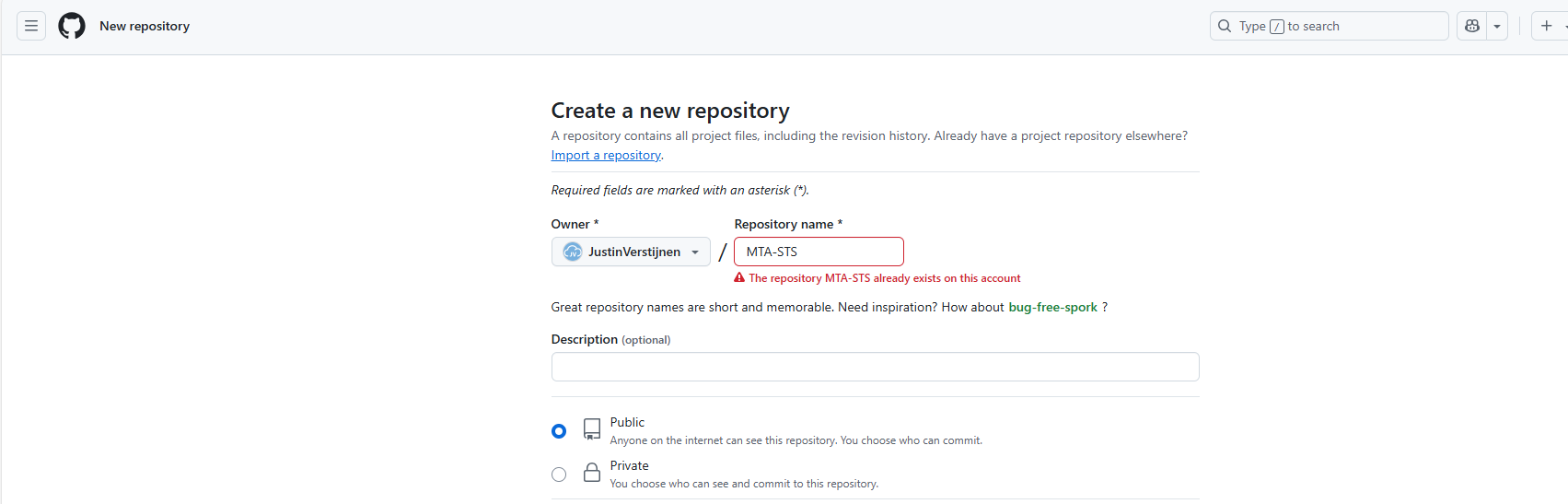
Give it a name and description and decide if you want the repository to be public. Note that the TXT will be public in any case.
Create the repository.
Prepare the repository
I have my repository public, and you can check out that to have an example of the correct configuration. We must download the index.html file from here: https://github.com/JustinVerstijnen/MTA-STS
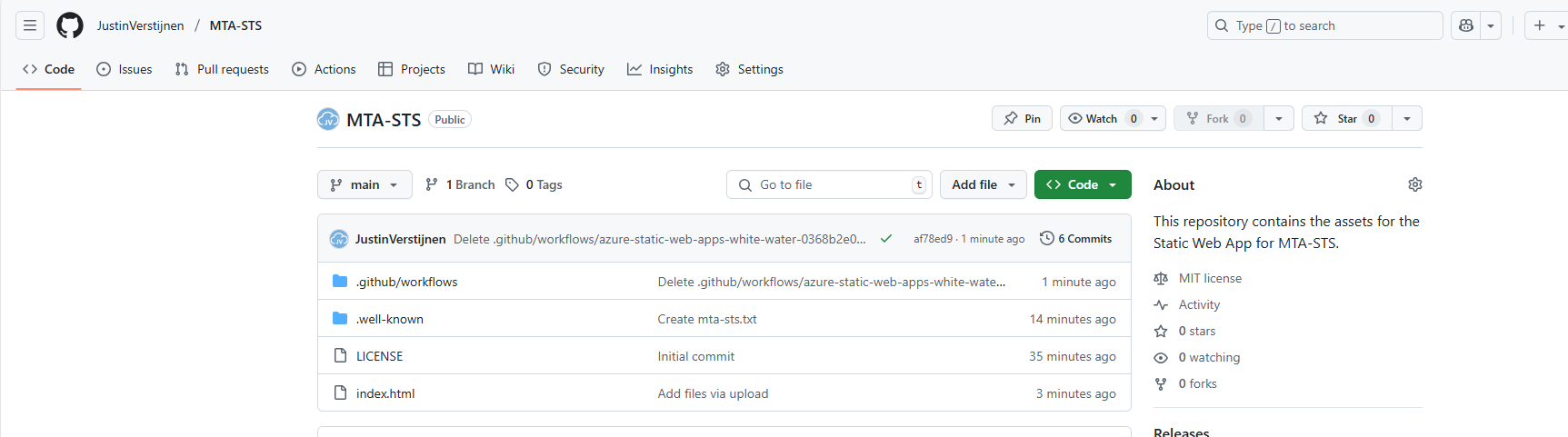
Click on the index.html file and download this. You can also copy the content and create the file with this content in your own repository.
Now go back to your own, newly created repository on Github.
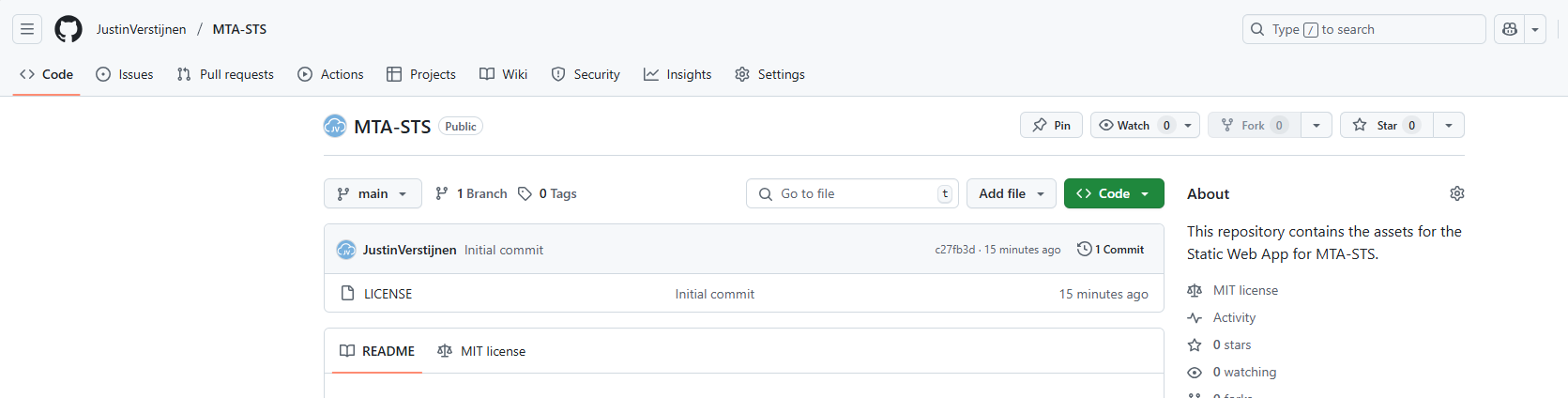
Click on the “Add file” button and then on “Create a new file”.
Now we must create the folder and the TXT file. First type in: “.well-known”, then press “/” and then enter “mta-sts.txt”. This creates the folder and then the file.
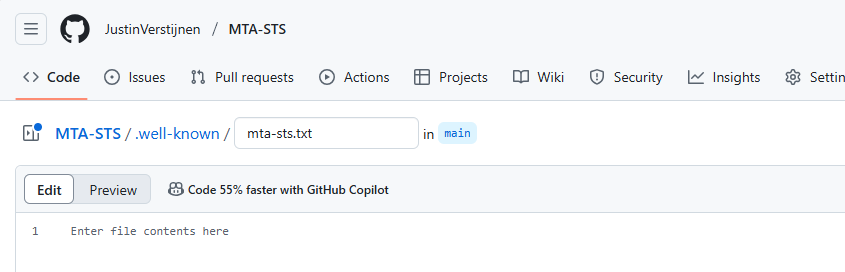
Now we can paste in the information of our defined policy:
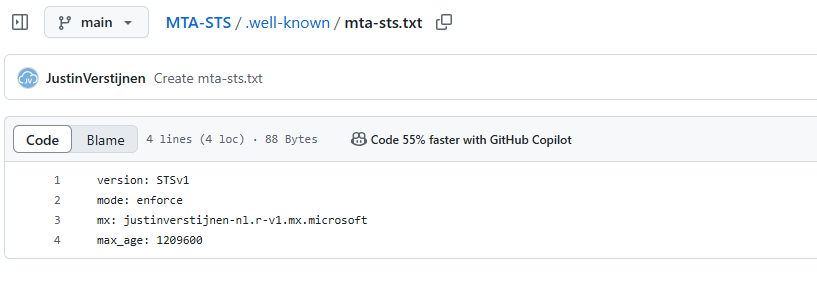
Now commit the changes, which is basically saving the file.
Upload simple redirect page
Now because a Static Web App requires you to have a Index.html at all time (because it is a website), we need to upload the prepared Index.html from my repository you downloaded earlier.
Click on “Add file” and then on “Upload files”. Then click on “Select your files” and select the downloaded Index.html file.
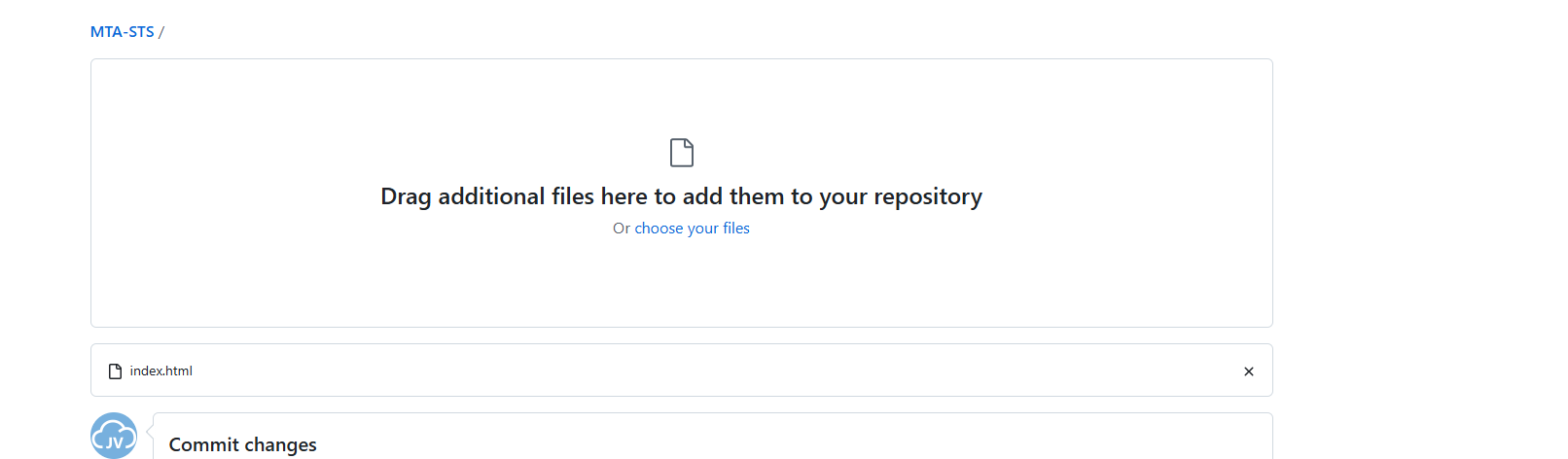
Commit the change. After committing the change, click on the Index.html file. We must make some changes to this file to change it to your own website:
Change the URLs on line 5 and 7 to your own domain. the mta-sts part on the beginning must stay intact and the part from .well-known too.
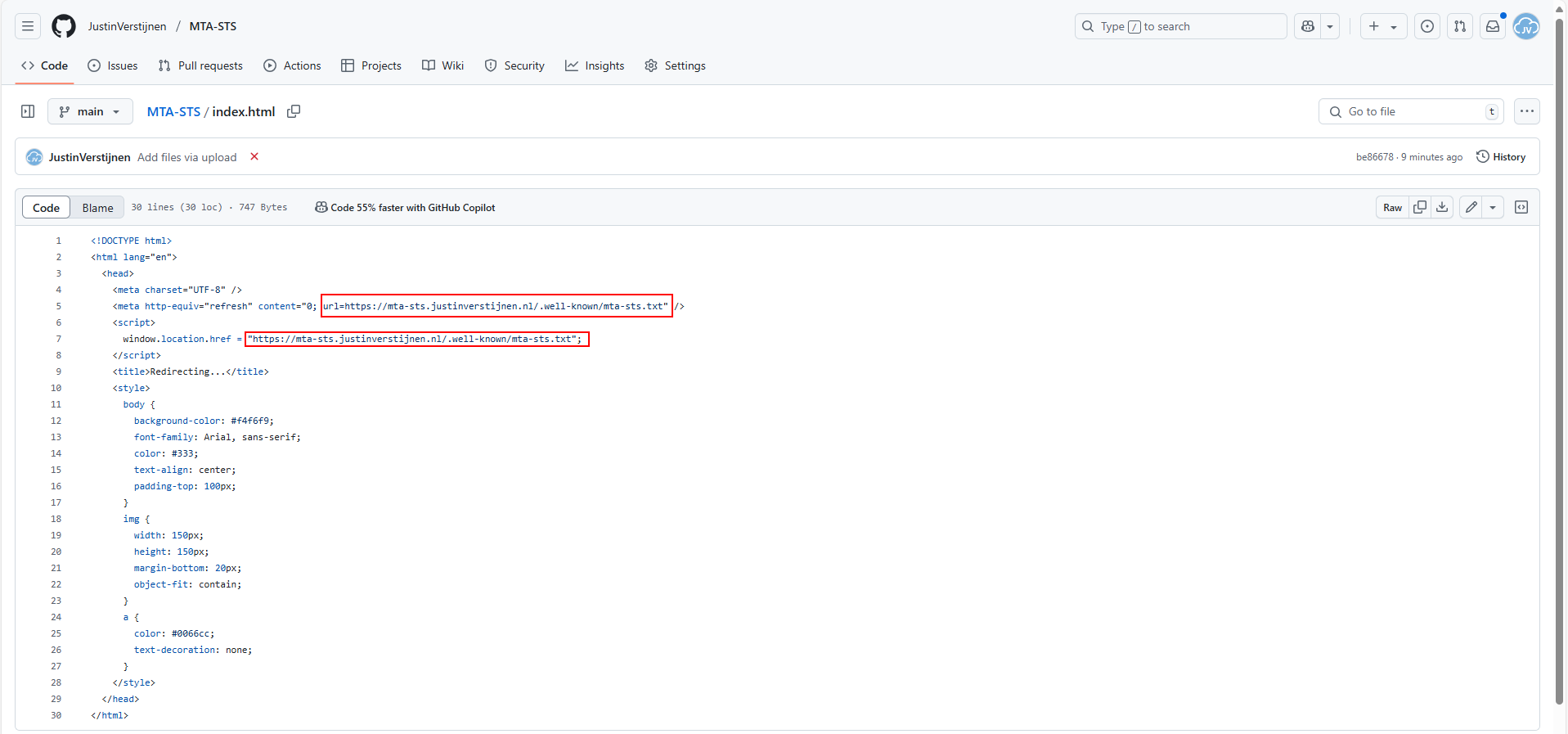
As you can see, its a simple HTML file that redirects every visitor directly to the correct file in the .well-known folder. This is purely for Azure which always must have a index.html but it makes your life a bit easier too.
Proceed to the next steps in Azure.
Create the Azure Static Web App
Now we must create the Azure Static Web App in Azure to host this file. Search for “Static Web Apps” in the Azure Portal and create a new app:
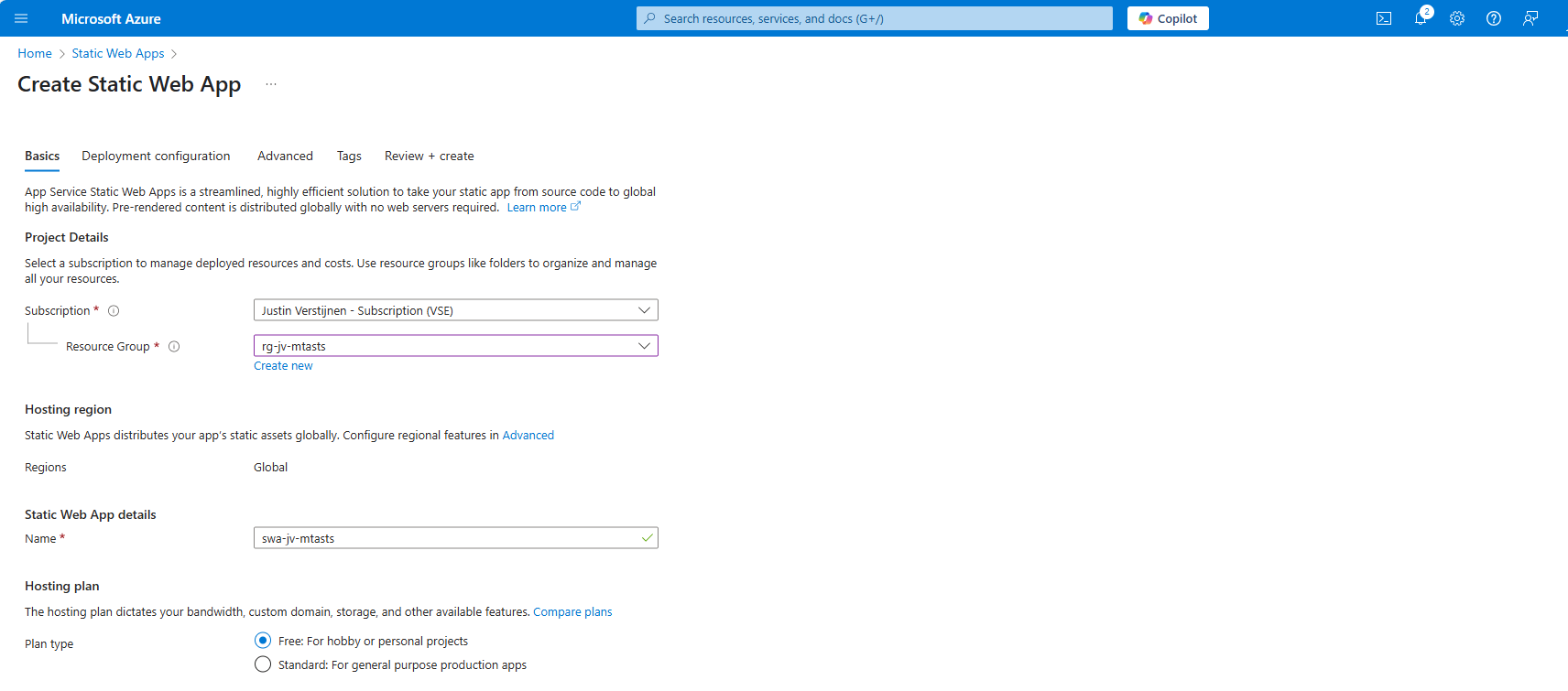
Place it in the desired resource group, give it a name (cannot be changed) and select a plan. You can use a free plan for this. The only limit is the custom domains you can link, which is 2 custom domain names per app.
Then scroll down on the page till you see the Deployment type:
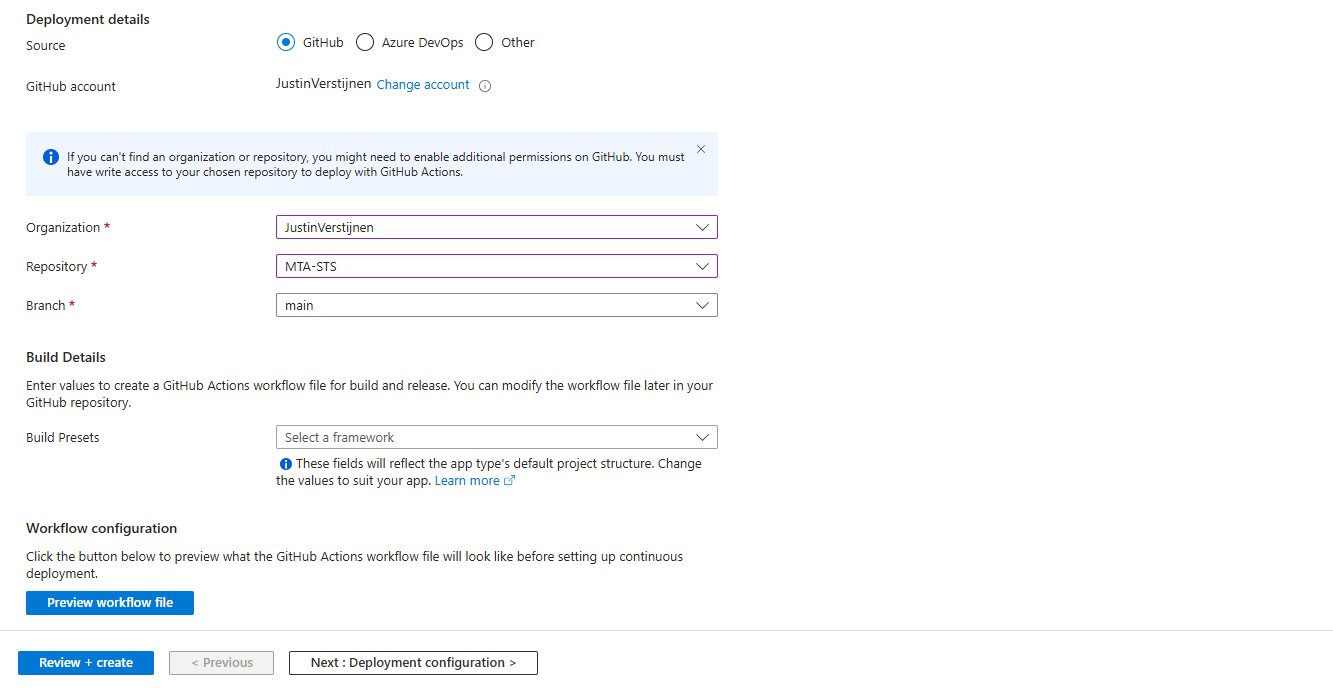
Link your Github account to Azure so Azure can get the information from your repository and put it in the Static Web App. Select your Repository after linking and complete the wizard. There is no need to change anything else in this wizard to make it work.
After completing the wizard, the app will be created and then your repository files will be placed onto the Static Web App Host. This process completes in about 3 minutes.
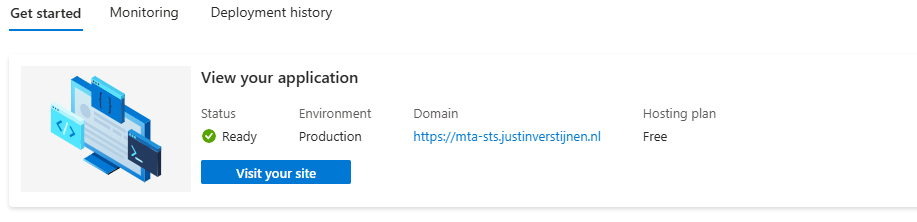
After around 3 minutes, your website is uploaded into Azure and it will show:

If you now click on “visit your site”, it will redirect you to the file. However, we didn’t link our custom domain yet, so it will not show our policy yet. The redirection will work fine.
Linking our custom domain to Azure Static Web App
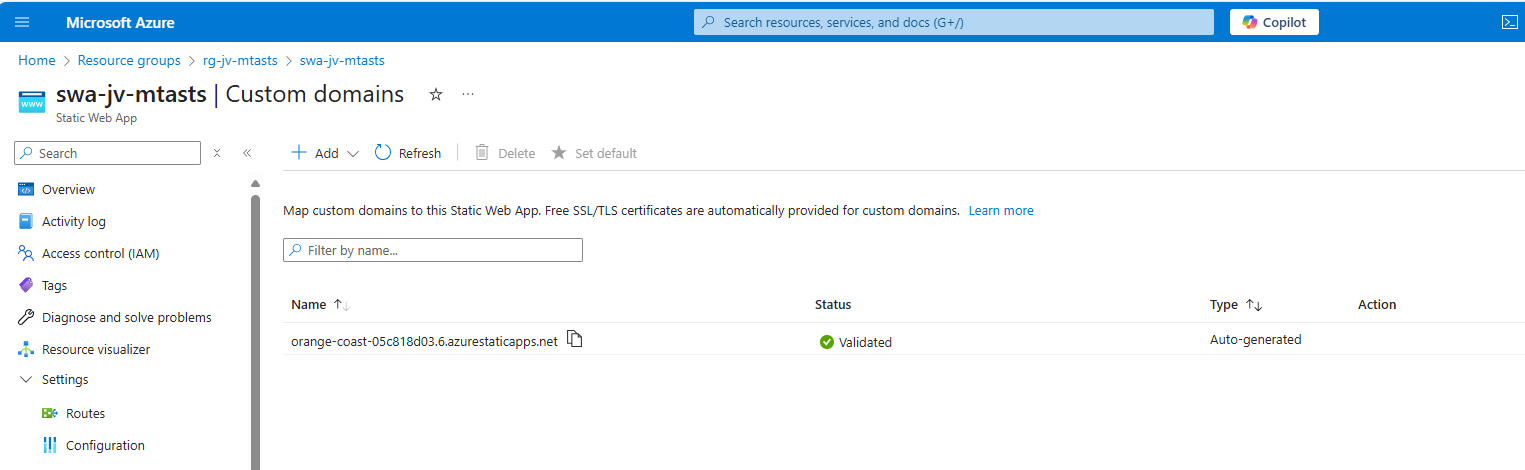
Now we can link our custom domain to our created Azure Static Web App in the Azure portal. Go to “Custom domains” in the settings of the Static Web App and click on “+ Add”.
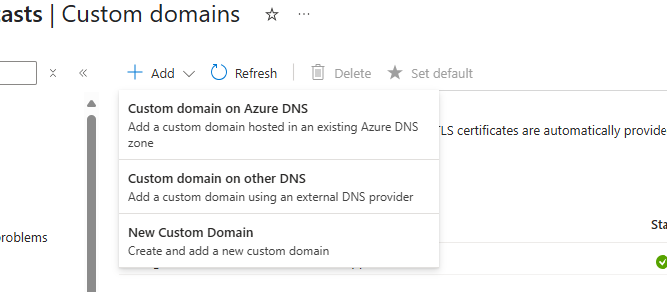
Select the option “Custom domain on other DNS”, the middle option.
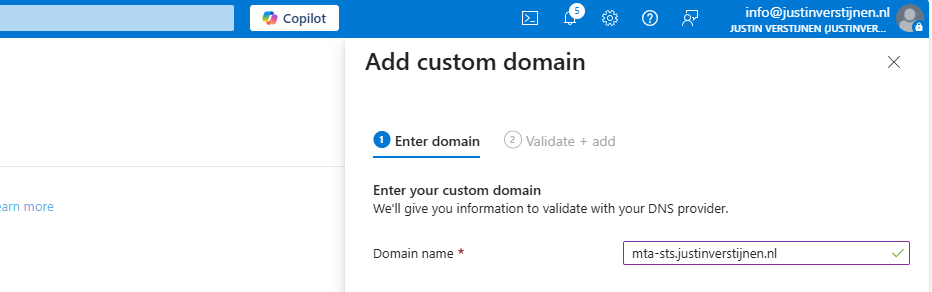
Now fill in mta-sts.yourdomain.com, for my environment this will be:
Click on “Next”. Now we have to validate that we are the owner of the domain. I recommend the default CNAME option, as this is a validation and alias/redirection in one record.
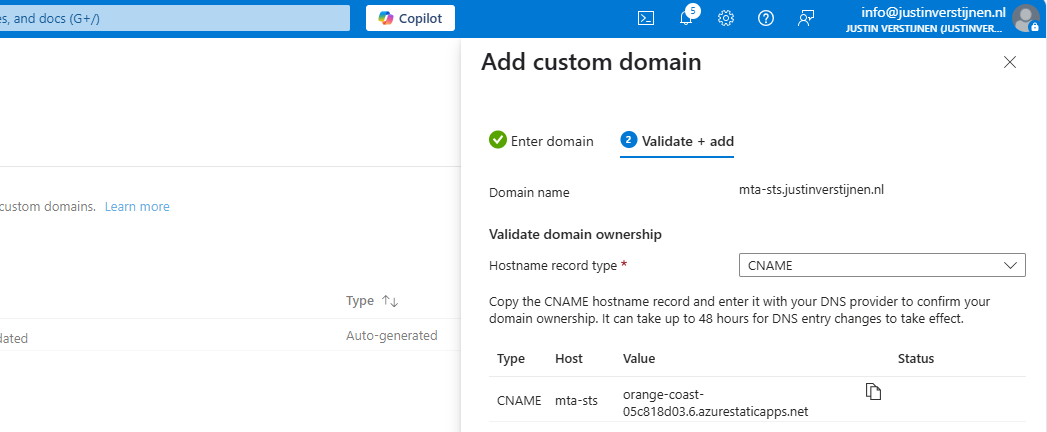
Copy the Value of the CNAME record which is the project-name of the Static Web App and we now have to create a DNS record for our domain.
Go to your DNS hosting service and login. Then go to your DNS records overview.
Create a new CNAME record with the name “mta-sts” and paste the value you copied from the Azure Portal. Add a dot “.” to the value of the record because it is a external domain. In my case, the value is:
V
orange-coast-05c818d03.6.azurestaticapps.net.Save the DNS record and go back to Azure, and click “Add” to validate the record. This process will be done automatically and ready after 5 minutes most of the time.

Now we can test our site in the Azure Portal by again using the “Visit your site” button:
Now the website will show your MTA-STS policy:
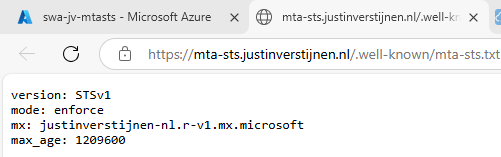
We are now succesfully hosting our MTA-STS policy on a Azure Static Web App instance. We also using a mandatory index.html to redirect to the correct sub-location. If your repository doesn’t have a index.html file in the root, the upload to Azure action will fail.
You can skip option 2 and proceed to “Testing the MTA-STS configuration”
Hosting option 2: Azure Functions
My second option is to host the TXT file with an Azure Function. This is a bit more complicated than option 1, but I will guide you through.
Creating the Azure Function
In this guide I will use an Azure Function to publish the MTA-STS policy to the internet.
Let’s go to the Azure Portal and create a new Function App:
Here you can select:
- Operating system: Windows
- Runtime stack: .NET
- Version: 8 in-process model (this enables editing in the portal for easy access)
- Region: Of your choice
Create the app by finishing the wizard.
After creating the app, we must do a change to the host.json file in the Azure Function. Paste the code below on the first part of the json file:
JSON
{
  "version": "2.0",
  "extensions": {
  "http": {
    "routePrefix": ""
  }
},
It should look like this:
Save the file, and now it is prepared to host a MTA-STS policy for us.
Publishing the MTA-STS policy
Create a new Function in the function app:
Select the HTTP trigger, give it a name and select the “Anonymous” authorization level.
Now we can paste some code into the function. We have to wrap this into a .NET website:
CSHARP
#r "Newtonsoft.Json"

using System.Net;
using Microsoft.AspNetCore.Mvc;
using Microsoft.Extensions.Primitives;
using Newtonsoft.Json;

public static async Task<IActionResult> Run(HttpRequest req, ILogger log)
{
    log.LogInformation("C# HTTP trigger function processed a request.");

    string responseMessage = "version: STSv1\nmode: enforce\nmx: justinverstijnen-nl.r-v1.mx.microsoft.\nmax_age: 1209600";

    return new OkObjectResult(responseMessage);
}
On line 12 there is the policy where you need to paste your settings in. Paste the final code into the Azure Portal and save/publish the function.
Now go to the “Integration” tab:
Click in the “Trigger” section on “HTTP(req)”.
Here we can define how the HTTP trigger is and the file/path of the MTA-STS policy:
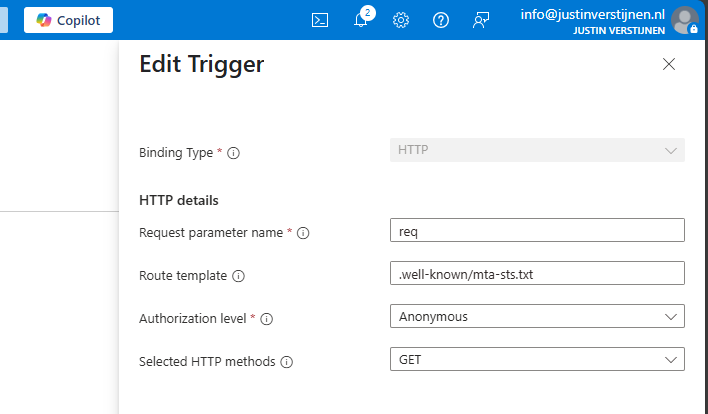
Change the values as below:
- req (Dont change this)
- Route template: .well-known/mta-sts.txt
- Authorization level: Anonymous
- Selected HTTP methods: GET
We are have bound the URL WEBSITE/.well-known/mta-sts.txt to our function and that kicks off our code which contains the policy. Very creative solution for this use case.
We can now test if this works by forming the URL with the function app and the added route:
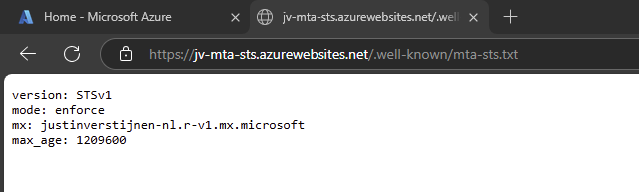
It works not by going to the Function App URL but we now need to add our custom domain.
Redirect your custom domain to Function App
Now we need to link our domain to the function app. Go to “Custom domains” and add your custom domain:
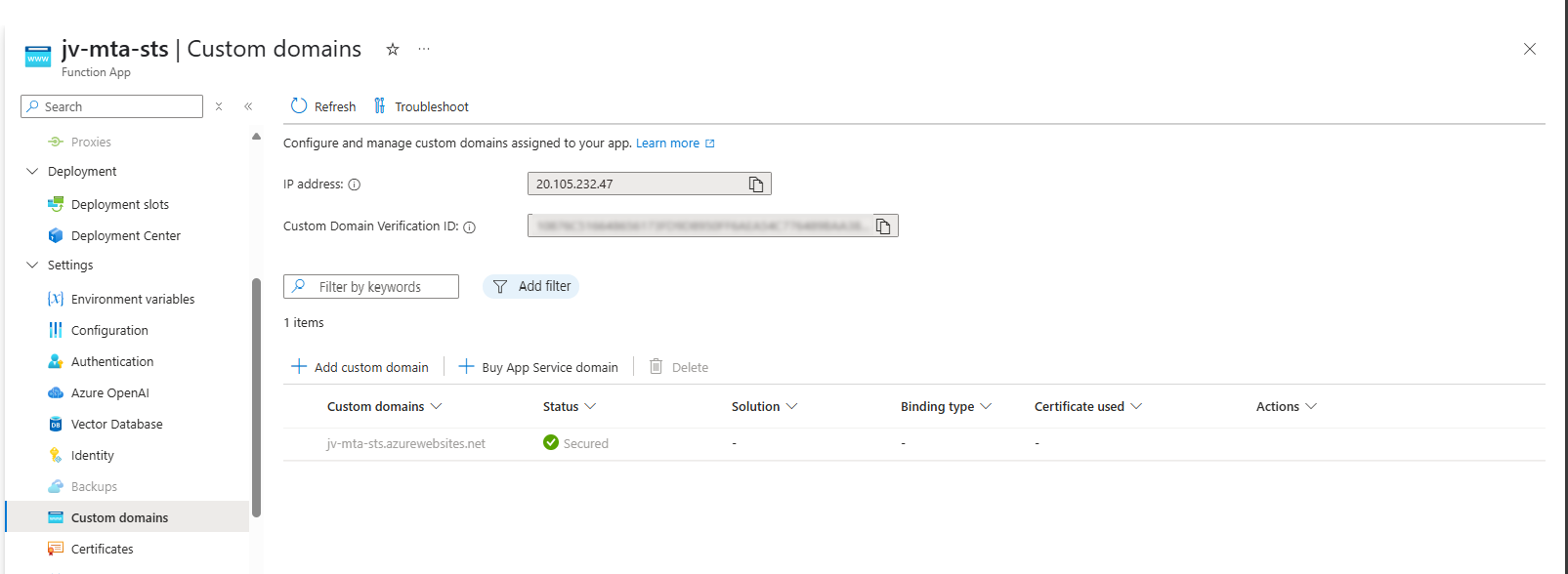
Choose “All other domain services” at the Domain provider part.
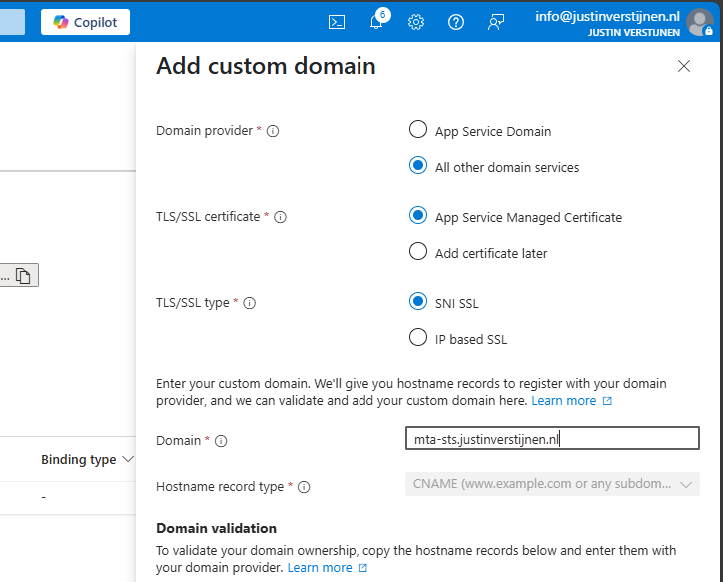
Fill in your custom domain, this must start with mta-sts because of the hard URL requirement for MTA-STS to work.
We now get 2 validation records, these must be created at your DNS hosting provider.
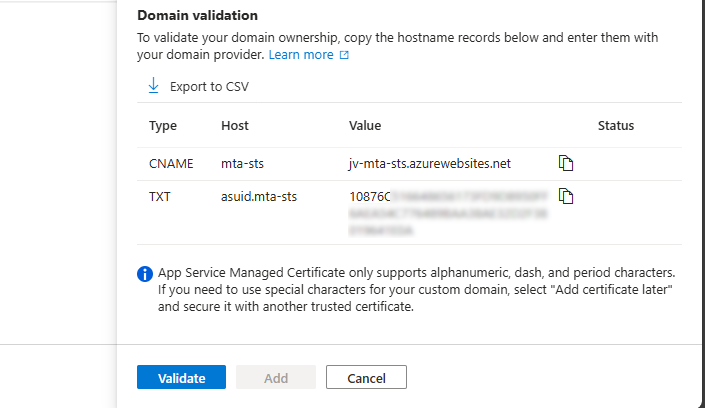
Here I created them:


Now hit “Validate” and let Azure check the records. This can take up to 1 hour before Azure knows your records due to DNS propagation processes. In my case, this worked after 3 minutes.
Now we can check if the full URL works like expected: https://mta-sts.justinverstijnen.nl/.well-known/mta-sts.txt
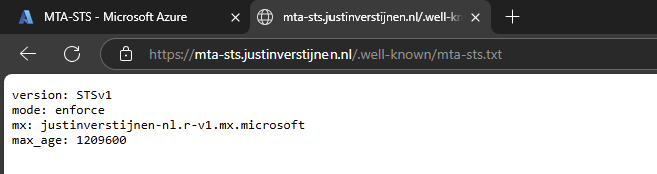
As you can see, our policy is succesfully published.
Testing the MTA-STS configuration
From here, you can test with all sorts of hosting the policy, like the 2 options I described and your custom hosting.
You can test your current MTA-STS configuration with my DNS MEGAtool:
This tests our configuration of MTA-STS and tells us exactly what is wrong in case of an error:

The tool checks MTA-STS for both the TXT record value and the website. In my case, everything is green so good to go and this means you did the configuration correctly.
After configuring everything, it can take up to 60 minutes before everything shows green, please have a little patience.
Summary
MTA-STS is a great way to enhance our email security and protect them from being stolen or read in transit. It also offers a great way of protection when DNSSEC/SMTP DANE is no option in your domain.
Thank you for reading this guide and I hope it was helpful.
End of the page 🎉
You have reached the end of the page. You can navigate through other blog posts as well, share this post on X, LinkedIn and Reddit or return to the blog posts collection page. Thank you for visiting this post.
If you think something is wrong with this post or you want to know more, you can send me a message to one of my social profiles at: https://justinverstijnen.nl/about/
If you find this page and blog very useful and you want to leave a donation, you can use the button below to buy me a beer. Hosting and maintaining a website takes a lot of time and money. Thank you in advance and cheers :)
The terms and conditions apply to this post.
Disable users' self service license trials
One day I came across an option in Microsoft 365 to disable the users’ self service trials. You must have seen it happening in your ten…
One day I came across an option in Microsoft 365 to disable the users’ self service trials. You must have seen it happening in your tenants, users with free licenses for Power Automate, Teams or Power BI. I will show you how to disable those and only let administrators buy and assign new licenses.
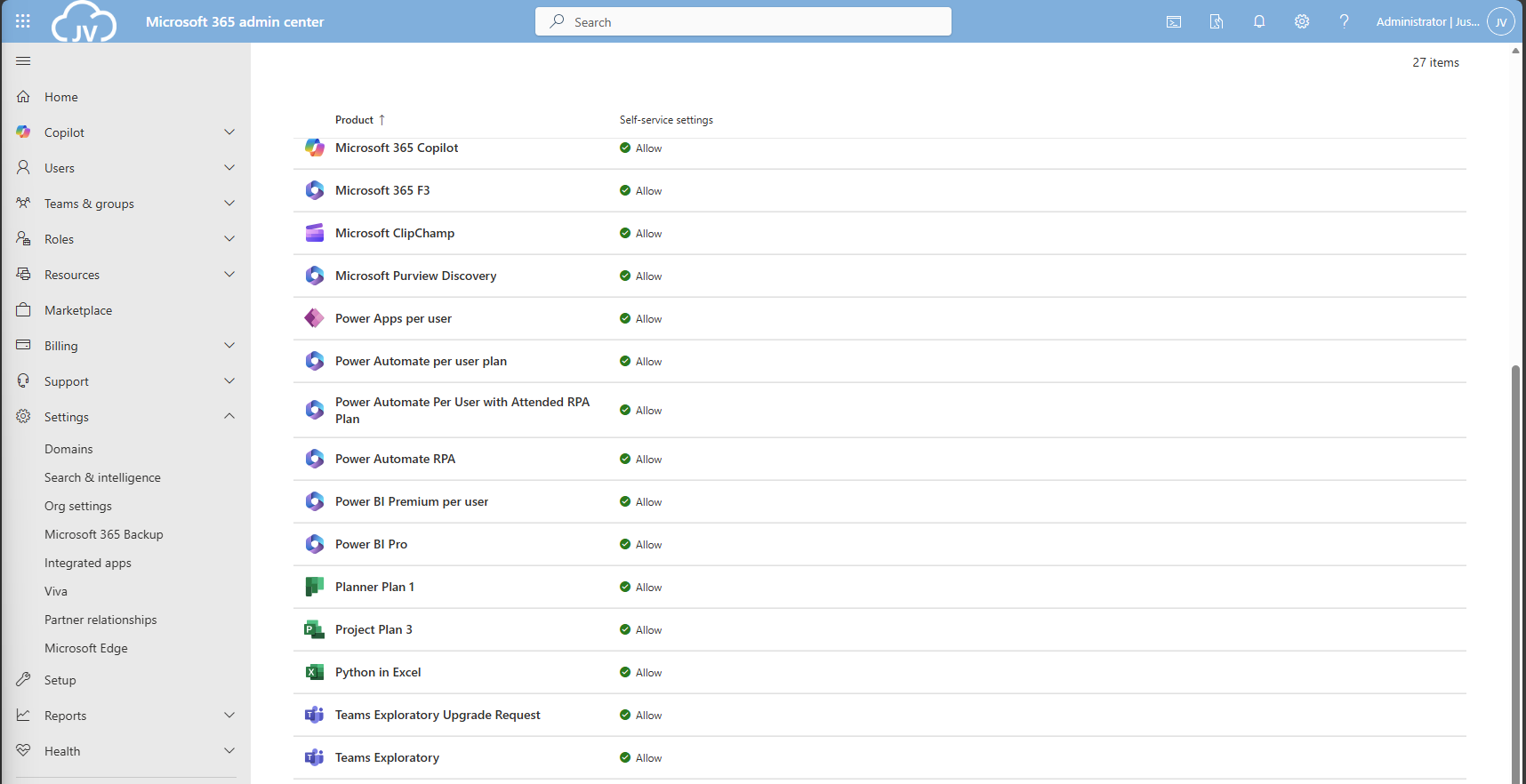
Why should you disable trial licenses?
You can disable self service trial licenses if you want to avoid users to use un-accepted apps. This could result in shadow-it happening in your environment.
Let’s say, your company uses Zoom to call with each other, and users are starting to use Microsoft Teams. Teams then is an application not accepted by your organization and users then should not be able to use it. If you give them the possibility, they will. This all of course assuming you don’t have paid licenses for Microsoft Teams.
How to disable self service purchases - GUI
To disable those purchases from happening in the GUI, open up Microsoft 365 admin center.
Then go to “Settings”, “Org settings” and then “Self-service trials and purchases”.
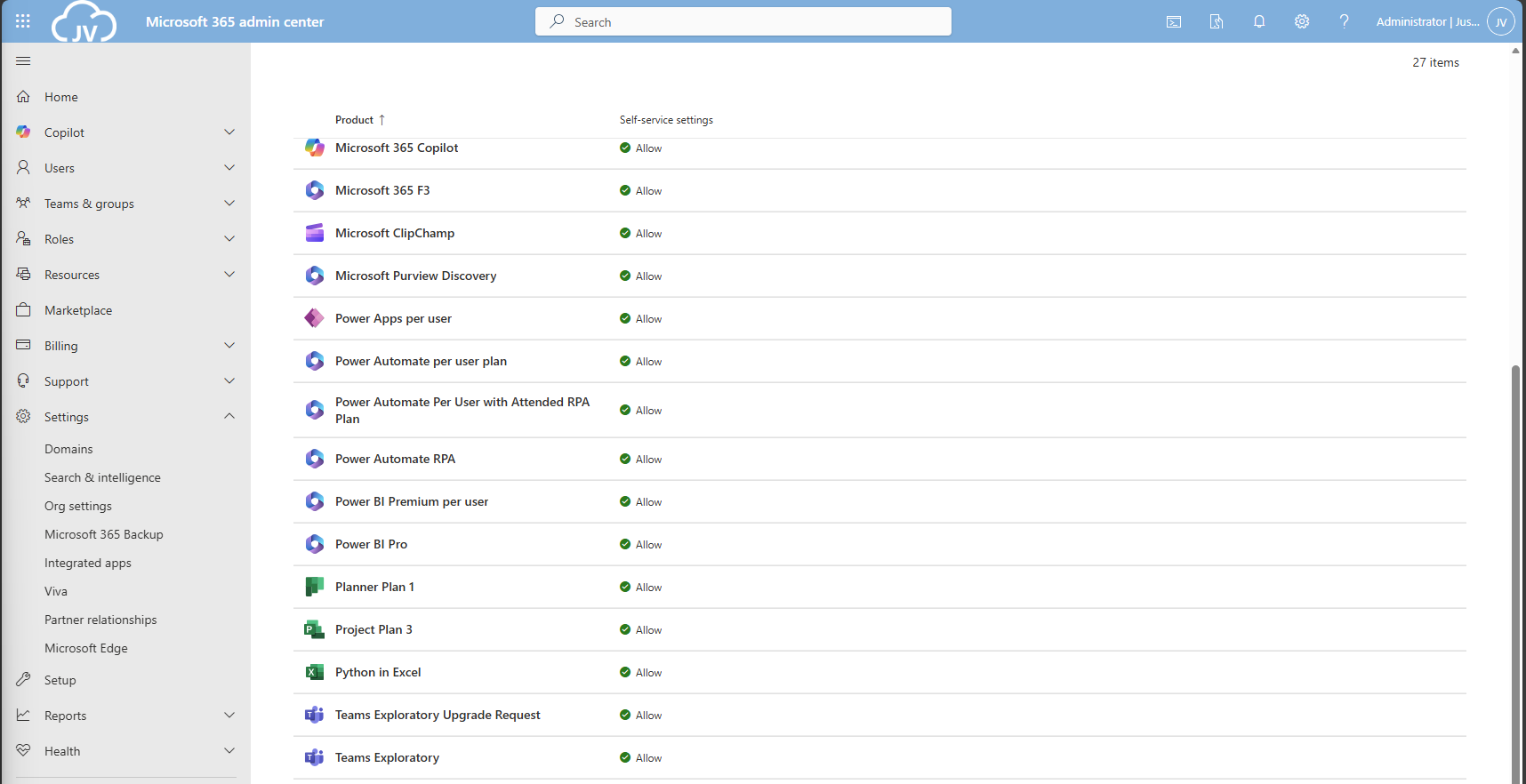
Here you get a list of all the possible products you could disable individually. Unfortunately, for disabling everything, you must do this manually for all (at the moment 27) items. The good thing is, PowerShell can actually do this for us.
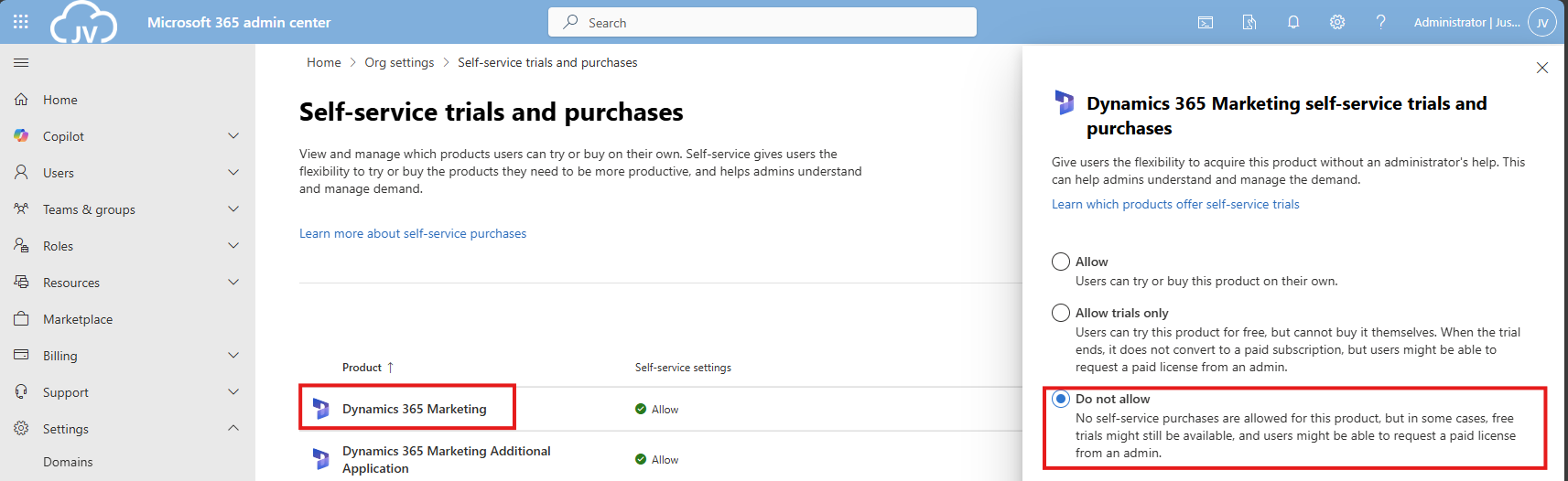
Click on your license to be disabled, and click on “Do not allow”. Then save the setting to apply it to your users.
How to disable self service purchases - PowerShell
There is a PowerShell module available that contains multiple options for billing and commerce options. This is the MSCommerce module, and can be installed using ths command:
POWERSHELL
Install-Module -Name MSCommerceAfter this module is installed, run this commando to login into your environment:
POWERSHELL
Connect-MSCommerceThen login to your environment, complete the MFA challenge and you should be logged in.
Run this command to get all the trial license options:
POWERSHELL
Get-MSCommerceProductPolicies -PolicyId AllowSelfServicePurchaseThis will return the list of all possible trial licenses, just like you got in the GUI.
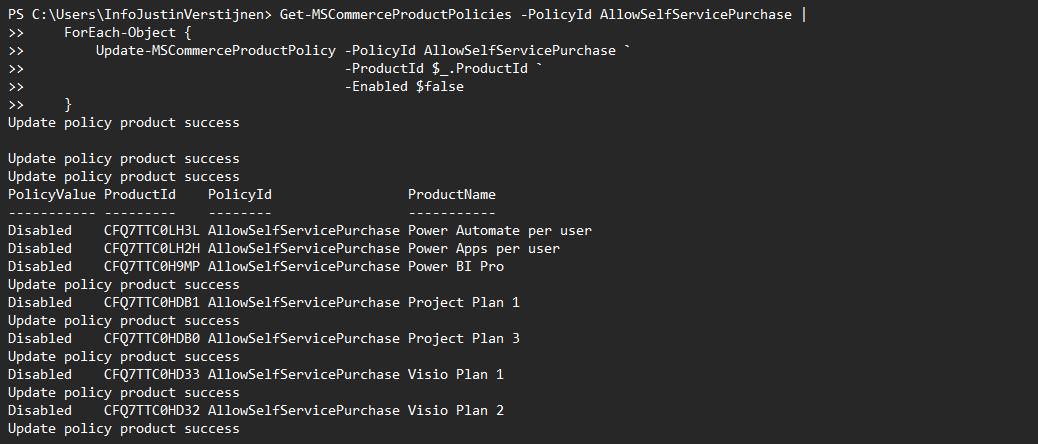
To disable all trial licenses at once, run this:
POWERSHELL
Get-MSCommerceProductPolicies -PolicyId AllowSelfServicePurchase |
    ForEach-Object {
        Update-MSCommerceProductPolicy -PolicyId AllowSelfServicePurchase `
                                       -ProductId $_.ProductId `
                                       -Enabled $false
    }
PowerShell will now initiate a loop that sets the status of every license to “Disabled”:
After the simple script has run succesfully, all trial license options should be disabled in the Microsoft 365 Portal:
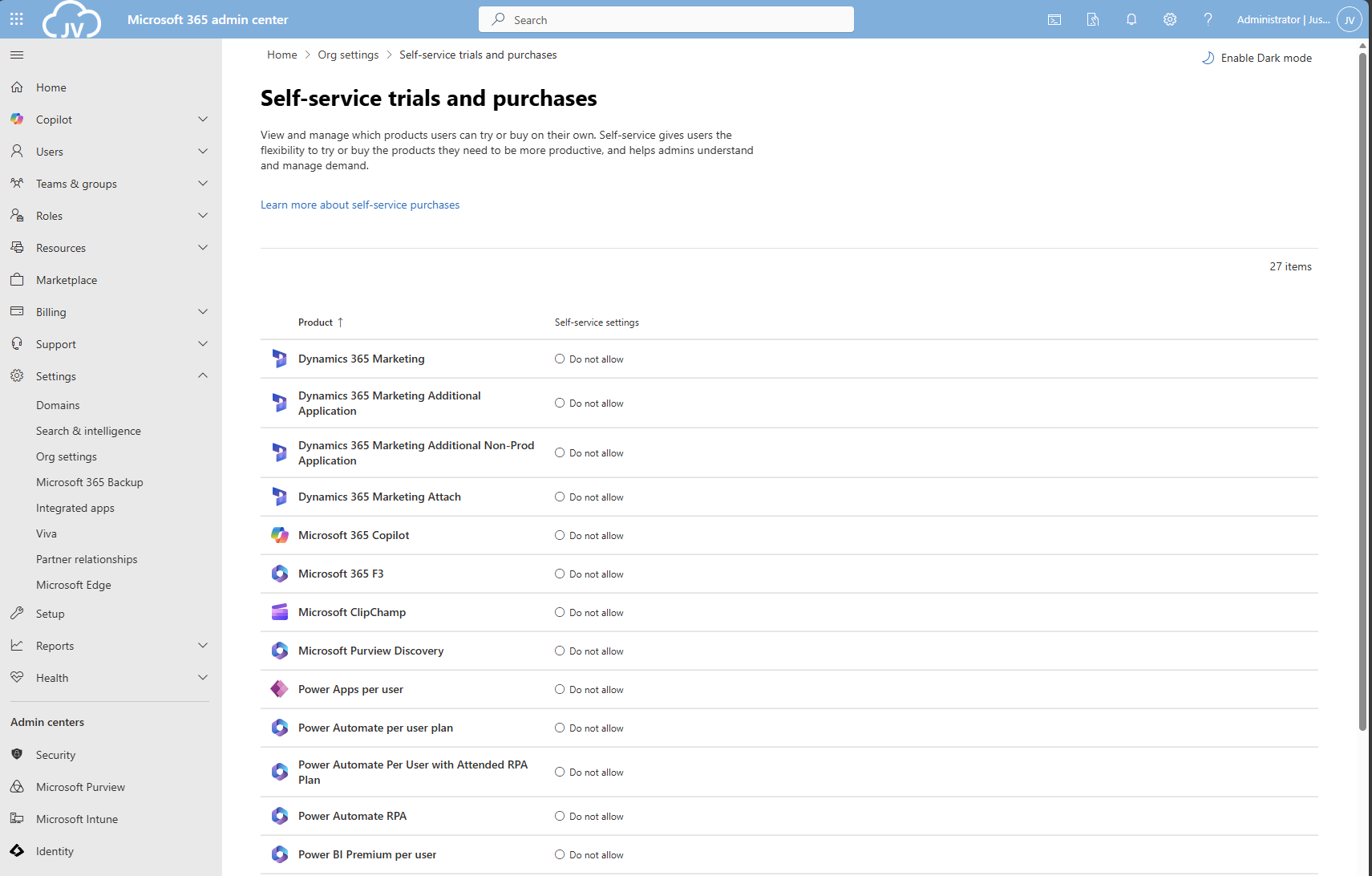
And thank you once again PowerShell for saving a ton of clicks :)
Summary
Disabling the trial licenses is generally a good idea to avoid users from using services you don’t generally accept. You can technically still get trial licenses but an administrator has to approve them now by changing the status of the license.
Most of the time it’s better to use a paid license as trial, because you would have access to all features.
Thank you for reading this guide and I hope it was helpful.
Sources
These sources helped me by writing and research for this post;
- https://learn.microsoft.com/en-us/microsoft-365/commerce/subscriptions/manage-self-service-purchases-admins?view=o365-worldwide
- https://learn.microsoft.com/en-us/powershell/module/microsoft.powershell.core/foreach-object?view=powershell-7.5
End of the page 🎉
You have reached the end of the page. You can navigate through other blog posts as well, share this post on X, LinkedIn and Reddit or return to the blog posts collection page. Thank you for visiting this post.
If you think something is wrong with this post or you want to know more, you can send me a message to one of my social profiles at: https://justinverstijnen.nl/about/
If you find this page and blog very useful and you want to leave a donation, you can use the button below to buy me a beer. Hosting and maintaining a website takes a lot of time and money. Thank you in advance and cheers :)
The terms and conditions apply to this post.
Enhance email security with SPF/DKIM/DMARC
When it comes to basic email security, we have 3 techniques that can enhance our email security. SPF, DKIM and DMARC.
When it comes to basic email security, we have 3 techniques that can enhance our email security and delivery by some basic initial configuration. Those are called SPF, DKIM and DMARC. This means, configure and mostly never touch again.
Microsoft announced that starting from May 5, 2025: SPF, DKIM and DMARC will become mandatory for inbound email delivery. Not configuring all three can result in your emails not being delivered correctly.
These 3 techniques are:
- SPF: Sender Policy Framework
- DKIM: Domain Keys Identified Mail
- DMARC: Domain-based Message Authentication Reporting and Conformance
When using Microsoft 365 as your messaging service, I also highly recommend to configure SMTP DANE. A detailed guide of configuring this can be found here: https://justinverstijnen.nl/configure-dnssec-and-smtp-dane-with-exchange-online-microsoft-365/
In this guide, we will cover those 3 techniques, how they work, how they can help you and your company to reduce email delivery problems and how we can configure those in Microsoft 365. By configuring SPF, DKIM and DMARC right you help creating a more safe internet. Not only for your own company but also for other companies.
Why bother about those techniques
You will recognise this in your work. You send an email to a party or expecting an incoming email, but it appears in your junk folder. Or you send a advertisement email to your customers but most of the customers will not receive this properly and the mail will appear in the junk folder which will not be checked that regularly. This can result in some huge income loss.
This will happen because the receiving party checks reputation of the sending party. Based on that reputation there will be a decision on the receiving email service which can place the email in the normal folder or in the junk folder.
In the last 3 years, almost every emailing service (Hotmail/Exchange Online/Gmail/Yahoo) has forced to have SPF configured. If not configured properly, all received email will be placed in the junk folder. In addition to this, also configuring DKIM can further reduce the odds of an email received in the junk folder.
Configuring these 3 techniques helps with:
- Improving email deliverability of your domain
- Decreases changes of your domains being spoofed
- And so, increases security
- Not only for your own company but for others also
Tip: Use my DNS MEGAtool to verify if your domain or other domains already use these techniques: https://tools.justinverstijnen.nl/dnsmegatool
What is a MX record?
Every domain on the internet can have multiple MX records. This record tells a sender on which server the email message must be delivered. A MX record for 365 can look like this:
V
0 justinverstijnen-nl.mail.protection.outlook.comAfter configuring DNSSEC and SMTP DANE from this guide, your MX record looks like this:
V
0 justinverstijnen-nl.r-v1.mx.microsoftMX records have a priority number in front of them, this tells the priority of the servers. Messages will be delivered first at the number closest to “0” which represents a higer priority. After this server doesnt accept the message or a outage is ongoing, other servers will be tried to deliver the message.
SPF - Sender Policy Framework
Sender Policy Framework (SPF) is an email authentication method designed to prevent email spoofing. It allows domain owners to specify which mail servers are permitted to send emails on behalf of their domain. Receiving mail servers use SPF records of the sending party to verify if an incoming email comes from an authorized source.
It works by publishing a DNS record as a sending party that states when an email from the sending domain can be trusted. The receiving party then can lookup the sending party if the email is send through a trusted service. This DNS record is an TXT-type record and looks like this:
JSON
v=spf1 mx ip4:123.123.123.123 include:spf.protection.outlook.com -allIn this record you state all the emailing services, emailserver as IP address or add “mx” to always trust mails sent from your primary MX record-service.
SPF policies
In a SPF record, you always have a ~all, ?all or -all at the end of the record. This is the policy of what the SPF record will do:
| SPF Policy | Description | Effect |
| ?all | No action taken | All emails are delivered normally. |
| ~all | Softfail | All email is still being sent and delivered, but in the Junk folder |
| -all | Hardfail | Email sent from your domain but not by trusted service in SPF means a very high spam score and most of the time rejecting the email. |
My advice is to always use the Hardfail (-all) and ensuring your emailsystems are always trusted by SPF. This means almost nobody could misuse your domain to send unauthorized email. Of course, this excludes security breaches into accounts.
Advantages of configuring SPF
The advantages of configuring SPF records are:
- Spoofing attacks through your domain name is much harder
- Much less false positives
- Higher chance of your email actually reaching the receiver
DKIM - Domain Keys Identified Mail
DKIM (Domain Keys Identified Mail) is an email authentication method that allows senders to digitally sign their emails using cryptographic signatures. This helps receiving partys verify that an email was sent from an authorized source and that it was not altered during transit.
Exactly like in SPF, the sending party publishes a DNS record with an public key for the receiving party. Every email then will be signed with an private key so an receiver can match those keys and check if the message is altered on it’s way. The last what we want is an virus of other threat injected into an email and getting that in our inbox.
DKIM records must be configured for every sending domain, and every service that sends email from the domain. Basically, it’s a TXT record (or CNAME) that can look like this:
JSON
v=DKIM1; p=4ea8f9af900800ac9d10d6d2a1d36e24643aeba2This record is stating that it uses DKIM version 1 (no new version available) and has a public key. In this example case, it is “justinverstijnen.nl” in SHA1.
When using Microsoft 365, DKIM consists of 2 DNS records which has to be added to the DNS records of your domain. After adding those records, we still need to activate DKIM for every domain. I will show this in depth further in this guide.
Advantages of configuring DKIM
- Man in the middle attack-detection
- Better security
- Higher chance of your email actually reaching the receiver
DMARC - Domain-based Message Authentication Reporting and Conformance
DMARC is an email verification and reporting protocol that helps domain owners prevent email spoofing, phishing, and unauthorized use of their domains for sending emails by attackers. It takes advantage of the SPF and DKIM checks to ensure that only legitimate emails are delivered while unauthorized emails are rejected or flagged.
DMARC policies
DMARC uses the SPF and DKIM checks as a sort of top layer to determine if a sender is spoofing a domain. If the SPF check or DKIM check fails, we can decice what to do then by configuring one of the 3 available DMARC policies to decide what to do:
| DMARC Policy | Description | Effect |
| p=none | No action taken, just collect reports. | All emails are delivered normally. |
| p=quarantine | Suspicious emails are sent to spam. | Reduces phishing but still delivers spoofed emails to end users Junk box. |
| p=reject | Strict enforcement – email sent without SPF or DKIM check are blocked. | Maximum protection against spoofing and phishing. |
So DMARC isn’t really a protocol that states what email inbound on your emailing service should be blocked. It tells other servers on the internet when they receive an email from your domain, what they should do. You then can choose to receive reports from other emailing services what
DMARC is configured per domain, just as all other techniques and helps reducing the amount of SPAM emails that can be sent from your domains. My advice is to configure a reject policy on all domains you own, even when not using for any email. If every domain on the world configures a reject policy, spoofing will be decreased by at least 95%.
Configuring DMARC
DMARC must be configured by configuring a TXT record on your public DNS. An example of a very strict DMARC record looks like this:
JSON
_dmarc v=DMARC1; p=reject;To have a step-by-step guide to configure this into your DNS, please go down to: Configuring DMARC step-by-step
In production domains, I highly recommend only using the “reject” policy. Each email that does not pass through SPF and DKIM must not be delivered in a normal manner to employees as they will click on anything without proper training.
Monitoring using DMARC
We can get 2 types of reports from DMARC which can be used for monitoring malicious activity or to get an better understanding about rejected email-messages:
- Aggregate Reports (RUA): Provides an overview of email authentication results, showing which sources sent emails on behalf of your domain and whether they passed SPF and DKIM checks
- Forensic Reports (RUF): Contains detailed information on individual failed messages, including sender IP, authentication failures, and subject lines
You can configure this by adding the options to the DMARC record:
- For Aggegation Reports (RUA): rua=mailto:rua-reports@justinverstijnen.nl;
- For Forensic Reports (RUF): ruf=mailto:ruf-reports@justinverstijnen.nl;
- When using forensic reports, also add fo=1; to receive SPF and DKIM fails
Of course replace with your own email adresses and add the options to the DMARC record, my record will look like this:
JSON
v=DMARC1; p=reject; rua=mailto:reports@justinverstijnen.nl; ruf=mailto:reports@justinverstijnen.nl;Advantages of configuring DMARC
- Monitor email activity
- Enhance email authentication
- Protect your organization from spoofed emails
Configuring SPF with Microsoft 365 step-by-step
To configure SPF for your domain with Microsoft 365, follow these steps:
Log in to your DNS-hosting service where you can create and change DNS records.
Now check if there is already an existing SPF record, otherwise create a new one. This is always the same for each domain:
| Type | Name | Value |
| TXT-record | @ | v=spf1 include:spf.protection.outlook.com -all |
When using more than only Microsoft 365 for emailing from your domain, ensure that you don’t overwrite the record but add those services into the record. Also, the maximum number of DNS lookups in your SPF record is 10.
This configuration must done for all your domains.
Configuring DKIM with Microsoft 365 step-by-step
To configure DKIM for your domain in Microsoft 365, go to the Security center or to this direct link: https://security.microsoft.com/dkimv2
Then, under “Email & Collaboration” go to “Policies & Rules”.
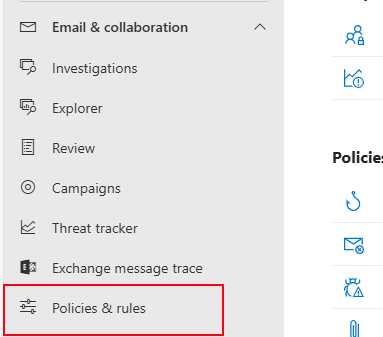
Click on “Threat policies”.
Then on “Email authentication settings”.
Here you will find all your domains added to Microsoft 365 and the status of DKIM. In my case, I already configured all domains to do DKIM signing.
If you have a domain that has DKIM disabled, you can click on the domain-name. This opens an fly-in window:
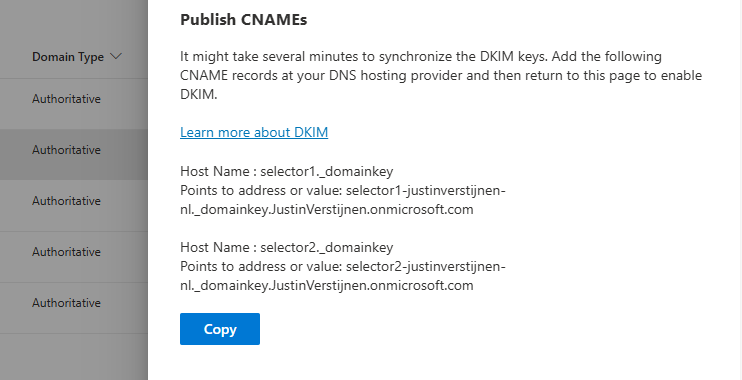
The window tells us how to configure the records in our DNS service. In my case i have to configure 2 CNAME type DNS records. Microsoft 365 always use this 2 CNAME-configuration.
Log in to your DNS-hosting service where you can create and change DNS records.
Create those 2 records in your DNS hosting service. In my case this configured:
| Type | Name | Value | TTL |
| CNAME-record | selector1._domainkey | selector1-justinverstijnen-nl._domainkey.JustinVerstijnen.onmicrosoft.com | Provider default |
| CNAME-record | selector2._domainkey | selector2-justinverstijnen-nl._domainkey.JustinVerstijnen.onmicrosoft.com | Provider default |
For reference;

Some DNS hosting providers requires you to end external domain-record values with a dot “.”
Save the DNS records, and check in Microsoft 365 if DKIM can be enabled. This may be not directly but should work after 15 minutes.
This configuration must done for all your domains.
Configuring DMARC step-by-step
Configuring DMARC is done through DNS records. This guide can be used to configure DMARC for most emailing services.
- Log in to your DNS-hosting service where you can create and change DNS records
- Now determine, according to the information in the theoretical part how you want to configure the record
- In my case, this will be the most restricting option, because we don’t want failed SPF or DKIM emails delivered to the normal inbox of our collegues
- Also, I don’t use any reporting tools for DMARC
My record looks like this:
JSON
v=DMARC1; p=reject;We have to create or change an existing record to make this DMARC policy effective. The full record can look like this:
| Type | Name | Value | TTL |
| TXT-record | _dmarc | v=DMARC1; p=reject; | Provider default |
My configured record for reference:

This configuration must done for all your domains.
When implementing the reject policy in real world domains, double check all systems who send email from your domain, as this change can disrupt deliverability when not configured correctly.
Ensure all systems are defined in SPF and use DKIM.
Configure DMARC for your .onmicrosoft.com domain(s)
It’s also possible to configure DMARC on your Microsoft Online Email Routing Address (MOERA) domain, which is more widely known as your .onmicrosoft.com domain. I highly recommend doing this as this is practically also a domain that looks like your brand.
To configure this, go to Microsoft 365 Admin Center and head to the domains section:

Open your domain and then open the “DNS records” tab. Create a new record here:
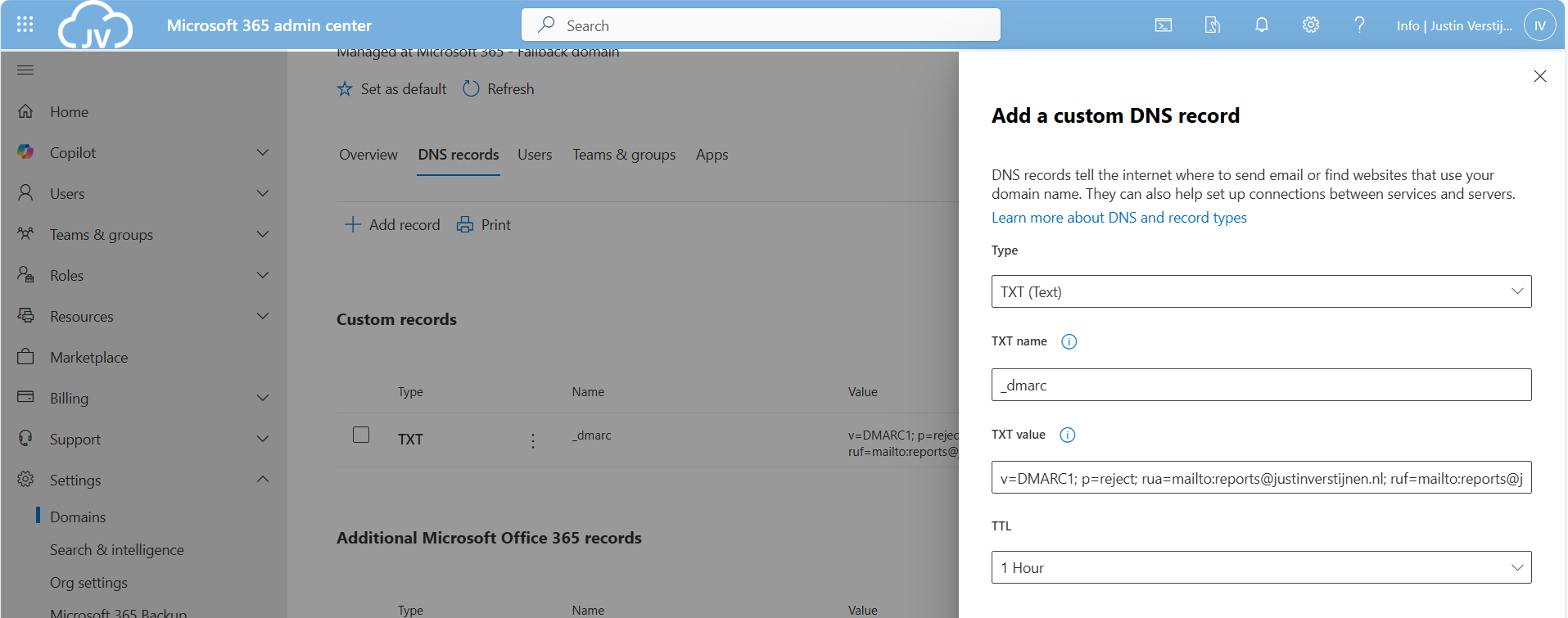
Use the following parameters:
- Type: TXT
- TXT name: _dmarc
- TXT value: *your constructed DMARC record*
Then save your configuration.
Summary
Configuring SPF, DKIM and DMARC nowadays must to be a standard task when adding a new domain to your email sending service like Microsoft 365. Without them, almost all of your sent email will be delivered to “Junk” or even rejected. In larger companies, this can directly result in income loss which we definitely want to avoid.
For short, these 3 techniques do:
- SPF is a “trusted sender” whitelist for a domain. Only if a server is in the SPF record -> its trusted
- DKIM is a PKI system that signs your sent email so a receiver can check if an email really came from the domain it says by verifying the public key in DNS
- DMARC is a top-level system where you can decide what other emailing servers on the internet must do if an email from your domain fails the SPF or DKIM check
My advice is to always have those 3 techniques configured, and when using Microsoft 365 I again highly recommend to configure SMTP DANE also. This can be configured using this guide: https://justinverstijnen.nl/configure-dnssec-and-smtp-dane-with-exchange-online-microsoft-365/
Thank you for reading this page and I hope I helped you.
End of the page 🎉
You have reached the end of the page. You can navigate through other blog posts as well, share this post on X, LinkedIn and Reddit or return to the blog posts collection page. Thank you for visiting this post.
If you think something is wrong with this post or you want to know more, you can send me a message to one of my social profiles at: https://justinverstijnen.nl/about/
If you find this page and blog very useful and you want to leave a donation, you can use the button below to buy me a beer. Hosting and maintaining a website takes a lot of time and money. Thank you in advance and cheers :)
The terms and conditions apply to this post.
Disable DirectSend in Exchange Online
Microsoft has published a new command to completely disable the unsafe DirectSend protocol in your Microsoft 365 environment. In this…
Microsoft has published a new command to completely disable the unsafe DirectSend protocol in your Microsoft 365 environment. In this guide I will explain what DirectSend is, why you should disable this and how we can achieve this.
What is DirectSend?
DirectSend (Microsoft 365) lets devices or applications (like printers, scanners, or internal apps) send email directly to users inside your organization without authentication. Instead of using authentication, it uses your MX record directly with port 25.
Some details about DirectSend:
- Only works for internal recipients (same tenant)
- No mailbox or license required for the sending device/app
- Uses SMTP to your tenant’s MX endpoint
- Commonly used for scanners, alerts, and legacy systems
- Does not support sending to external email addresses
- Possibly exposing public IP addresses in your DNS records
We can see it like a internal relay, possible to send email to all users in your tenant, which is actively used to distribute malicious activity. This consists of sending mailware or credential harvesting, bypassing different security controls active on normal email.
Why DirectSend is a security risk
Lets take a look into DirectSend en why this is a security risk, and a protocol which we must have disabled:
- No authentication is required, so any device or system that can reach your MX endpoint may be able to send email as your domain
- This makes it easier to spoof internal senders, which can be abused for phishing or social-engineering attacks
- Compromised devices (printers, scanners, servers) can be used to send malicious emails internally without triggering normal account protections
- There’s no user identity, so auditing and tracing who actually sent a message is harder
- It bypasses protections like MFA and Conditional Access, since no sign-in happens
- If network access is misconfigured, outsiders could potentially abuse Direct Send
Disable DirectSend with Exchange Online PowerShell
Let’s get into the part of disabling DirectSend for Exchange Online. First, ensure you have the Exchange Online Management PowerShell module installed.
Let’s connect to your Microsoft 365 environment using the command below:
POWERSHELL
Connect-ExchangeOnlineLogin to your account with Global Administrator permissions.
Then execute this command to disable DirectSend tenant-wide:
POWERSHELL
Set-OrganizationConfig -RejectDirectSend $trueTo re-enable DirectSend, just change the $true boolean to $false.
If you want to check the status before or after the set command, you can use this command:
POWERSHELL
Get-OrganizationConfig | Select -Expand RejectDirectSendThats all. :)
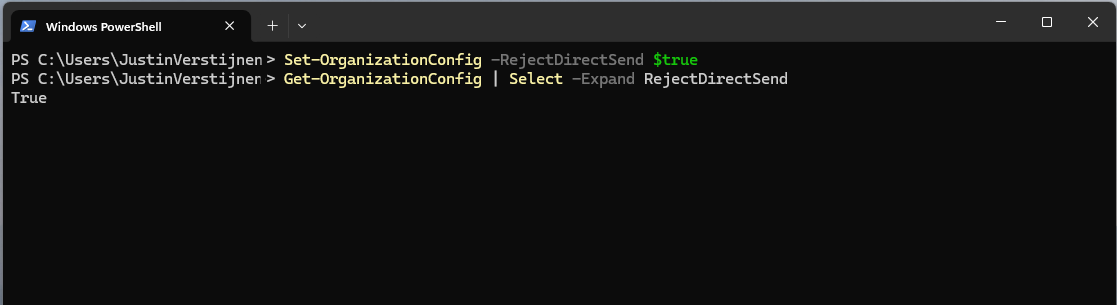
If an email is now sent using DirectSend, the following error will occur:
550 5.7.68 TenantInboundAttribution; Direct Send not allowed for this organization from unauthorized sources
Exactly what we wanted to achieve.
Summary
Disabling DirectSend on your Microsoft 365 tenant enhances your email security for a bit, and helps your users being secure. If you are planning on disabling DirectSend, I recommend doing this outside of business hours, giving you time to fix possible email disruptions.
We cannot disable DirectSend on specific users first, this is because its an tenant-wide setting. Because we have no authentication, this would theoretically impossible.
Thank you for reading this guide and I hope it was helpful.
Sources
These sources helped me by writing and research for this post;
End of the page 🎉
You have reached the end of the page. You can navigate through other blog posts as well, share this post on X, LinkedIn and Reddit or return to the blog posts collection page. Thank you for visiting this post.
If you think something is wrong with this post or you want to know more, you can send me a message to one of my social profiles at: https://justinverstijnen.nl/about/
If you find this page and blog very useful and you want to leave a donation, you can use the button below to buy me a beer. Hosting and maintaining a website takes a lot of time and money. Thank you in advance and cheers :)
The terms and conditions apply to this post.
Set a domain alias for every user in Microsoft 365
In this guide i will explain how to add a alias of a domain to every user in Microsoft 365/Exchange Online.
Sometimes, we add a new domain to Microsoft 365 and we want to have a domain alias for multiple or every user.
Logging in Exchange Online Powershell
To configure a alias for every user, we need to login into Exchange Online Powershell:
POWERSHELL
Connect-ExchangeOnlineIf you don’t have the module already installed on your computer, run the following command on an elevated window:
POWERSHELL
Install-Module ExchangeOnlineManagementSource: https://www.powershellgallery.com/packages/ExchangeOnlineManagement/3.7.2
Adding the 365 domain alias to every user
After succesfully logged in, run the following command:
POWERSHELL
$users=Get-Mailbox | Where-Object{$_.PrimarySMTPAddress -match "justinverstijnen.nl"}Here our current domain is “justinverstijnen.nl” but let’s say that we want to add “justinverstijnen.com”. Run the following command to do this:
POWERSHELL
foreach($user in $users){Set-Mailbox $user.PrimarySmtpAddress -EmailAddresses @{add="$($user.Alias)@justinverstijnen.com"}}Now we have added the alias to every user. To check if everything is configured correctly, run the following command:
POWERSHELL
$users | ft PrimarySmtpAddress, EmailAddresses
End of the page 🎉
You have reached the end of the page. You can navigate through other blog posts as well, share this post on X, LinkedIn and Reddit or return to the blog posts collection page. Thank you for visiting this post.
If you think something is wrong with this post or you want to know more, you can send me a message to one of my social profiles at: https://justinverstijnen.nl/about/
If you find this page and blog very useful and you want to leave a donation, you can use the button below to buy me a beer. Hosting and maintaining a website takes a lot of time and money. Thank you in advance and cheers :)
The terms and conditions apply to this post.
Configure DNSSEC and SMTP DANE Microsoft 365
This guide explains how to configure the new announced DNSSEC and SMTP DANE security options in Exchange Online.
Recently, Microsoft announced the general availability of 2 new security protocol when using Microsoft 365 and the service Exchange Online in particular. SMTP DANE and DNSSEC. What are these protocols, what is the added value and how can they help you secure your organization? Lets find out.
Domain Name System Security Extensions (DNSSEC)
DNSSEC is a feature where a client can validate the DNS records received by a DNS server to ensure a record is originated from the DNS server and not manipulated by a Man in the Middle attack.
DNSSEC is developed to prevent attacks like in the topology below:
Here a attacker injects a fake DNS record and sends the user to a different IP-address, not the actual IP-address of the real website but a fake, mostly spoofed website. This way, a user sees for example https://portal.azure.com in his address bar but is actually on a malicious webserver. This makes the user far more vulnerable to credential harvesting or phising attacks.
With DNSSEC, the client receives the malicious and fake DNS entry, validates it at the authorative DNS server for the domain and sees its fake. The user will be presented a error message and we have prevented just another breach.
SMTP DNS Authentication of Named Entities (DANE)
SMTP DANE is an addition to DNSSEC which actually brings the extra security measures to sending email messages. It helps by performing 3 steps:
- When sending an email message, SMTP DANE requires a TLS connection and certificate and doesn’t send email when this is not possible
- SMTP DANE validates the emailserver to ensure an email message originates from the server of the given domain
- SMTP DANE doesn’t use external Certificate Authorities but uses the systems available to generate certificates which the receiver can validate.
SMTP DANE and DKIM (DomainKeys Identified Mail)
SMTP DANE and DKIM sounded the same security to me when i first read about it. However, both are needed to secure your outbound email traffic, but they help in another way:
- DKIM helps by generating a signature at sending the email which a receiver can validate through a public DNS record
- The receiver knows that the message is not modified by an attacker
- SMTP DANE helps securing the transport of the email, and ensures the connection itself is secure. See this like a HTTPS connection
- The receiver knows that the message and connection is not re-routed by an man in the middle.
Requirements
- A Microsoft 365 tenant
- A DNSSEC capable DNS-hosting or server
- Check here: https://dnsmegatool.jvapp.nl/
- Does your DNS hosting not support DNSSEC? Check out this guide: https://justinverstijnen.nl/what-is-mta-sts-and-how-to-protect-your-email-flow/
- Exchange Online PowerShell module
- Some basic knowledge about SPF/DKIM/DMARC
- Check out this page for a basic understanding: https://justinverstijnen.nl/configure-dnssec-and-smtp-dane-with-exchange-online-microsoft-365/
- 30 minutes of your time
Step 1: Check your DNSSEC configuration
When starting out, your DNS hosting must support and enabled DNSSEC on your domain. Without this, those protocols don’t work. You can check out your domain and DNSSEC status with my DNS MEGAtool:
My domain is DNSSEC capable and a DS record is published from the registrar to the DNS hosting and is ready to go to the next phase:
You can find this on the last row of the table in the DNS MEGAtool. If the status is red or an error is in the value field, the configuration of your domain is not correct.
Step 2: Login into Microsoft Exchange Online Powershell
The only way to enable those features at this moment are to configure those on Exchange Online Powershell. The good part is, it is not that hard. Let me show you.
First, login into Exchange Online Powershell:
POWERSHELL
Connect-ExchangeOnlineLogin with your credentials, and we are ready.
Step 3: Enable DNSSEC
We have to enable DNSSEC to each of our domains managed in Microsoft 365. In my environment, i have only one domain. Run the following command to enable DNSSEC:
POWERSHELL
Enable-DnssecForVerifiedDomain -DomainName "justinverstijnen.nl"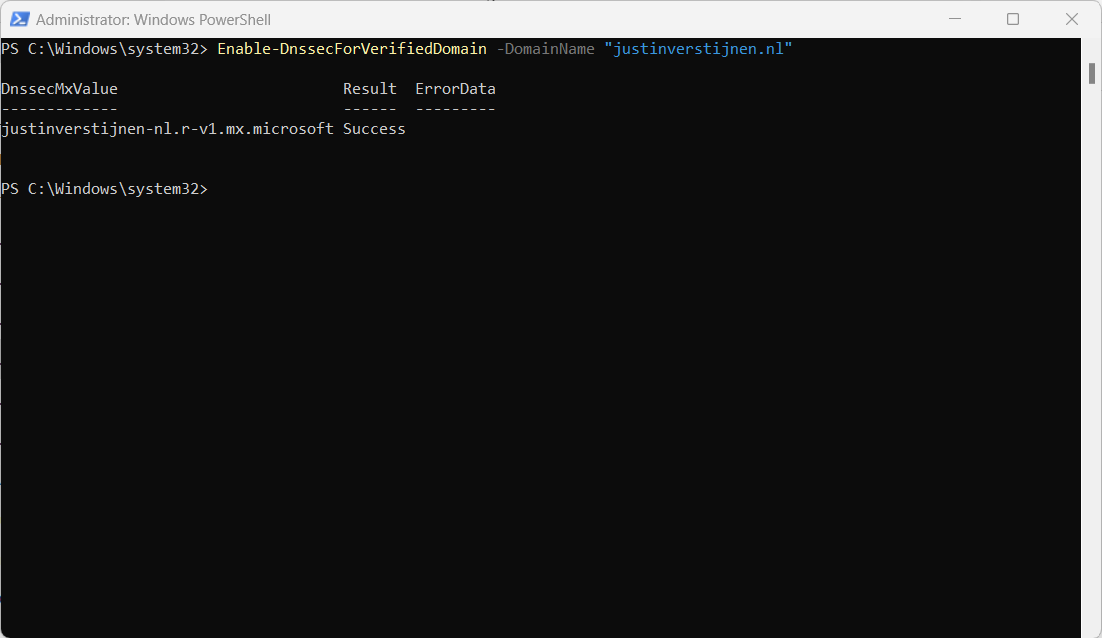
The output of the command gives us a new, DNSSEC enabled MX-record.
Step 4: Configure DNSSEC enabled MX record
POWERSHELL
DnssecMxValue                         Result  ErrorData
-------------                         ------  ---------
justinverstijnen-nl.r-v1.mx.microsoft Success
We have to change the value of the MX-record in the DNS hosting of your domain and it has to be the new primary MX-record (the one with the highest priority -> lowest number). I added it to the list of DNS records with a priority of 5, and switched the records outside of business hours to minimize service disruption.
Here an example of my configuration before switching to the new DNSSEC enabled MX record as primary.

When you change your MX record it can take up to 72 hours before the whole world knows your new MX record.
Step 5: Test new DNSSEC MX record
We can test our new MX record and the working of our change with the following tool: https://testconnectivity.microsoft.com/tests/O365InboundSmtp/input
Fill in your emailaddress and log into the service:
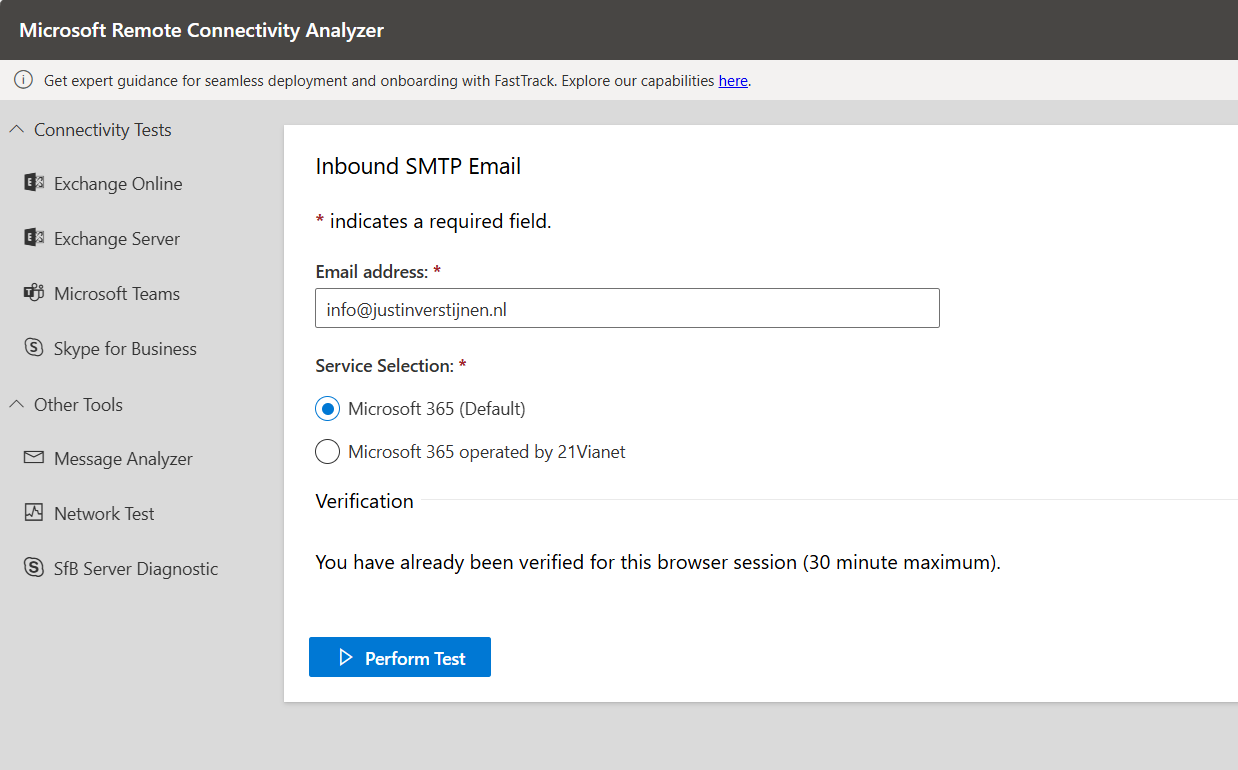
After that you get an test report:
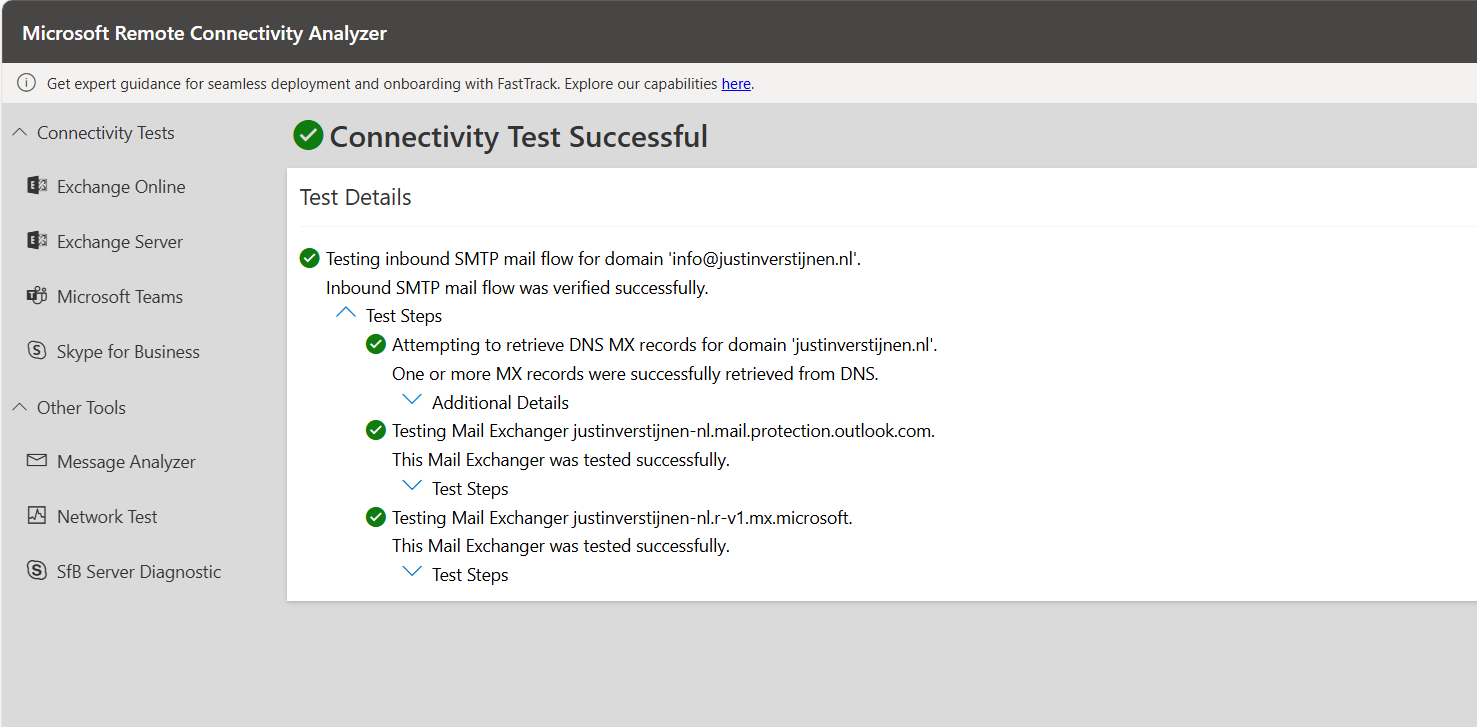
I did this test before flipping the MX records. You can test this anytime.
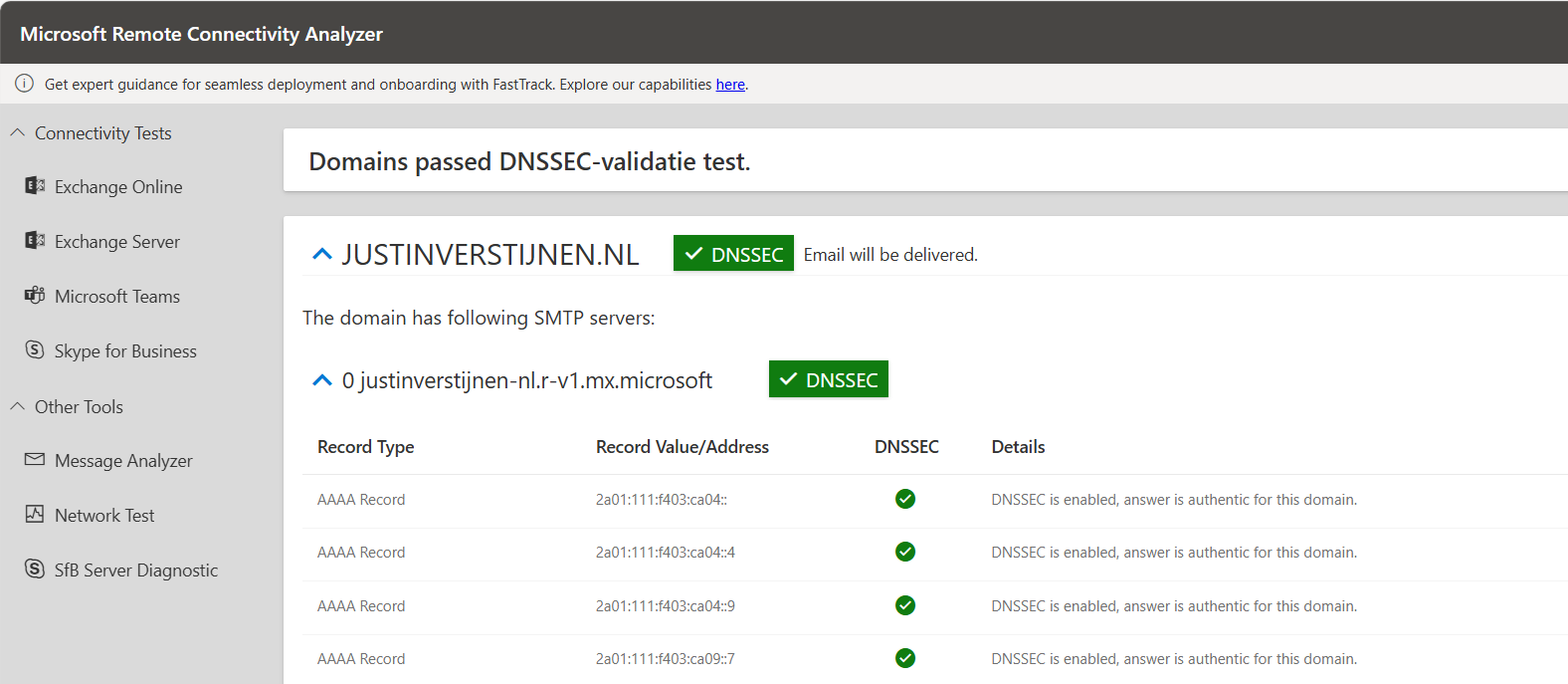
After the MX records are fine, we can test our DNSSEC. The DNSSEC enabled MX record has to be primary at this point.
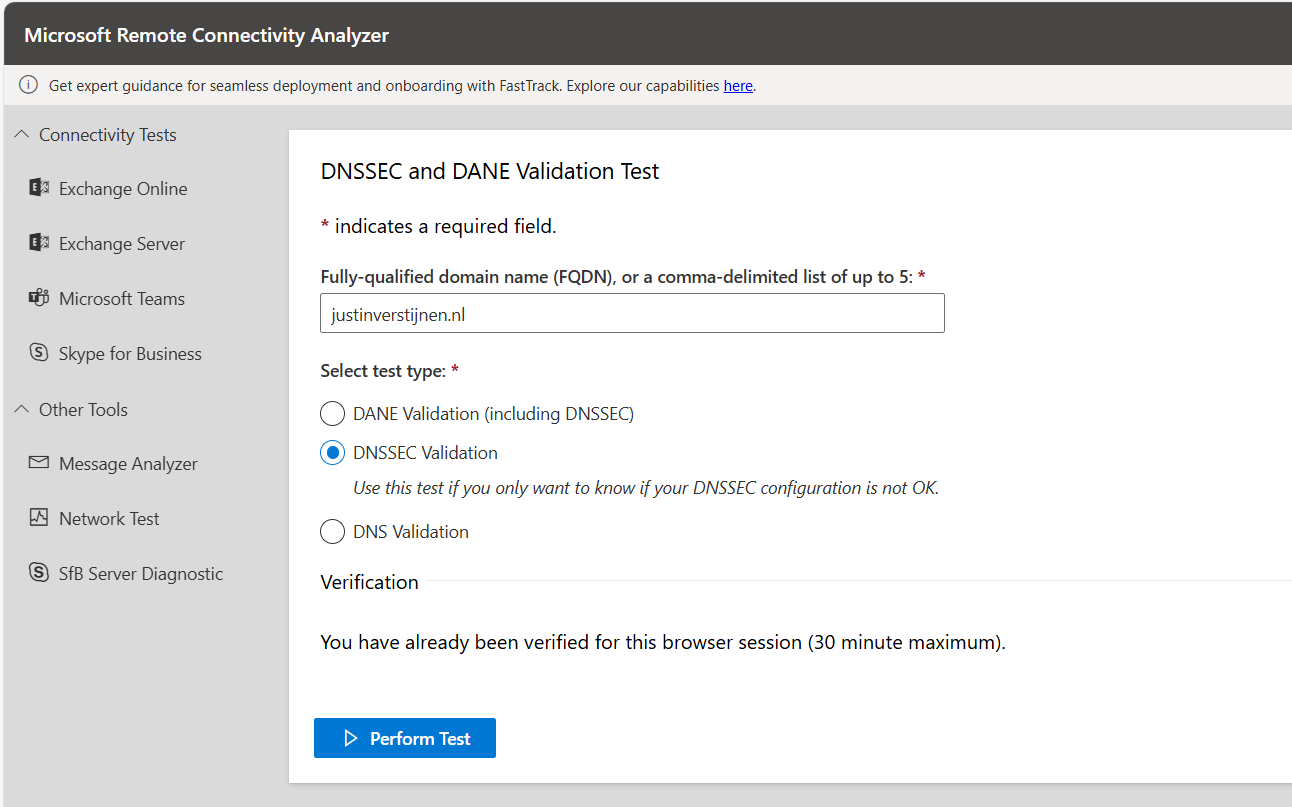
After the test is completed you get the results and possible warnings and errors:
Step 6: Enable SMTP DANE
After we configured DNSSEC, we can enable SMTP DANE in the same Exchange Online Powershell window by using the following command:
POWERSHELL
Enable-SmtpDaneInbound -DomainName "justinverstijnen.nl"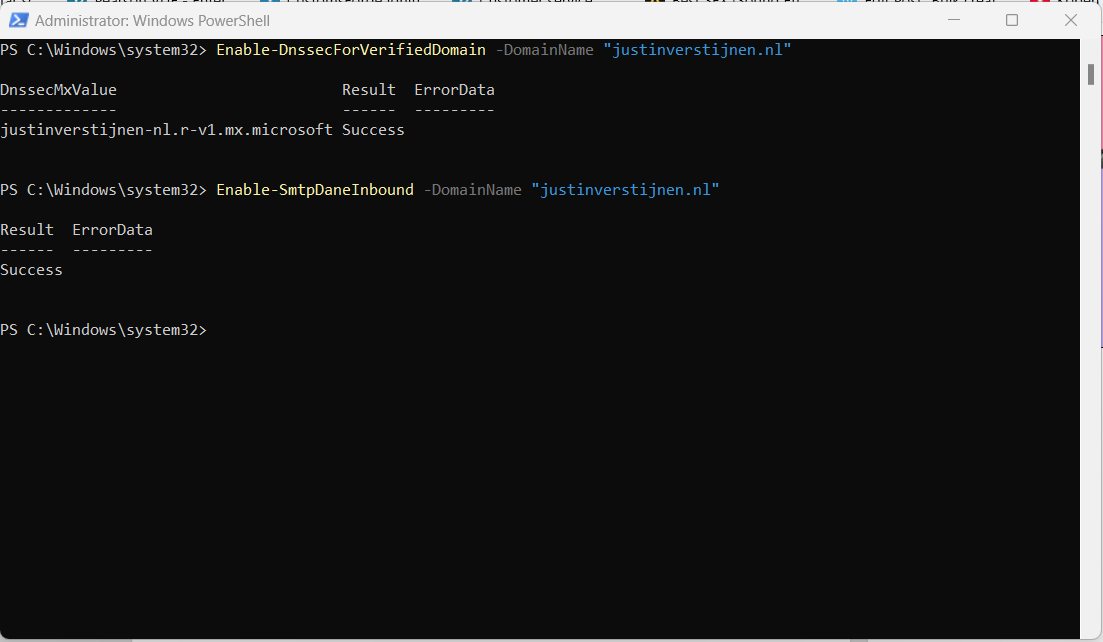
This is only a command to enable the option, here is no additional DNS change needed.
Step 7: Test inbound SMTP DANE
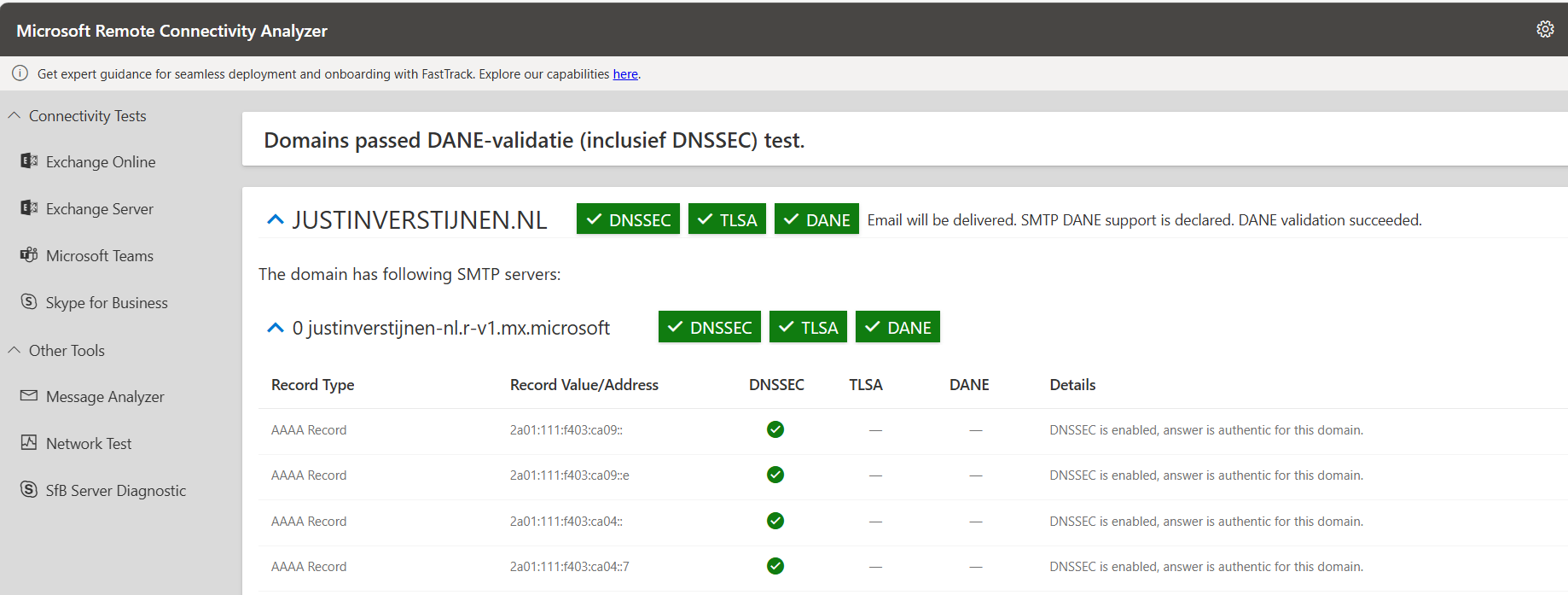
After enabling the SMTP DANE option, you will have to wait some time to fully enable and make it work on the internet. It can take up to an hour, but in my case it took around 10 minutes.
You can test the outcome by using this tool: https://testconnectivity.microsoft.com/tests/O365DaneValidation/input
Fill in your domain, and select the “DANE-validation” including DNSSEC to test both of your implemented mechanisms:
Summary
After this guide you are using DNSSEC and SMTP DANE on your Exchange Online environment. This improves your security posture at that point. My advice is to enable this options when possible. When DNSSEC is not an option, I highly recommend to configure this: https://justinverstijnen.nl/what-is-mta-sts-and-how-to-protect-your-email-flow/
Thank you for reading this post and I hope I helped you out securing your email flow and data in transfer.
End of the page 🎉
You have reached the end of the page. You can navigate through other blog posts as well, share this post on X, LinkedIn and Reddit or return to the blog posts collection page. Thank you for visiting this post.
If you think something is wrong with this post or you want to know more, you can send me a message to one of my social profiles at: https://justinverstijnen.nl/about/
If you find this page and blog very useful and you want to leave a donation, you can use the button below to buy me a beer. Hosting and maintaining a website takes a lot of time and money. Thank you in advance and cheers :)
The terms and conditions apply to this post.
Solved - Microsoft 365 tenant dehydrated
Microsoft will sometimes “pause” tenants to reduce infrastructure costs. You will then get an error which contains “tenant dehydrated”.
Microsoft will sometimes “pause” tenants to reduce infrastructure costs. You will then get an error which contains “tenant dehydrated”. What this means and how to solve it, I will explain in this post.
What is “Tenant dehydrated”?
Microsoft sometimes will dehydrate Microsoft 365 tenants where things will not often change to the tenant. This closes some parts of the tenant for changing, even if you have Global Administrator permissions.
The cause of this is for Microsoft to save on infrastructure cost. They will set the tenant in this sort of “sleep mode” where everything works properly but some configuration changes cannot be done. You can get this error with all sorts of changes:
- Creating a new group
- Creating a new management role assignment
- Creating a new role assignment policy
- Modifying a built-in role assignment policy
- Creating a new Outlook mailbox policy
- Creating a new sharing policy
- Creating a new retention policy
How to undo this dehydration
Fortunately, we can undo this with some Powershell commands, which I will show you:
Start by logging into Exchange Online PowerShell. If you don’t have this installed, click here for instructions.
POWERSHELL
Connect-ExchangeOnlineThen fill in your credentials and finish MFA.
Check status
When logged in, we can check the tenant dehydration status with this command:
POWERSHELL
Get-OrganizationConfig | ft Identity,IsDehydratedThis will show something like this:
POWERSHELL
Get-OrganizationConfig | ft Identity,IsDehydrated

Identity                               IsDehydrated
--------                               ------------
justinverstijnen.onmicrosoft.com       True
This outputs the status “True”, which means we cannot change some settings in our tenant and is in a sleep mode.
Disable dehydration
The following command disables this mode and makes us able to change things again (when still logged in to Exchange Online Powershell):
POWERSHELL
Enable-OrganizationCustomizationThis command takes a few seconds to process, and after this commando we can check the ststua again:
POWERSHELL
Get-OrganizationConfig | ft Identity,IsDehydrated

Identity                               IsDehydrated
--------                               ------------
justinverstijnen.onmicrosoft.com       False
Summary
Sometimes, this error will occur what is very unfortunate but it’s not a really complex fix. We have to agree with Microsoft. They host millions of tenants which will almost never get any changes so putting them in this sleep mode is completely acceptable.
Thank you for reading this guide and I hope I helped you out fixing this problem.
End of the page 🎉
You have reached the end of the page. You can navigate through other blog posts as well, share this post on X, LinkedIn and Reddit or return to the blog posts collection page. Thank you for visiting this post.
If you think something is wrong with this post or you want to know more, you can send me a message to one of my social profiles at: https://justinverstijnen.nl/about/
If you find this page and blog very useful and you want to leave a donation, you can use the button below to buy me a beer. Hosting and maintaining a website takes a lot of time and money. Thank you in advance and cheers :)
The terms and conditions apply to this post.
Create a Catch all mailbox in Exchange Online
Sometimes a company wants to receive all email, even when addresses don’t really exist in Exchange. Now we call this a Catch all mailbox…
Sometimes a company wants to receive all email, even when addresses don’t really exist in Exchange. Now we call this a Catch all mailbox, where all inbound email is being catched that is not pointed to a known recipient. Think of a sort of *@domain.com.
In this guide I will explain how to configure this in Exchange Online and how to maintain this by limiting our administrative effort. I also created a full customizable PowerShell script for this task which you can find here:
Requirements
- Around 20 minutes of your time
- A Microsoft 365 environment
- Basic knowledge of Exchange Online
- Basic knowledge of PowerShell
How does this solution work?
The solution described in this guide works with 3 components:
- A mailbox or shared mailbox
- Dynamic Distribution List
- Mailflow rule
We create a standalone mailbox that is the catch all mailbox, this is the mailbox where everything will be stored. This must have a license for mailflow rules to work. This can also be a free shared mailbox to give multiple users permissions.
Then we create a Dynamic Distribution list which contains all of our users and is automatically refreshed when new users are created. We don’t want the rule of the Catch all superseding our users and all of our email redirected to the catch all mailbox with users not receiving anything.
After the group is created, this will be used as a exception in our created Mailflow rule which states: “Mail to address, member of distribution list, deliver to user. Not member of the list? Deliver to Catch all mailbox.” To have a more clear understanding, I created a diagram of the process:
Note that internal messages will not be hit by this rule, as there is no point of catching internal messages, but you can change this in your rule to suit your needs.
Step 1: Create the Catch all mailbox using Microsoft 365
Now we have to create a mailbox in Microsoft 365. Login to https://admin.microsoft.com
Go to Users and create a new user, and make it clear that this is the Catch-All user:
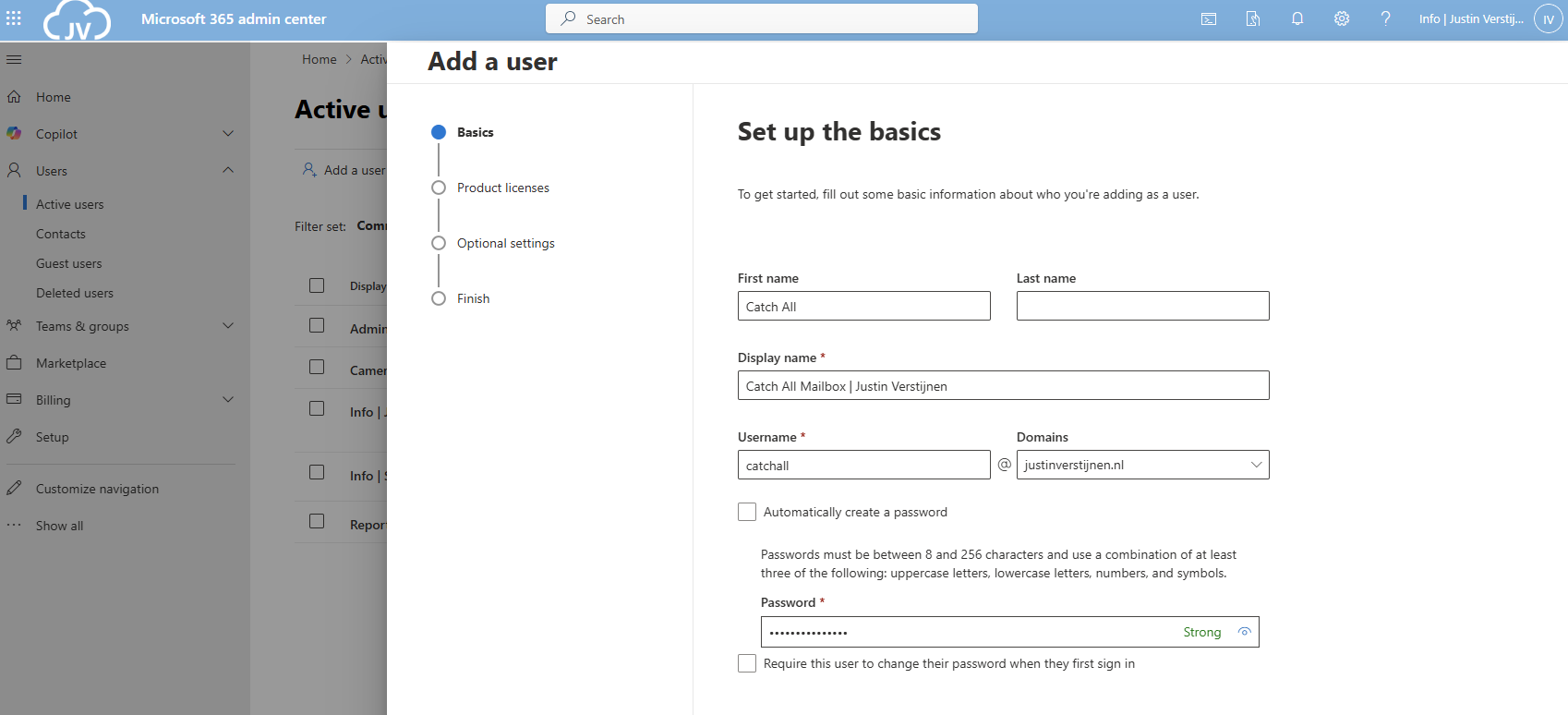
Advance to the next tab and assign at least a Exchange Online P1 license and finish creating the user.
Create the Catch all mailbox using Powershell
You can also create the mailbox with Exchange PowerShell with this simple script:
POWERSHELL
$catchalladdress = "catchall@domain.com"
$displayName = "New User"
$password = ConvertTo-SecureString -String "Password01" -AsPlainText -Force

# Create mailbox itself
New-Mailbox -UserPrincipalName $catchalladdress `
            -DisplayName $displayName `
            -Password $password `
            -FirstName "New" `
            -LastName "User"
Fill in the parameters on line 1, 2 and 3 and execute the script in Exchange Online Powershell. Make sure to first login to your tenant.
If you want to go with the free non-license option, then we can create a shared mailbox instead:
Step 2: Create the Dynamic Distribution Group
Now we have to create the Dynamic Distribution Group. Go to Exchange Admin Center (as this option only exists there). https://admin.exchange.microsoft.com
In my guide, I create one group for excluding only. You can also create a group for all@domain.com for a internal mailing list with all employees.
Go to “Recipients” and then “Groups”. Then open the tab “Dynamic distribution list”
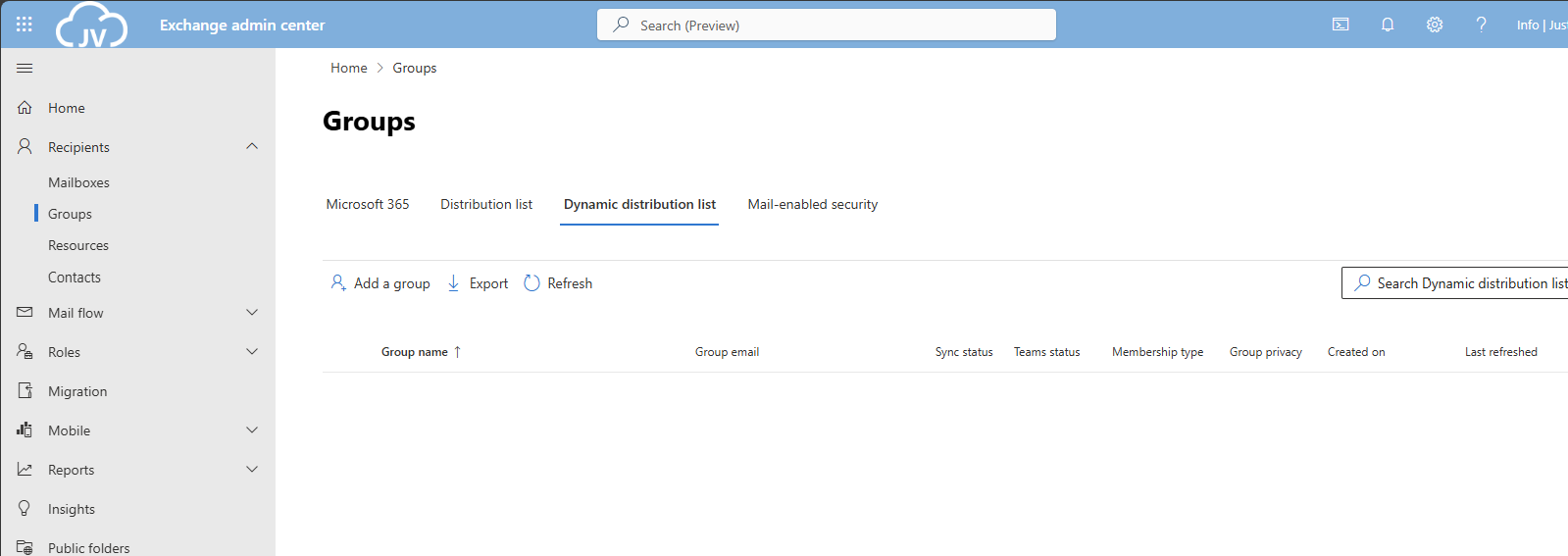
Click on “Add a group” to create a new group.
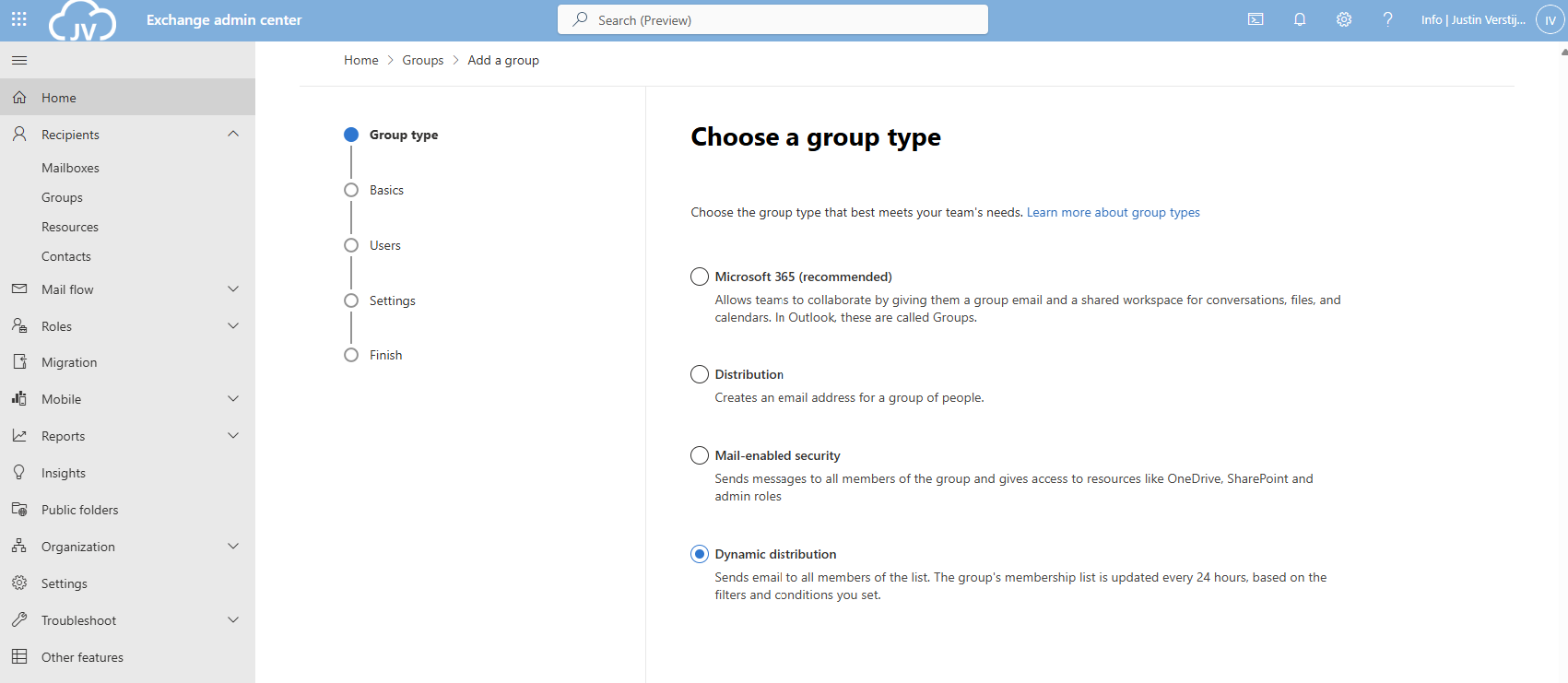
Select the option “Dynamic distribution” and click on “Next”.
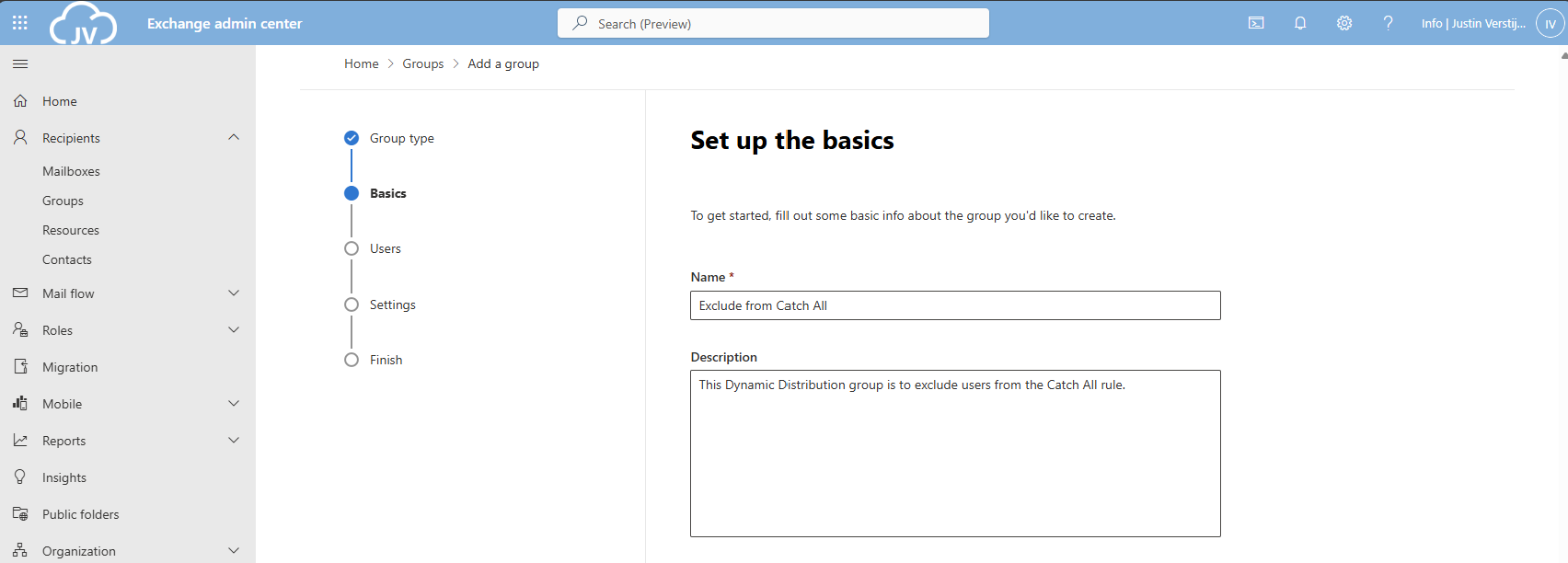
Fill in a good name and description for the Dynamic distribution group.
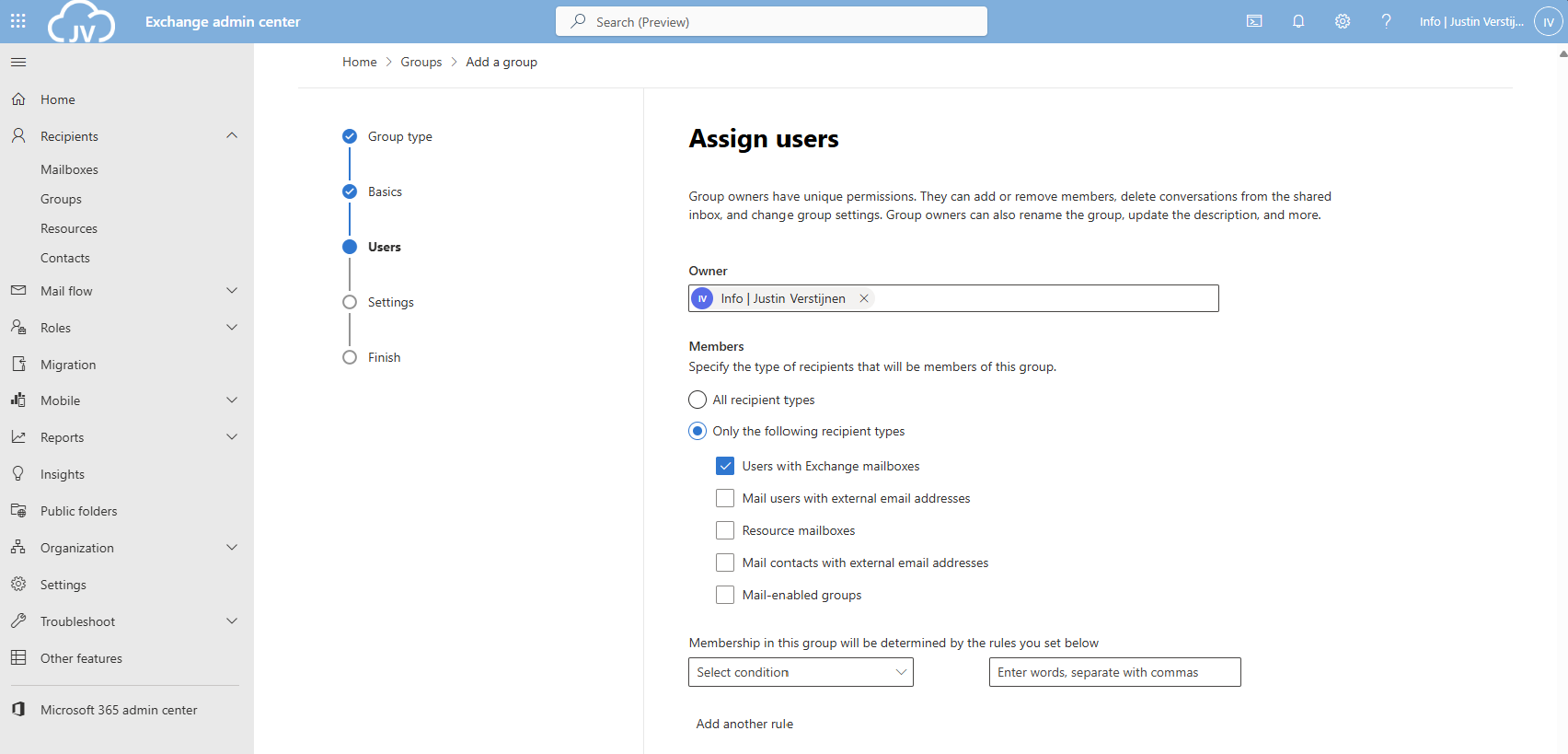
Now for the owner select your admin account(s) and for the members define which types of addresses you want to include. In my case, I only selected Users with Exchange mailboxes. Then click on “Next”.
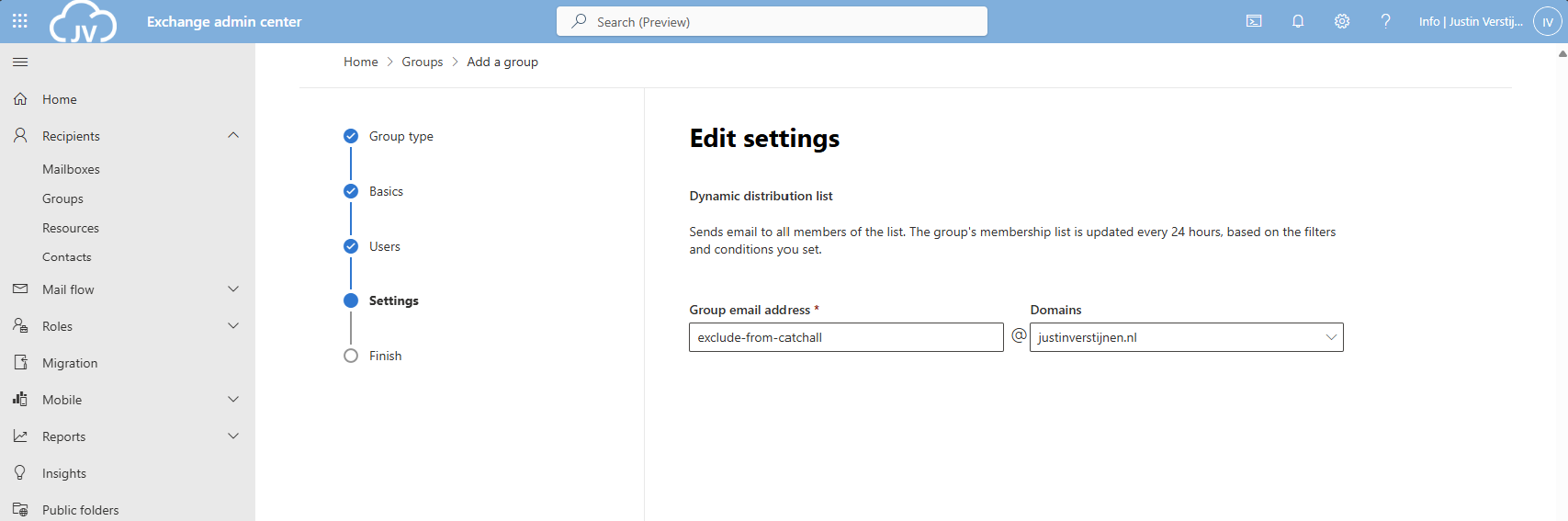
Now define the email address name of the Dynamic Distribution group.
Finish the wizard to create the group.
Create the exclusion Dynamic Distribution group with PowerShell
You can also create this Dynamic Distribution Group with PowerShell by using this simple script;
POWERSHELL
$distributiongroup = "Exclude from Catch All"
$aliasdistributiongroup = "exclude-from-catchall"

New-DynamicDistributionGroup -Name '$distributiongroup' -Alias '$aliasdistributiongroup' -OrganizationalUnit $null -IncludedRecipients 'MailboxUsers'
Step 3: Create the Mailflow Rule
Now we have to create the Mailflow rule in Exchange Admin Center. Go to “Mail flow” and then to “Rules”.
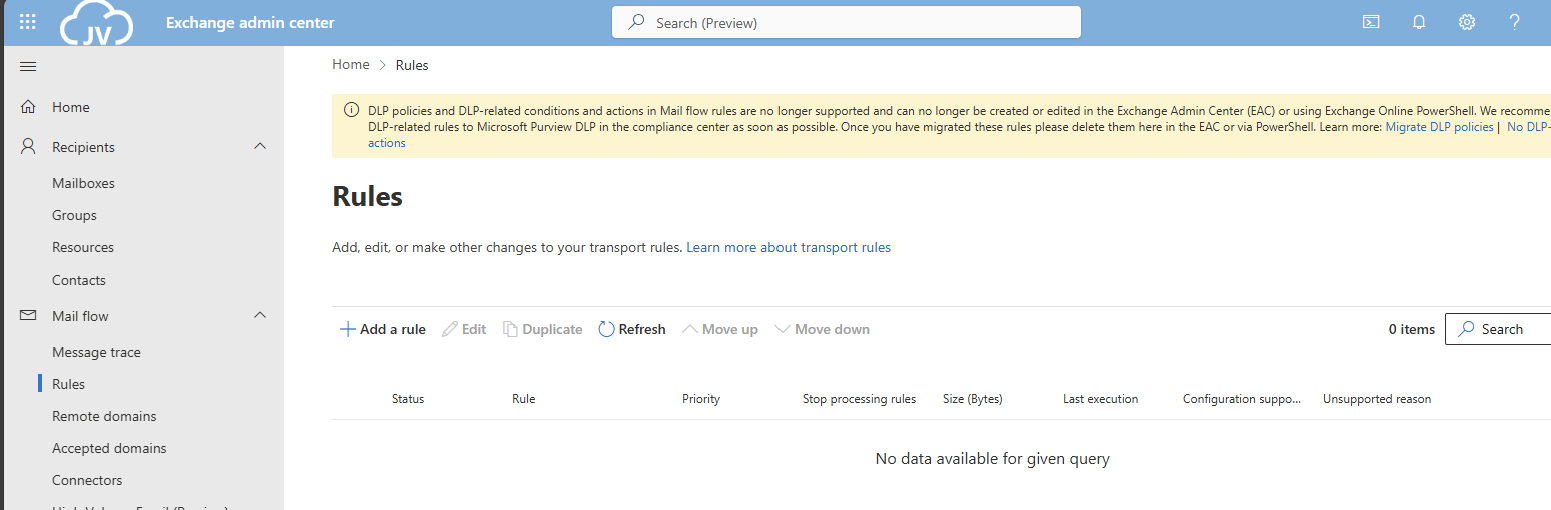
Click on “+ Add a rule” and then on “Create a new rule” to create a new rule from scratch.
Now we have to define the rule by hand:
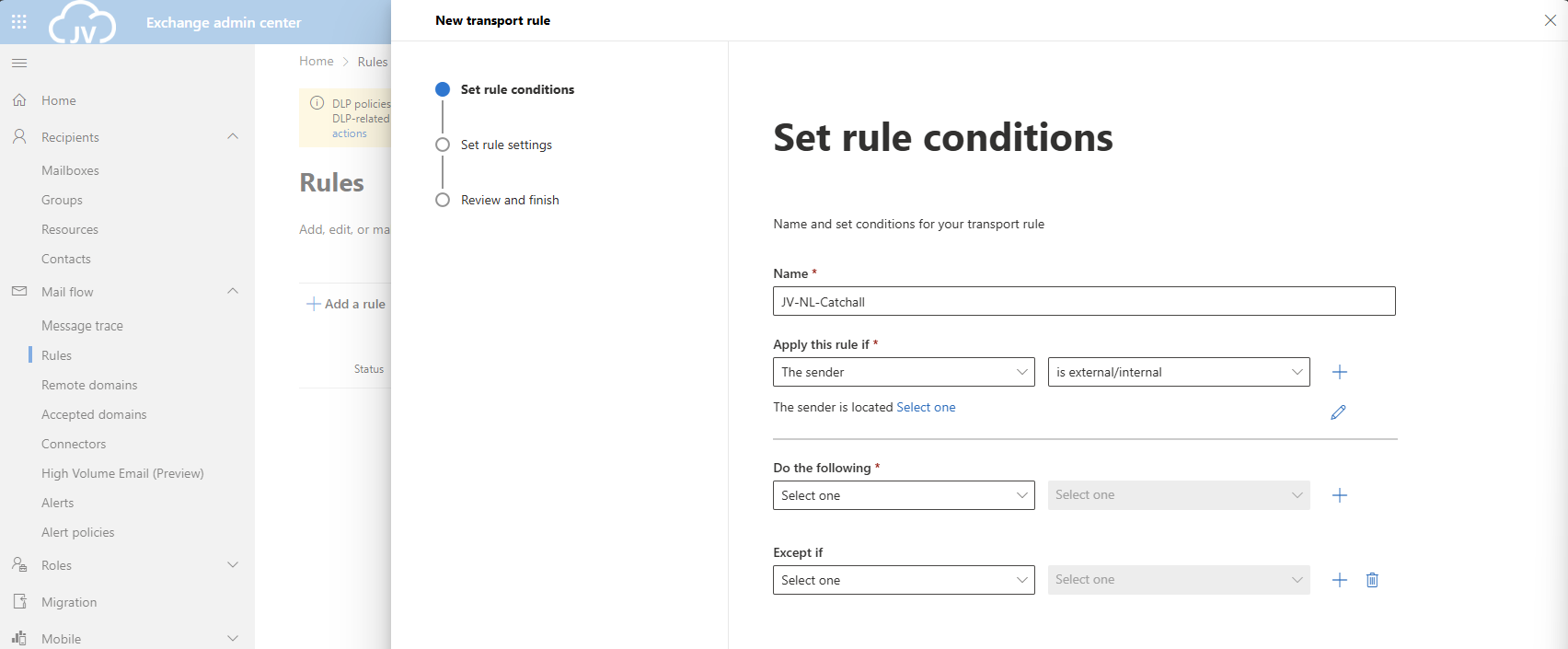
Give the rule a clear name. I called the rule “JV-NL-Catchall” which contains the domain abbreviation and the TLD of the domain. Then specified that its a Catchall rule.
- For the first part: “Apply this rule if”, select The sender, and then “is external/internal”. You can then select “Not in the Organization”.
- For the second part: “Do the following”, select “Do the following” and select “these recipients”. Then select your Catch all mailbox.
- For the third part: “Except if”, select “The recipient” and then “Member of this group”, and select the distribution group we created earlier.
The rule must look like this:
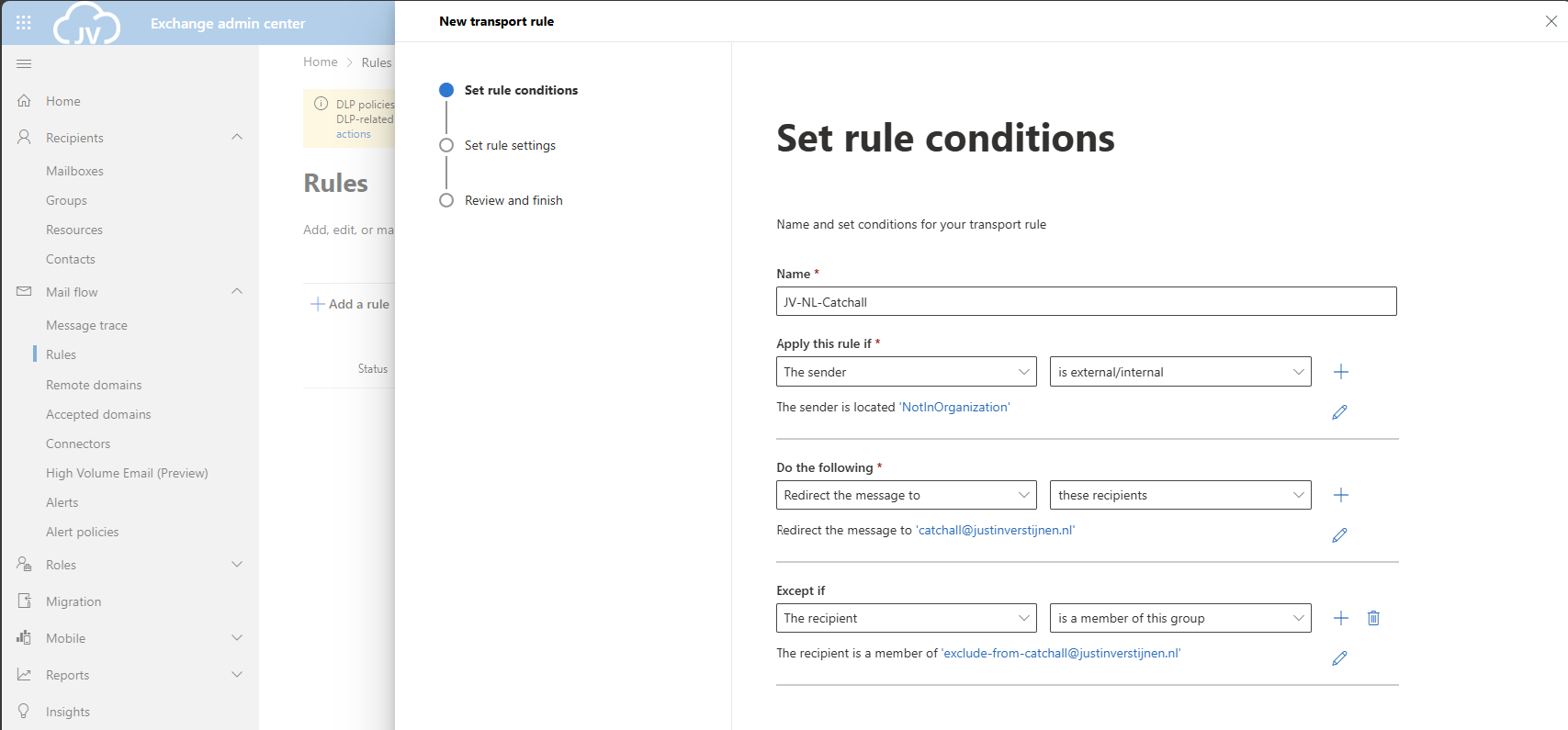
Click on “Next”.
Now for the rule settings, select “Stop processing more rules” to ensure this rule is hit.
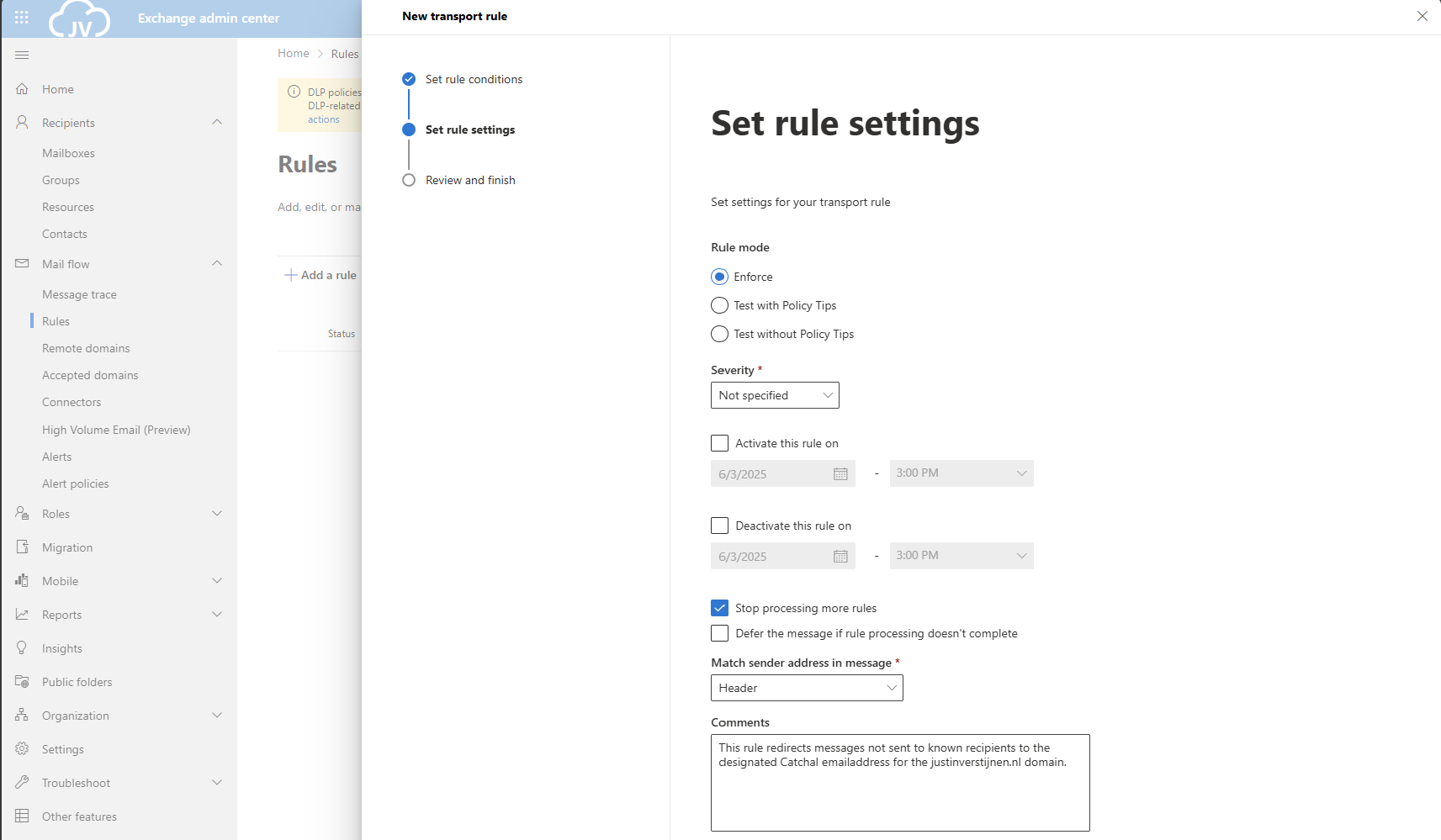
Then give the rule a good description/comment and save the rule.
After creating the rule, we can activate the rule if not already done. Click on the “Disabled” part of the rule and click on the switch to enable the rule.
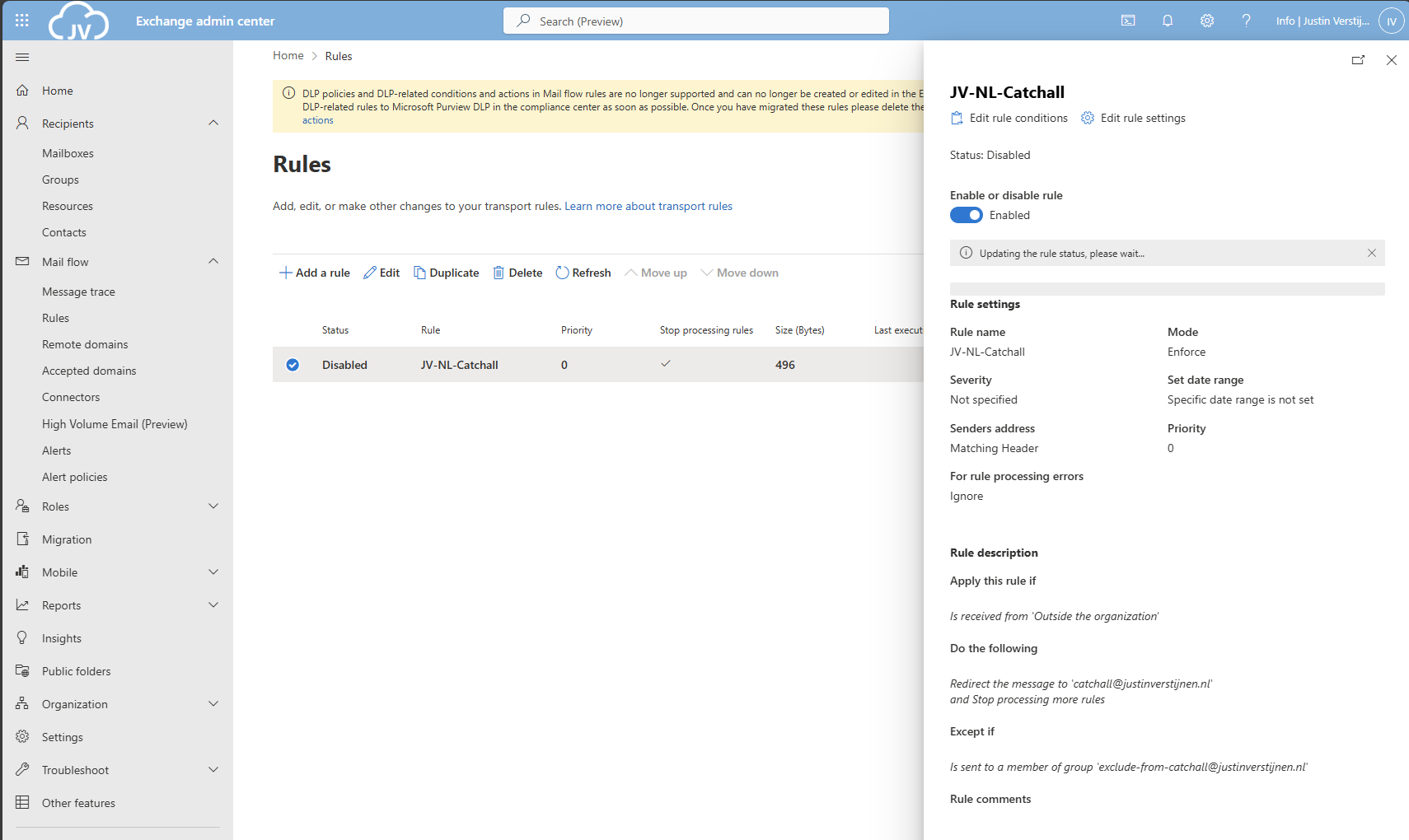
As you can see, my rule is enabled.
Create the Mailflow Rule with PowerShell
With this PowerShell script you can create the Mailflow rule with Powershell.
POWERSHELL
$catchalladdress = "catchall@domain.com"
$distributiongroup = "Exclude from Catch All"
$aliasdistributiongroup = "exclude-from-catchall"
$catchallalias = (Get-EXOMailbox -Identity $catchalladdress).Alias
$flowruletitle = "JV-NL-Catchall"
$flowruledesc = "Your rule description"

# Create the rule itself with given parameters
New-TransportRule -FromScope 'NotInOrganization' -RedirectMessageTo '$doelalias' -ExceptIfSentToMemberOf $distributiongroup -Name 'AllMailboxes' -StopRuleProcessing:$false -Mode 'Enforce' -Comments $flowruledesc -RuleErrorAction 'Ignore' -SenderAddressLocation 'Header'
Make sure to change all parameters. I have added the parameters from earlier tasks above, you can exclude them if already specified in your command window. The command is built on the settings shown in the GUI part.
Step 4: Set the domain as Internal Relay
For Exchange be able to redirect messages to a email addresses that doesn’t really exist, we must enable “Internal Relay” for every domain that must do a Catch all configuration.
You can enable this in Exchange Admin Center, by going to “Mail flow” and then to “Accepted domains”:
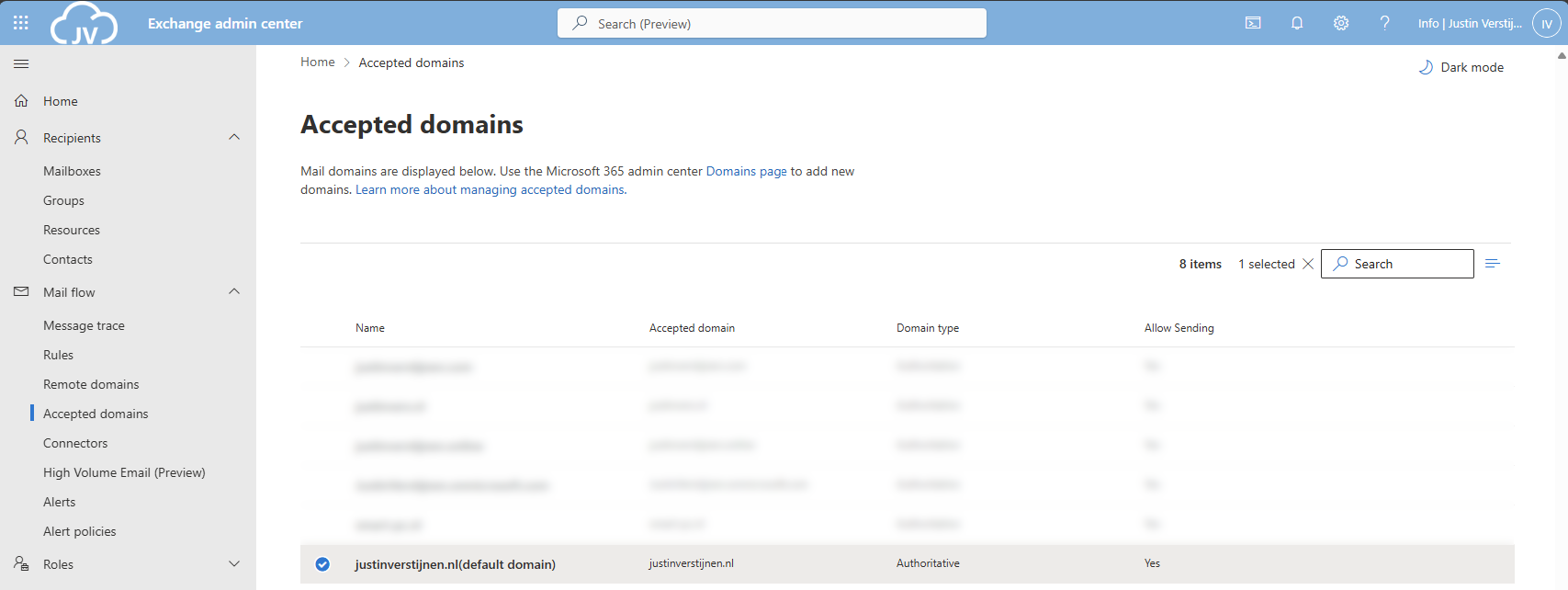
Select your domain and click on it. A window will be opened to the right:
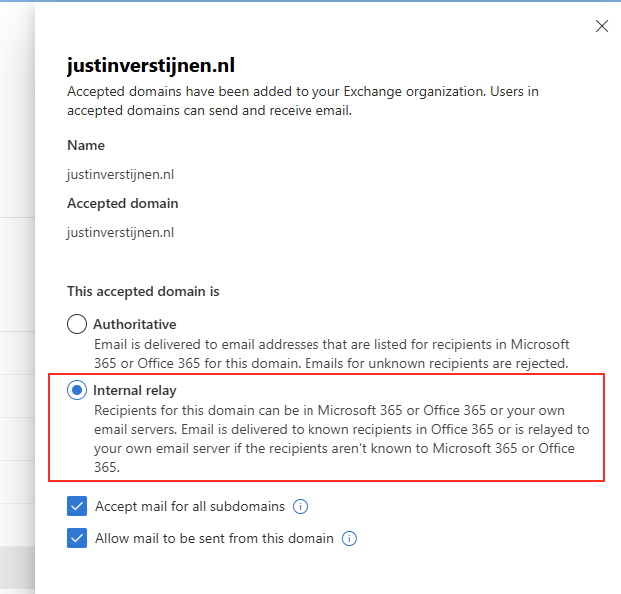
Select the option “Internal Relay” and save the configuration.
Set the domain as Internal Relay with Powershell
This simple Powershell script will set the relay option of the domain to internal.
POWERSHELL
$catchalldomain = "Your domainname"

# Set the relay of Internal
Set-AcceptedDomain -Identity $catchalldomain -DomainType InternalRelay
Step 5: Testing the configuration
We will now test the configuration. Let’s test from an emailaddress outside of your Microsoft 365 tenant (such as Gmail or Hotmail/Outlook.com)
I have sent a message from Hotmail to no-reply@justinverstijnen.nl which is a non-existent emailaddress in my tenant. This message should be delivered to my Catch All mailbox.
And it did!
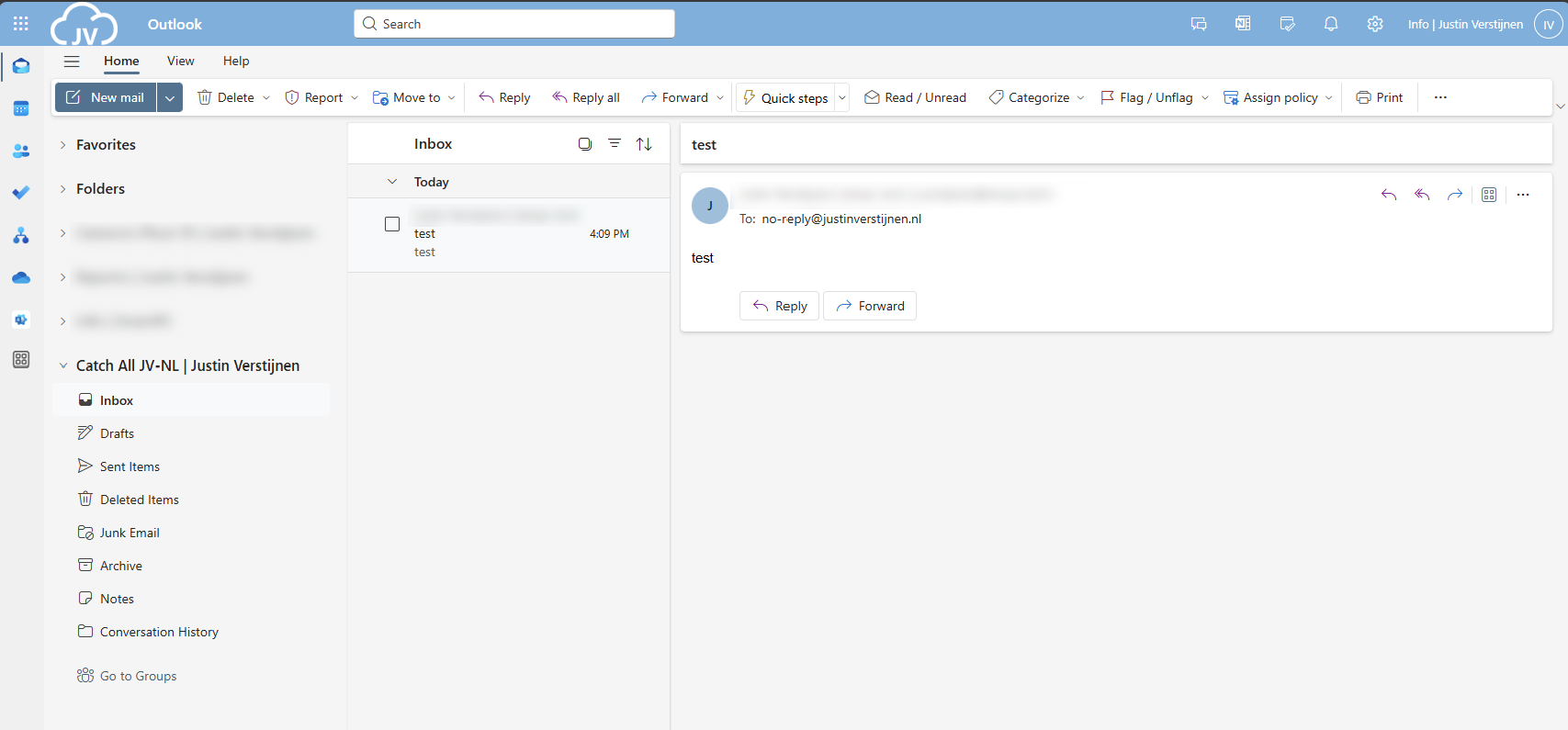
Now you should test normal email flow too, and ensure not all email is sent to your catch all mailbox. If this works, then the solution is working 100%.
Complete PowerShell script
To minimize errors for your configuration, I created a PowerShell script to automate this setup. You can view and download the script here:
Summary
This solution is a great way for having a catch all mailbox in your Microsoft 365 environment. I also added a PowerShell script for performing this task correctly, because one simple mistake can disrupt the complete mailflow.
Thank you for following this guide and I hope it was helpful.
End of the page 🎉
You have reached the end of the page. You can navigate through other blog posts as well, share this post on X, LinkedIn and Reddit or return to the blog posts collection page. Thank you for visiting this post.
If you think something is wrong with this post or you want to know more, you can send me a message to one of my social profiles at: https://justinverstijnen.nl/about/
If you find this page and blog very useful and you want to leave a donation, you can use the button below to buy me a beer. Hosting and maintaining a website takes a lot of time and money. Thank you in advance and cheers :)
The terms and conditions apply to this post.
Microsoft 365 create a shared mailbox with same alias
By default it is not possible to create multiple shared mailboxes with the same name/alias. In this guide i will explain how to reach…
When using Microsoft 365 and using multiple custom domains, sometimes you are unable to create a shared mailbox that uses the same alias as an existing mailbox.
In this guide I will explain this problem and show how to still get the job done.
The problem of multiple shared mailboxes with same alias
Let’s say, we have a Microsoft 365 tenant with 3 domains;
- domain1.com
- domain2.com
- domain3.com
When you already have a mailbox called “info@domain1.com” you are unable to create a “info@domain2.com” in the portal. The cause of this problem is that every mailbox has a underlying “alias” and that this alias is the same when created in the portal. I have tried this in the Microsoft 365 admin center, Exchange Online admin center and Powershell. I get the following error:
MARKDOWN
Write-ErrorMessage: ExB10BE9|Microsoft.Exchange.Management.Tasks.WLCDManagedMemberExistsException|The proxy address "SMTP:info@domain1.com" is already being used by the proxy addresses or LegacyExchangeDN. Please choose another proxy address.The cause of this problem
The cause of the problem is that even if you select another domain in the shared mailbox creation wizard, it wants to create a underlying UPN in your default domain.
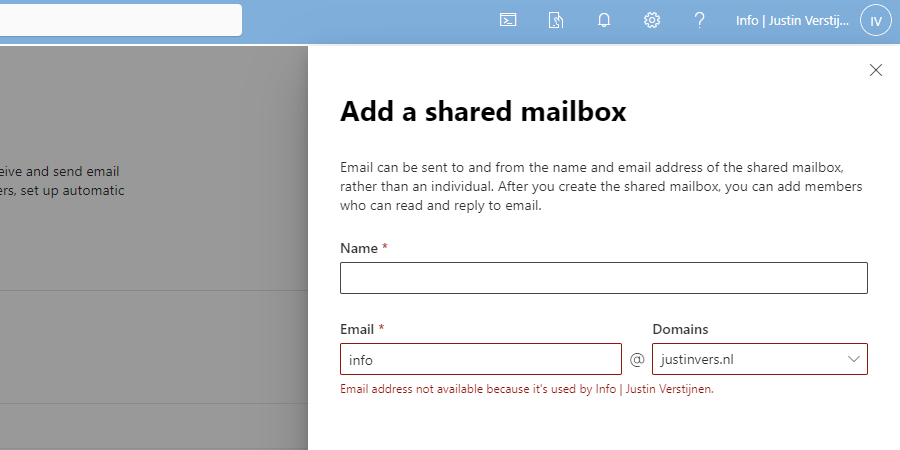
We get an error stating: Email address not available because it’s used by XXX, which is actually true.
How to create those mailboxes?
Luckily I found out that the solution is very easy and that is to create the new mailbox using the Exchange Online Powershell module. I will explain how this works.
For my tutorial, i stick to the example given above, where i described 3 domains, domain1, domain2 and domain3.
First, ensure that you have installed the Exchange Online Powershell module by running the following command in an elevated Windows Powershell window:
POWERSHELL
Install-Module ExchangeOnlineManagementAfter around 30 seconds, you are ready to login into Exchange Online by using th efollowing command:
POWERSHELL
Connect-ExchangeOnlineLog in into your account which has sufficient permissions to manage mailboxes.
After logging in, you have to run the following command:
POWERSHELL
New-Mailbox -Shared -Name "NAME" -DisplayName "DISPLAYNAME" -PrimarySMTPAddress "info@domain.com" -Alias "info_domainname"Here, we create a new shared mailbox:
- Name: Name of the mailbox (everything before the @domain.com)
- Displayname: The displayname of the mailbox how it is shown for contacts, users and in the portal
- PrimarySMTPAddress: The primary emailaddress for the mailbox
- Alias: A internal name for the mailbox which has to be unique (I often use info_domainname)
You can create all mailboxes like this, and we have to tell Exchange Online exactly how to create the mailbox. After creating the mailbox, it looks like this in Exchange Admin center;
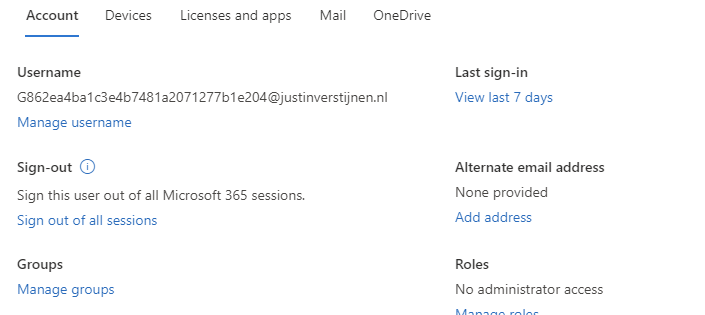
Summary
So creating multiple shared mailboxes with the same alias is not possible in the admin portals which is very stupid. It looks like a way Microsoft wants you to still use their Powershell modules.
I hope Microsoft publishes a new solution for this where we can create those mailboxes in the admin portals and not having to create them using Powershell.
End of the page 🎉
You have reached the end of the page. You can navigate through other blog posts as well, share this post on X, LinkedIn and Reddit or return to the blog posts collection page. Thank you for visiting this post.
If you think something is wrong with this post or you want to know more, you can send me a message to one of my social profiles at: https://justinverstijnen.nl/about/
If you find this page and blog very useful and you want to leave a donation, you can use the button below to buy me a beer. Hosting and maintaining a website takes a lot of time and money. Thank you in advance and cheers :)
The terms and conditions apply to this post.
Migrate data to SharePoint/OneDrive with SPMT
This page helps you to migrate to SharePoint or OneDrive with the SharePoint Migration Tool (SPMT). This tool helps automating the…
When still managing on-premises environments, but shifting your focus to the cloud you sometimes need to do a migration. This page helps you to migrate to SharePoint or Onedrive according to your needs.
At the moment, SharePoint is a better option to store your files because it has the following benefits over a traditional SMB share:
- Single permissions system (No SMB/NTFS permissions)
- High available by default
- No server infrastructure needed
- Users can work at the same file simultaneously
- Integration with Microsoft Teams
The Microsoft SharePoint Migration Tool
Microsoft has a tool available which is free and which can migrate your local data to SharePoint. The targets you can specify are:
- SharePoint
- OneDrive
- Microsoft Teams
Download the tool here: https://learn.microsoft.com/en-us/sharepointmigration/how-to-use-the-sharepoint-migration-tool
When using in a production environment, my advice is to use the “General Availability” option, this version is proven to work like expected.
Using the SharePoint Migration Tool (SPMT)
Install the SharePoint Migration tool on a computer with access to the source fileshare, or on the fileserver itself. How closer to the source, how faster the migration will perform. Also, please check the system requirements: https://learn.microsoft.com/en-us/sharepointmigration/spmt-prerequisites
When the tool is installed, you will get on the landing page:
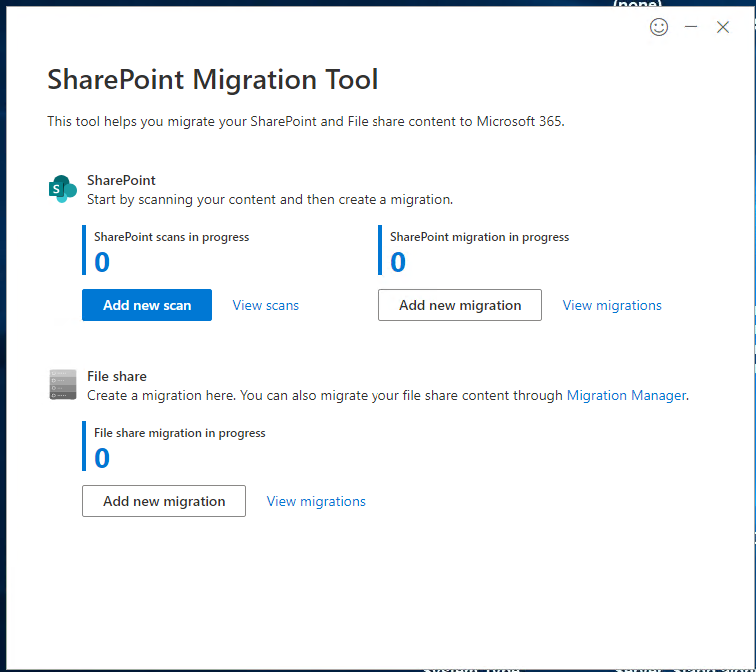
Here you can configure the fileshare (source) and then the destination in SharePoint.
After configuring the task, the tool will take over the hard work and migrates your data to your SharePoint site:
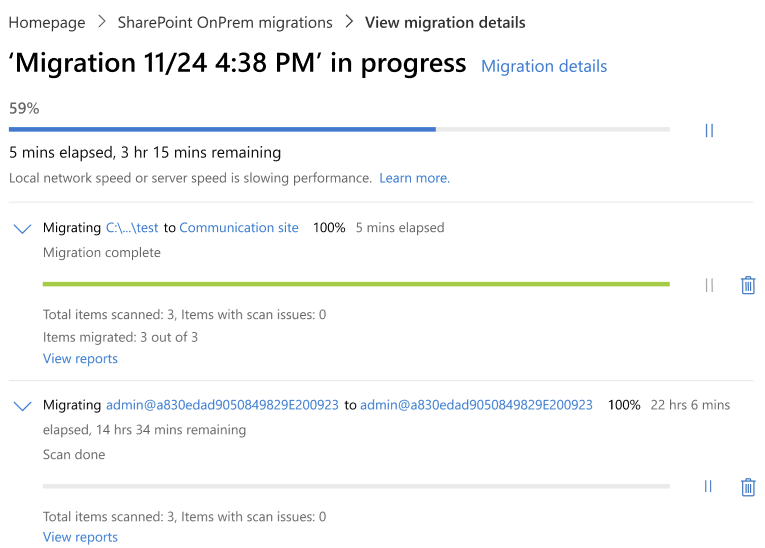
Summary
The SharePoint Migration Tool is a great tool to automate your SharePoint migration and phase out local network folders. It supports resyncing to first do a bulk migration, and later syncing the changes.
Thank you for reading this post and I hope it was helpful.
End of the page 🎉
You have reached the end of the page. You can navigate through other blog posts as well, share this post on X, LinkedIn and Reddit or return to the blog posts collection page. Thank you for visiting this post.
If you think something is wrong with this post or you want to know more, you can send me a message to one of my social profiles at: https://justinverstijnen.nl/about/
If you find this page and blog very useful and you want to leave a donation, you can use the button below to buy me a beer. Hosting and maintaining a website takes a lot of time and money. Thank you in advance and cheers :)
The terms and conditions apply to this post.
Dynamic Distribution Groups in Microsoft 365
This guide explains how Exchange Online Dynamic Distribution Groups work, how to create and maintain them with Microsoft 365.
Sometimes you want to have a distribution group with all your known mailboxes in it. For example an employees@justinverstijnen.nl or all@justinverstijnen.nl address to send a mail company wide. A normal distribution group is possible, but requires a lot of manual maintenance, like adding and removing users.
To apply a little more automation you can use the Dynamic Distribution Group feature of Exchange Online. This is a feature like the Dynamic groups feature of Microsoft Entra which automatically adds new user mailboxes after they are created to make sure every new employee is added automatically.
Requirements
- Around 15 minutes
- Exchange Online Powershell module
Creating a Dynamic Distribution Group
To create a dynamic distribution group, go to the Exchange Online Admin center (admin.exchange.microsoft.com)
When you create a group, select the option “Dynamic distribution” and fill in the details.
At the step “Users” you have to select “Users with Exchange mailboxes” to only include users, no shared mailboxes, external/guest users or resource mailboxes.
Define an email address and finish the wizard.
Delivery Management whitelist
To define which users are allowed to email to the group, you can configure delivery management which acts as a whitelist for the dynamic distribution group. Only the users defined may send to the group.
After creating the mailbox, go to Groups and then Dynamic distribution list and select the group.
Go to the tab “Settings” and click “edit delivery management”.
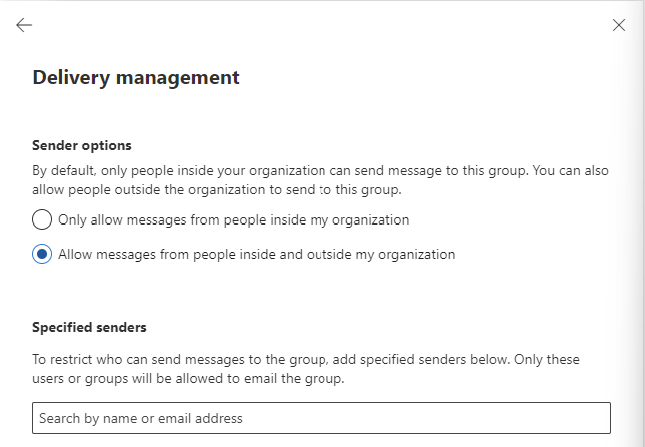
Here you can define the users who may send and a general advice to restrict mailing only from the same orgainzation.
How to exclude mailboxes from the dynamic
It is possible to exclude mailboxes from the dynamic distribution group, but it is not possible in the Admin center. This is possible with Powershell.
My way to do it is to use the attribute field CustomAttribute1 and put “exclude_from_employees” in it without the quotes. In the filter of the dynamic distribution group we select all user mailboxes but not when they have the attribute “exclude_from_employees”.
To configure the attribute filter, we login into Exchange Online Powershell:
POWERSHELL
Connect-ExchangeOnlineTo configure the filter itself, we run the following script:
POWERSHELL
$employees = "Name of distributiongroup"
Set-DynamicDistributionGroup -Identity $employees -RecipientFilter "(Recip
ientTypeDetails -eq 'UserMailbox') -and (CustomAttribute1 -ne 'exclude_from_employees')"
After running these commands succesfully you can add the attribute from the Exchange Online admin center in a mailbox. To add this attribute, open a mailbox;
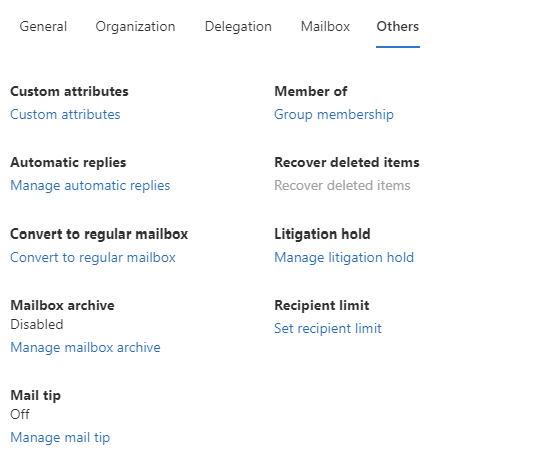
Go to “Custom Attributes” and add the attribute like shown below;
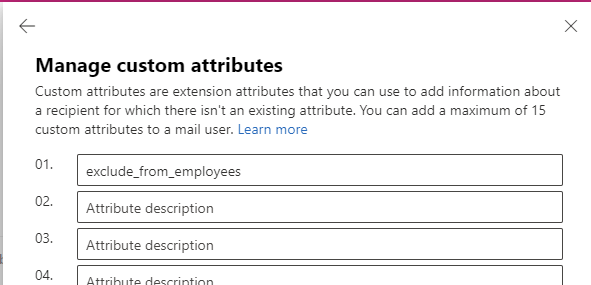
When a mailbox had this attribute in field 1, it will be excluded from the dynamic distribution group.
Check recipients of dynamic distribution group
To check all recipients of the distribution group, you can run the following command when logged in into Exchange Online Powershell:
POWERSHELL
$employees = Get-DynamicDistributionGroup -Identity *EMAILADDRESS*
Get-Recipient -RecipientPreviewFilter ($employees.RecipientFilter)
Just change the Email Address to your own created dynamic distribution group and all recipients will show. Now you have the list of all email addresses the system considers as “members”.
Check excluded recipients of dynamic distribution group
To check which mailboxes does not receive email from the dynamic distribution group, you can run the following;
POWERSHELL
Get-Mailbox | where {$_.CustomAttribute1 -eq "exclude_from_employees"}This command will return all users with the created attribute and who does not receive the email.
Summary
Dynamic Distribution Groups are an excellent way to minimize administrative effort while maintaining some internal addresses for users to send mail to. It is really good as a “all-employees” distribution group where you never have to add or remove users from when employees come and leave. The more automation, the better.
I hope this guide was helpful and thank you for reading!
End of the page 🎉
You have reached the end of the page. You can navigate through other blog posts as well, share this post on X, LinkedIn and Reddit or return to the blog posts collection page. Thank you for visiting this post.
If you think something is wrong with this post or you want to know more, you can send me a message to one of my social profiles at: https://justinverstijnen.nl/about/
If you find this page and blog very useful and you want to leave a donation, you can use the button below to buy me a beer. Hosting and maintaining a website takes a lot of time and money. Thank you in advance and cheers :)
The terms and conditions apply to this post.