How to enable Remote Group Policy update
Categories:
Group Policy update to multiple computers
Sometimes you want to force a group policy update on multiple computers. Often when i am configuring Azure Virtual Desktop Session Hosts i need this option instead of logging into all hosts and executing the command manually.
There is a option in Group Policy management to force a group policy update to all computers in a OU:
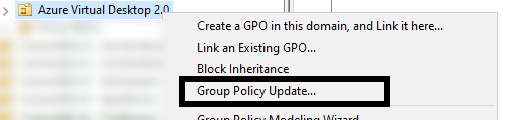
Actually, this only works after you configured this on the remote computers. The good part is, there is a way to do this with Group Policy!
Errors explained
When you do not configure remote group policy update, you get errors like:
- 0x8007071a
- The remote procedure call was cancelled
These state that access to the remote computer cannot be established, which is actually because of security reasons.
Enable remote Group Policy update
To enable remote Group Policy update with a GPO, create a new GPO or use an existing one:
Go to the settings for the Windows Firewall:
Computer Configuration -> Policies -> Windows Settings -> Security Settings -> Windows Defender Firewall with Advanced Security
Create 2 new inbound rules based on a predefined sets:
- Remote Scheduled Tasks Management
- Windows Management Instrumentation
Select all rules of both of the predefined rulesets.
After this link the GPO to the right OU and do a last manual GPupdate or wait for the scheduled GPupdate to finish.
Performing remote Group Policy updates
You can use the Group Policy update option in Group Policy Management (gpmc.msc) to perform a group policy update on all computers in a OU.
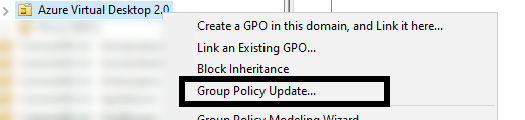
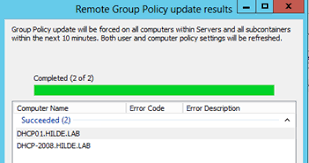
After that you will get succeeded notifications:
Summary
Remote Group Policy update is an excellent way to manage traditional Active Directory computers and updating them remotely instead of physically walk to the computers to perform the update yourself. Even on Microsoft Azure servers, it is a very handy tool because updating policies can be done through your central management server.
Thank you for reading this guide!
End of the page 🎉
You have reached the end of the page. You can navigate through other blog posts as well, share this post on X, LinkedIn and Reddit or return to the blog posts collection page. Thank you for visiting this post.
If you think something is wrong with this post or you want to know more, you can send me a message to one of my social profiles at: https://justinverstijnen.nl/about/
If you find this page and blog very useful and you want to leave a donation, you can use the button below to buy me a beer. Hosting and maintaining a website takes a lot of time and money. Thank you in advance and cheers :)

The terms and conditions apply to this post.