Microsoft Secure Score - Devices
Categories:
On this page, I will describe how I implemented my current Microsoft Secure Score on the Devices pillar. This means altering mostly the options of Microsoft Defender and Intune.
Before we begin
I collected all the options of the Microsoft Device Secure Score on this page, and we will address them all. I also added some industry-accepted options which are not in the secure score framework but are really helpful in avoiding or minimizing attacks in your environment.
You can use all options, or only use a subset of the options. This is up to you :)
Remember, having a secure score of 100% doesn’t mean 100% security. This only means you are using 100% of the security toolbox.
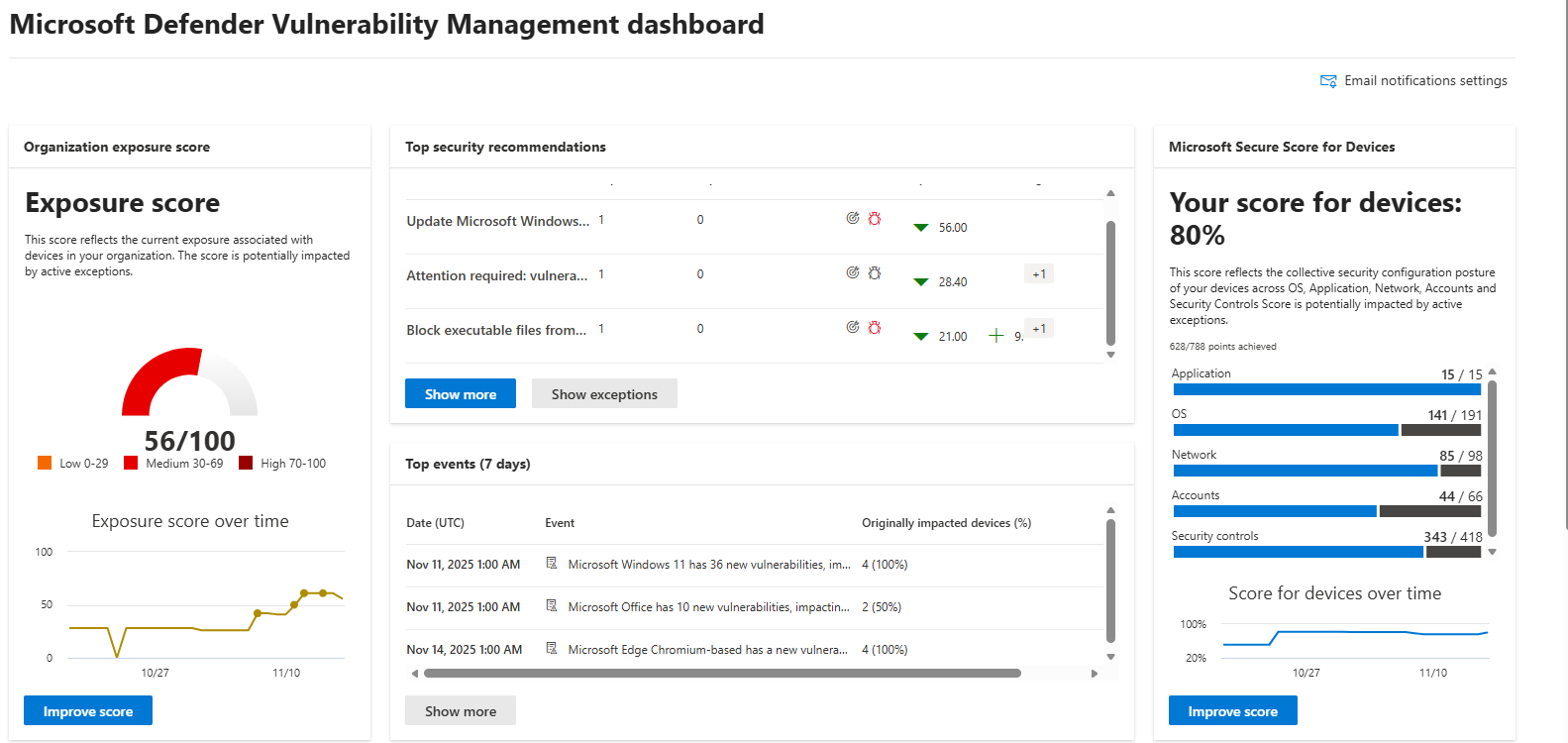
Starting this page, my Secure Score for Devices overview is already at 80% (due to strict policies I already created myself to play around):
The recommendations to address:
The current recommendations that I have to address are 20 of the 104 total items:
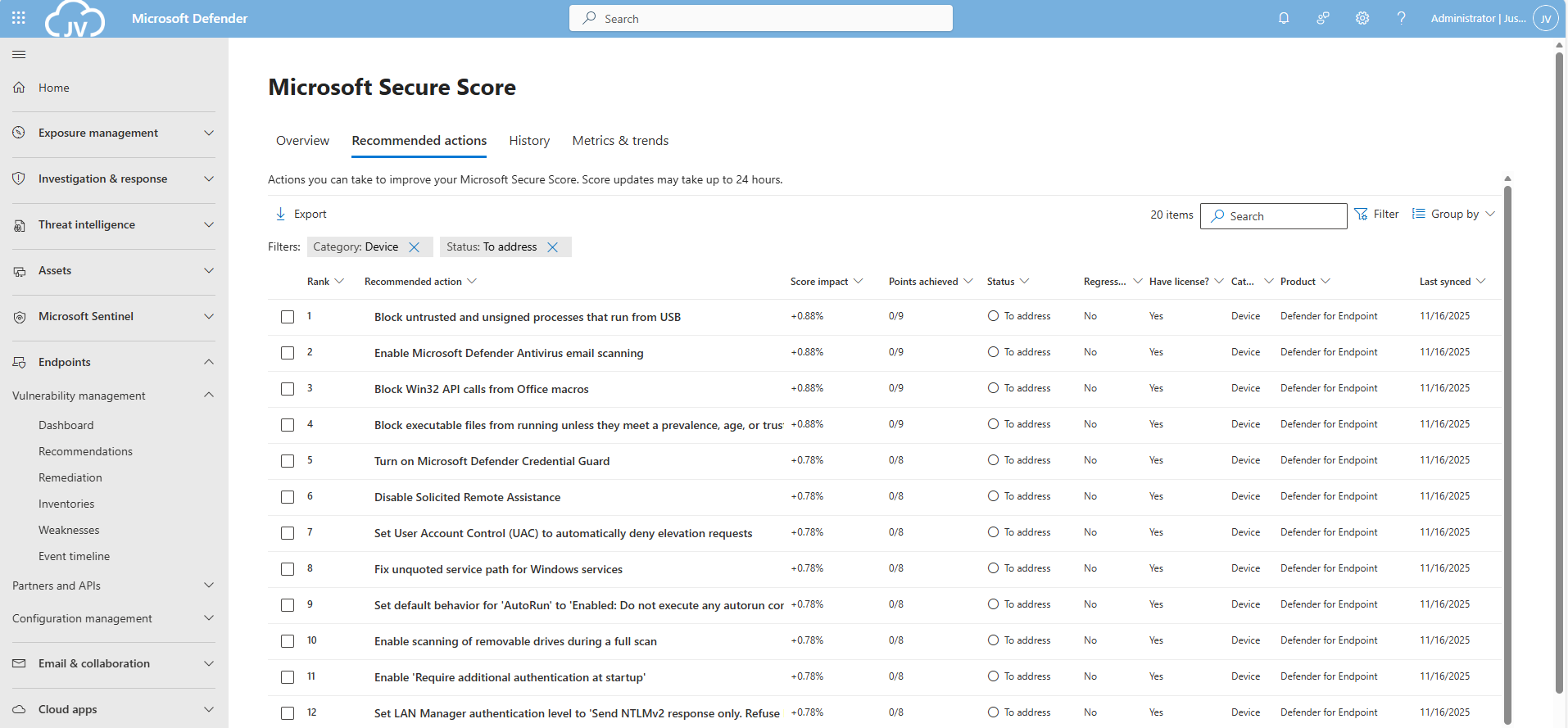
For the devices pillar, we have the Endpoints/Vulnerability Management overview which also gives us the action to take to resolve them: https://security.microsoft.com/security-recommendations
Addressing the recommendations
On this page, I will show how to address the recommendations of the Microsoft Device Secure Score. You can choose which items to implement, if you want to use one or multiple policies and such. I will put everything in a single policy and will export the policy for your use.
It may be very boring to do this by hand, but is actually very useful to learn. I am sorry for the bitwhat boring page this time, but my focus is on the reader to set all settings easily.
Task 1: Update Windows
The first recommendation was to update Windows. This was indeed the case for my device:
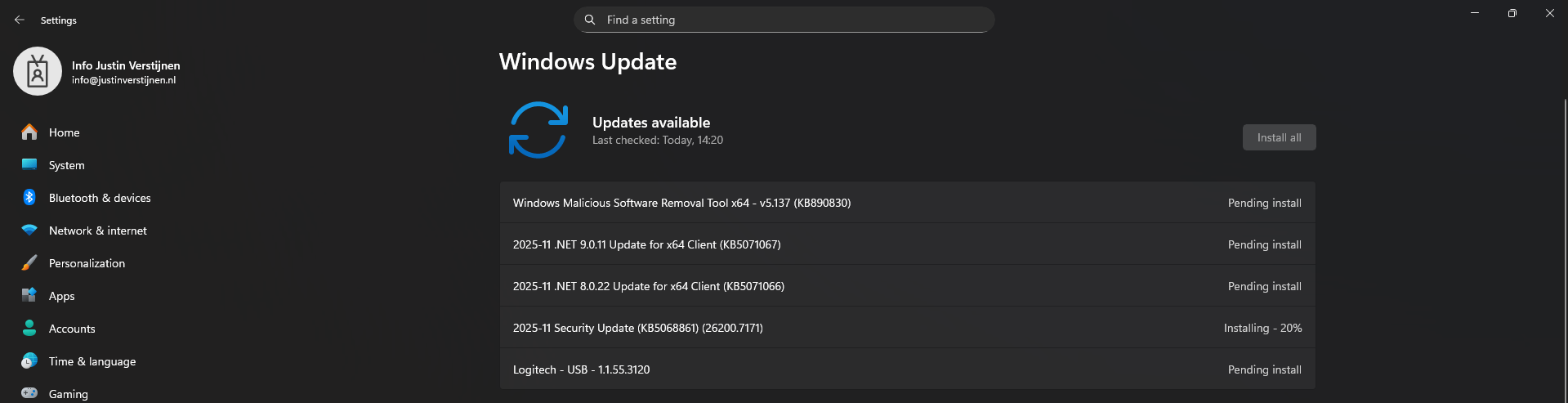
This is pretty straight forward and doesn’t need further explaination I think. You can automate this process using Windows Update Rings in Intune.
Task 2: Disable the local storage of passwords and credentials
This recommendation states we may not store credentials locally, actually disabling the Windows Credential Manager on your devices.
Open Microsoft Intune, create a new policy for Windows or use an existing one and find this option:
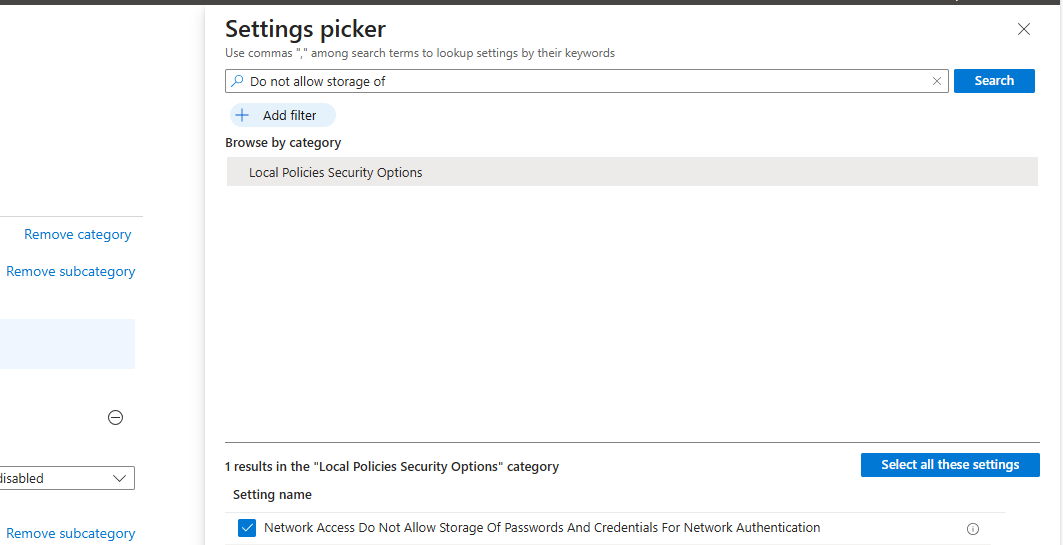
Select the setting, and then set it to “1” to enable forbidding to store credentials.
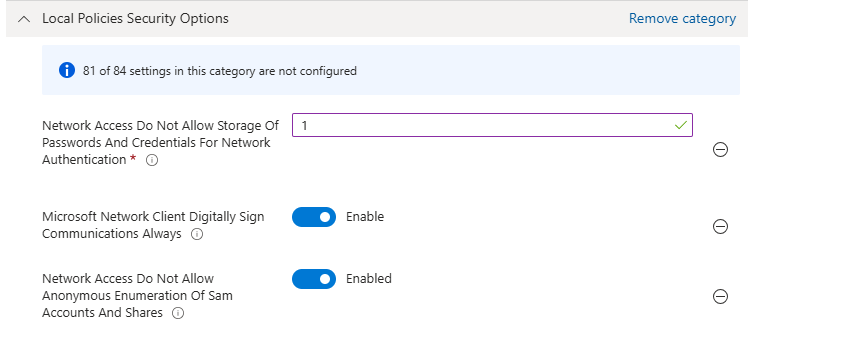
Save the policy and assign this to your devices.
Task 3: Set IPv6 source routing to highest protection
This recommendation wants us to set IPv6 source routing to the highest protection. This means IPv6 source routing is locked down to the highest level, blocking source-routed packets so attackers can’t influence how traffic moves through the network.
You can achieve this by searching for this option:
- DisableIPSourceRouting IPv6
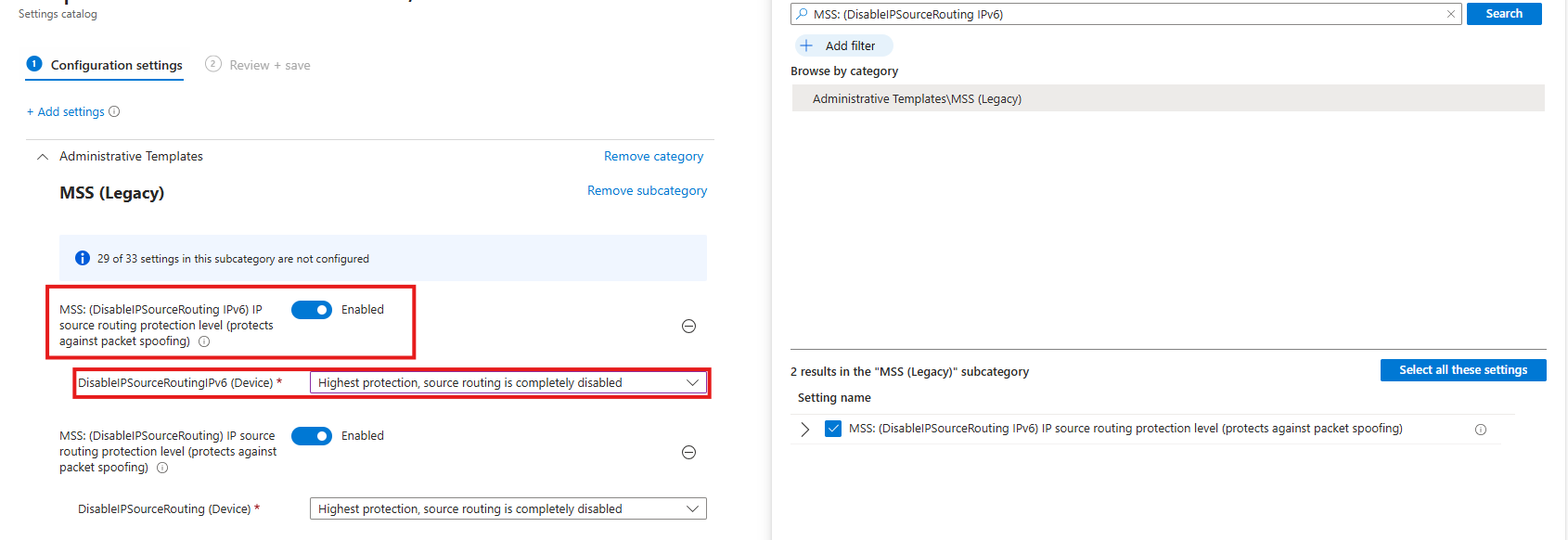
Then select the option and enable it, then set it to the highest protection as the recommendation states.
Task 4: Enable ‘Apply UAC restrictions to local accounts on network logons’
This recommendation wants us to apply restrictions on User Account Control to local accounts. Extra UAC checks are applied to local accounts when they log in over the network, limiting their permissions and reducing the risk of misuse or lateral movement.
You can find this setting by searching for:
- Apply UAC restrictions to
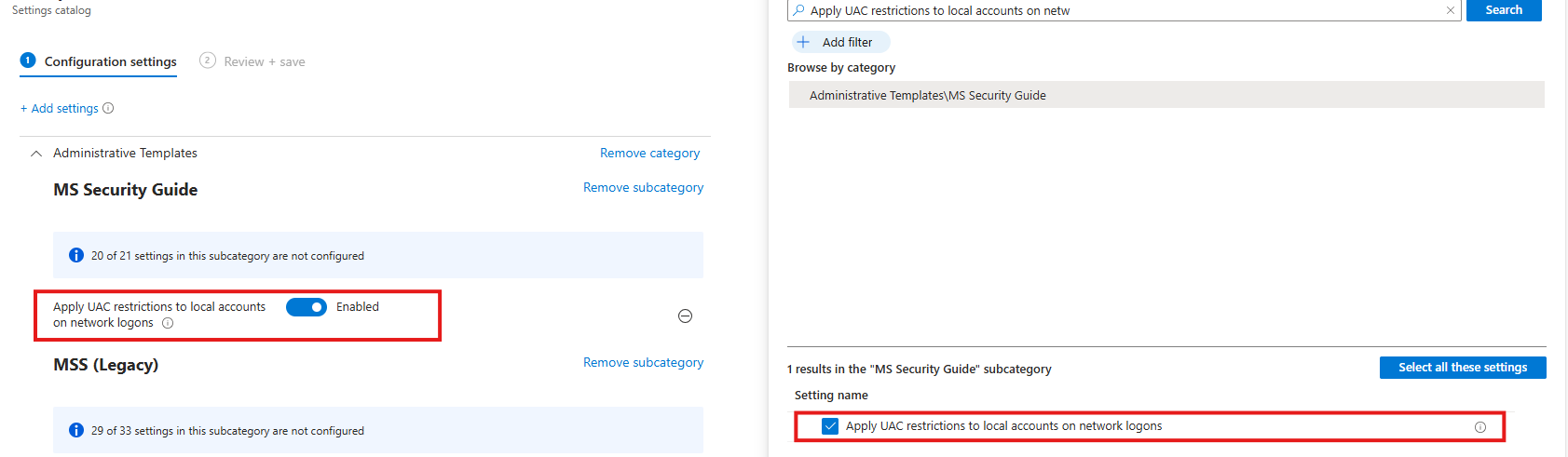
Select the option on the right and then enable it on the left.
Task 5: Disable merging of local Microsoft Defender Firewall rules with group policy firewall rules for the Public profile
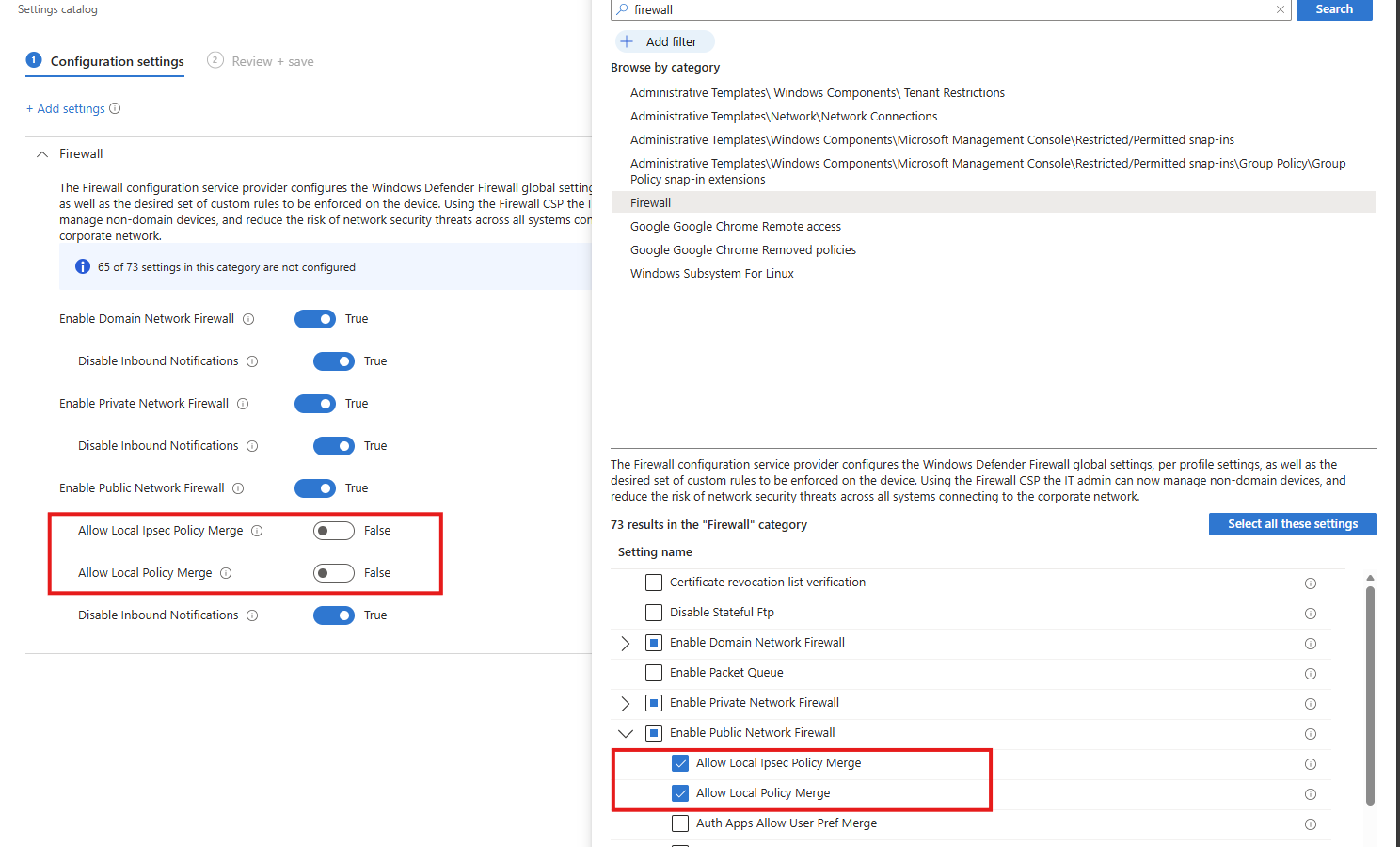
This recommendation wants us to disable merging of Windows Firewall rules. Local Microsoft Defender Firewall rules are ignored for the Public profile, so only centrally managed Group Policy rules apply, preventing users or apps from weakening firewall protection.
Search for the Windows Firewall settings, and select these two settings:
- Allow local Ipsec Policy Merge: Disable
- Allow local policy merge: Disable
Task 6: Enable scanning of removable drives during a full scan
This recommendation wants us to enable Windows Defender to scan removable devices after they are connected. They also can contain malicious files or software and we don’t want to be compromised that way.
Search for:
- Scan removable devices
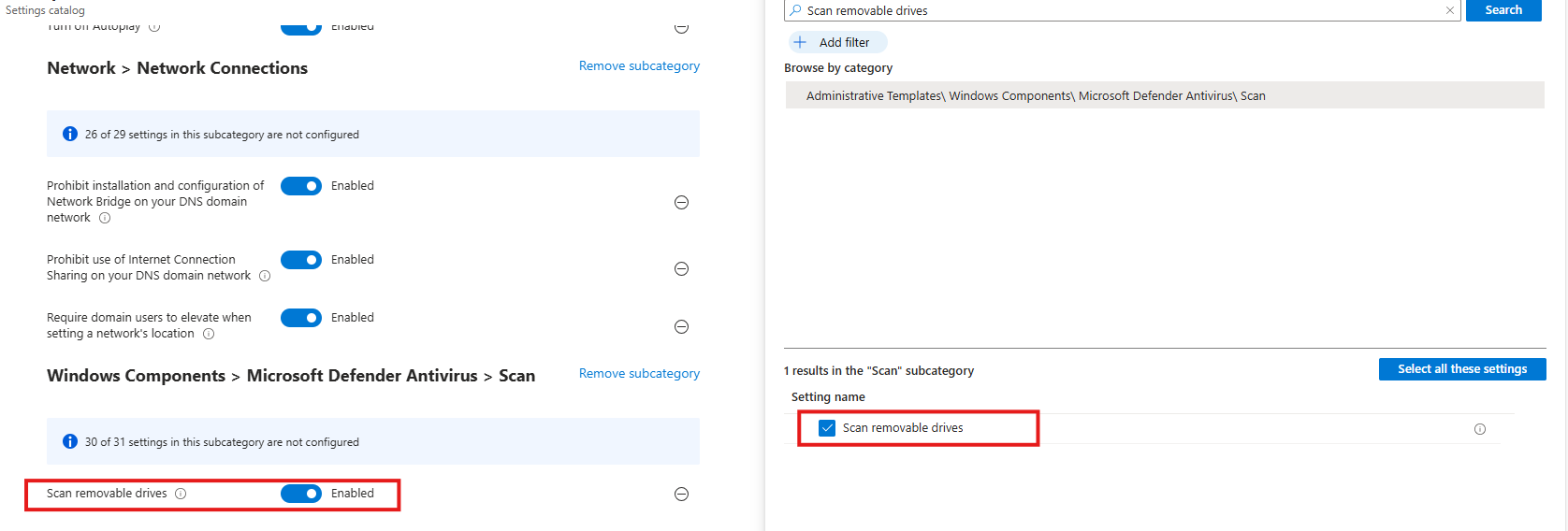
Select the option on the right and then enable it on the left.
Task 7: Disable Solicited Remote Assistance
This recommendation wants us to disable Remote Assistance without user intervention. Solicited Remote Assistance is disabled to prevent users from granting remote access to their system, reducing the attack surface and the risk of unauthorized control or social-engineering abuse.
Search for:
- Configure Solicited Remote Assistance
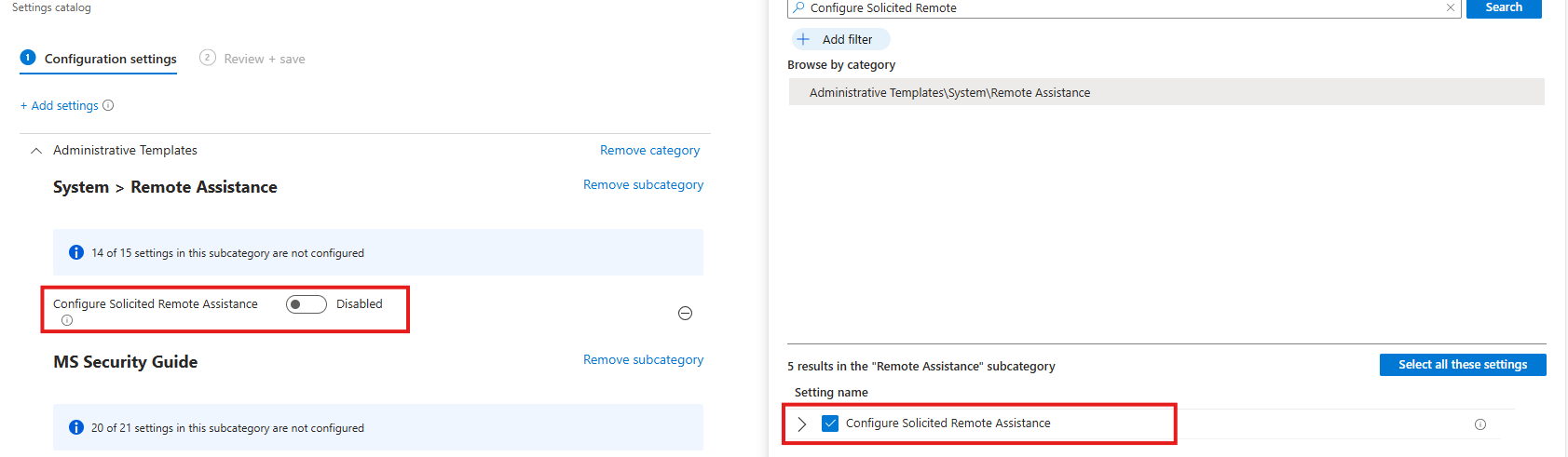
Select the option on the right and then disable it on the left.
Task 8: Network Security LAN Manager Authentication Level
This recommendation wants us to disable LM and NTLM authentication methods, forcing the use of stronger, modern authentication methods and reducing exposure to credential theft, relay, and downgrade attacks.
Search for:
- Network Security LAN Manager Authentication Level
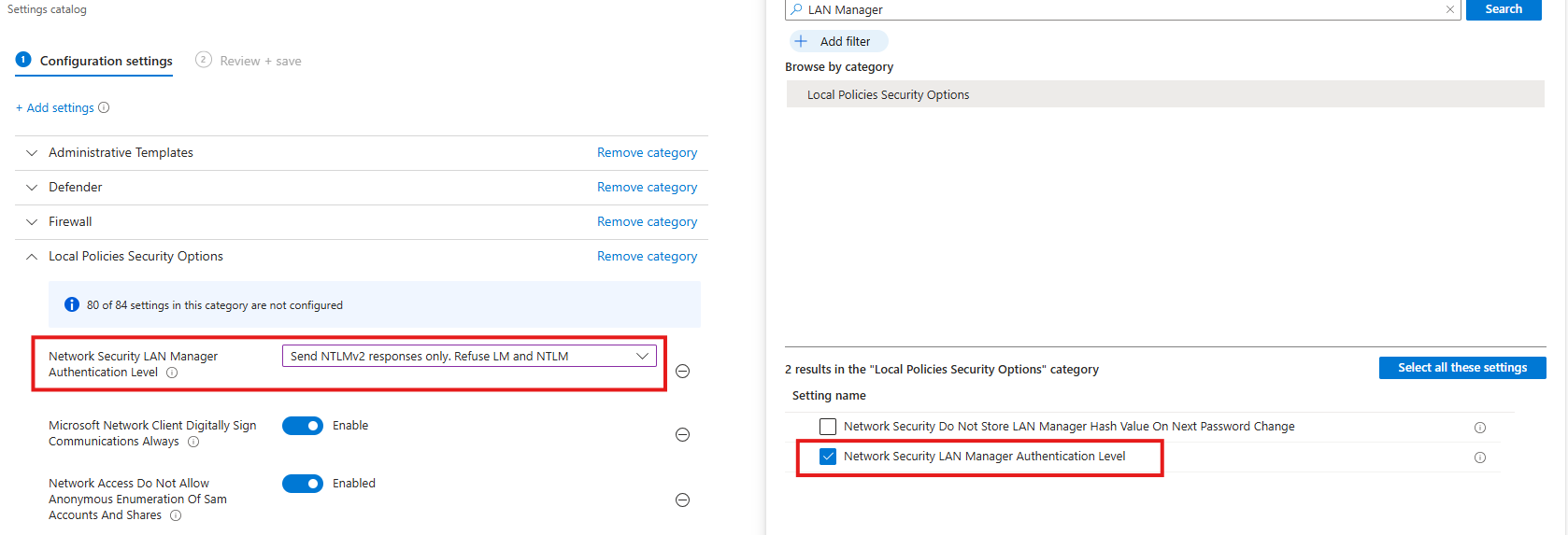
Select the option on the right and then select “Send NTLMv2 responses only. Refuse LM and NTLM”.
Task 9: Set default behavior for ‘AutoRun’ to ‘Enabled: Do not execute any autorun commands’
This recommendation wants us to set the AutoRun behaviour to “Disabled”. AutoRun is configured to block all automatic execution of commands from removable or external media, preventing malware from running automatically without user interaction.
- Search for Autoplay
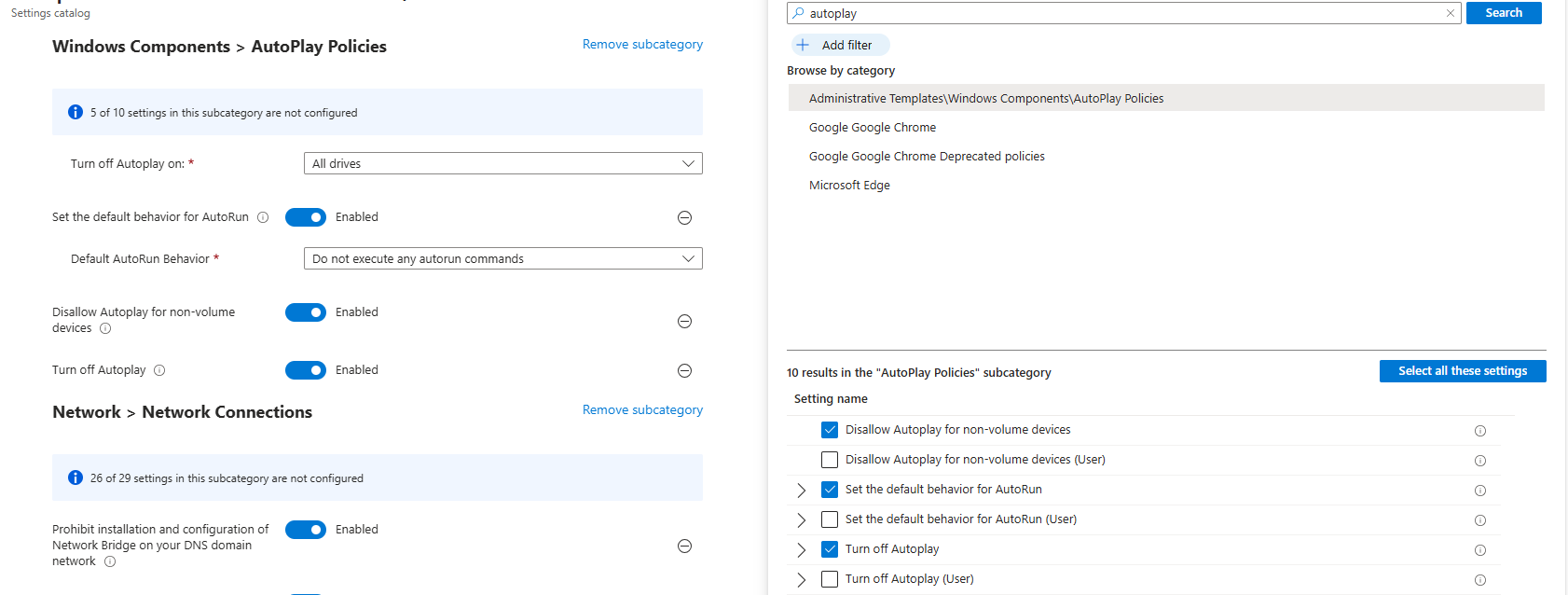
Then set the settings as follows:
- Turn off Autoplay on: All drives
- Set the default behaviour for AutoRun: Enabled
- Default AutoRun Behaviour: Do not execute any autorun commands
- Disallow Autoplay for non-volume devices: Enabled
- Turn off autoplay: Enabled
This might sound strange, but yea, we have to actually enable some settings to fully disable the feature.
Task 10: Block untrusted and unsigned processes that run from USB
This recommendation wants us to block untrusted and unsigned processes from running when launched from USB devices, reducing the risk of malware execution and unauthorized code running from removable media.
- Search for “Block untrusted and unsigned processes that run from USB”
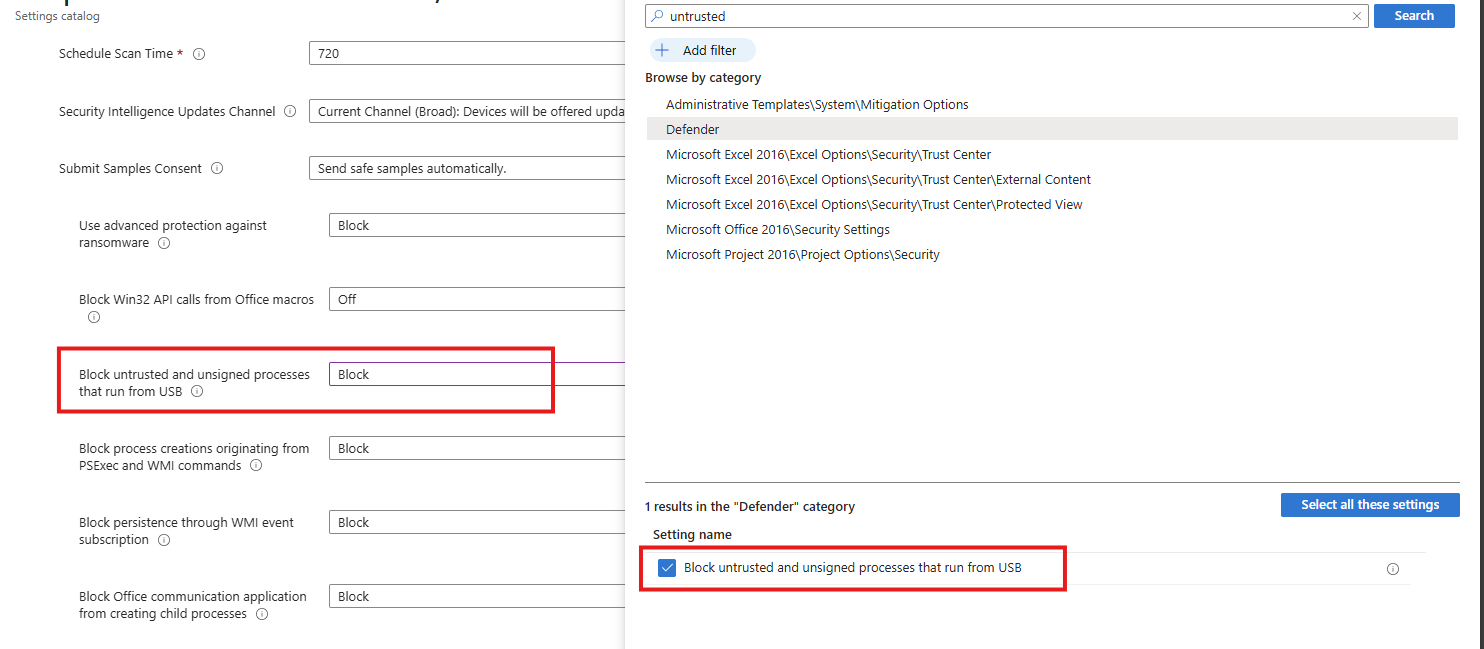
Select the option on the right and then Block it on the left.
Task 11: Enable Microsoft Defender Antivirus email scanning
This recommendation wants us to enable Microsoft Defender for scanning your email messages.
Search for the setting:
- Turn on e-mail scanning
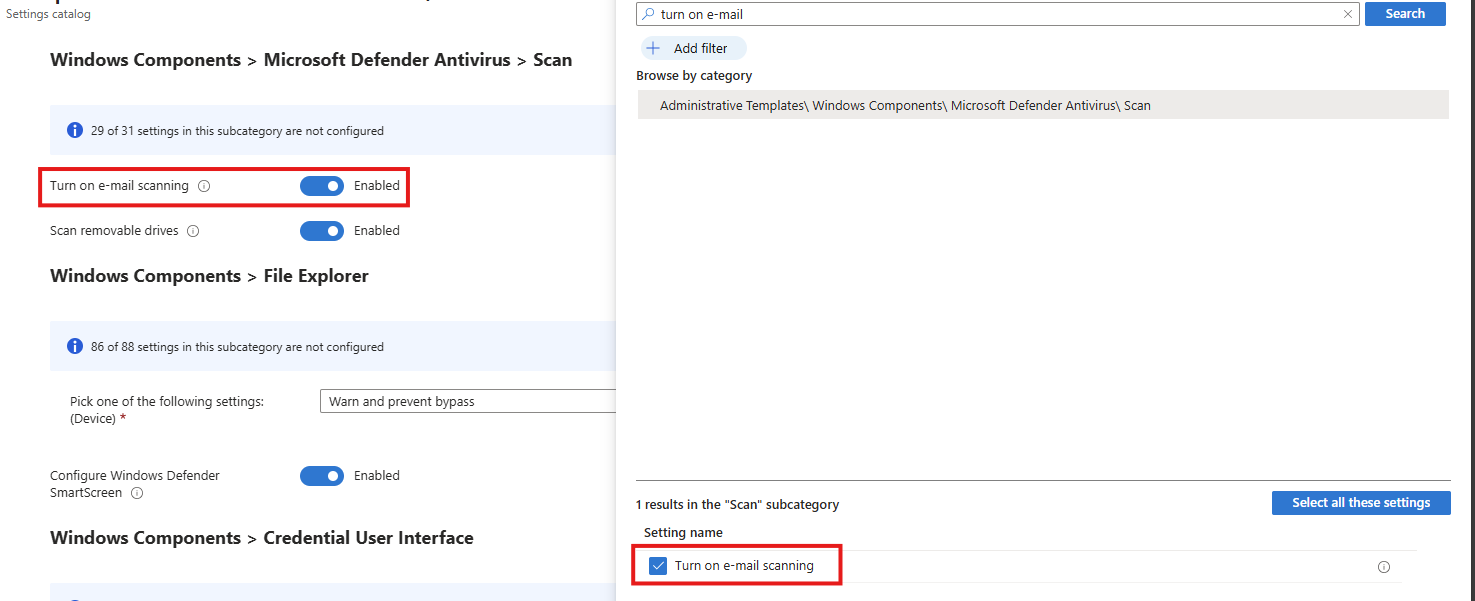
Select the option on the right and then enable it on the left.
Task 12: Block Win32 API calls from Office macros
This recommendation wants us to block Office macros from calling Win32 APIs, limiting their ability to execute system-level actions and significantly reducing the risk of macro-based malware and abuse.
Search for the setting:
- Block Win32 API calls from Office macros
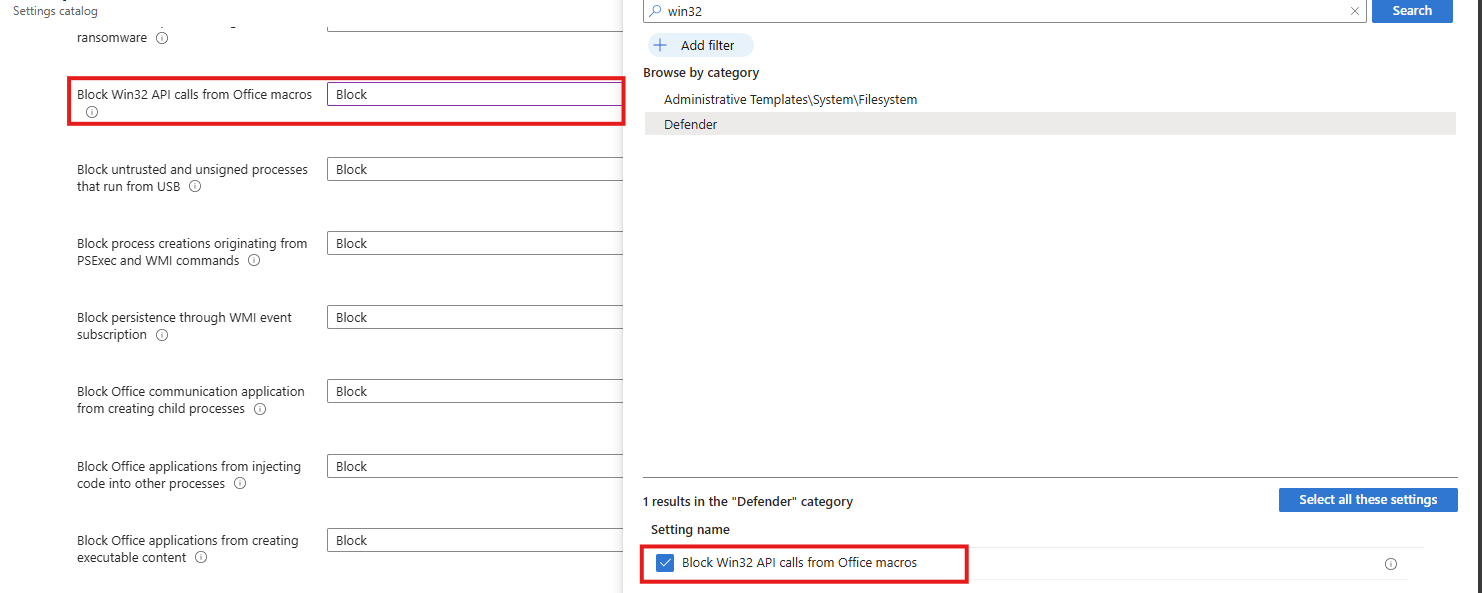
Select the option on the right and then Block it on the left.
Task 13: Block executable files from running
This recommendation wants us to block executable files from running, preventing unauthorized or malicious software from being launched and reducing the risk of malware execution.
Search for the setting:
- Block executable files from running unless they meet a prevalence, age or trusted list criterion
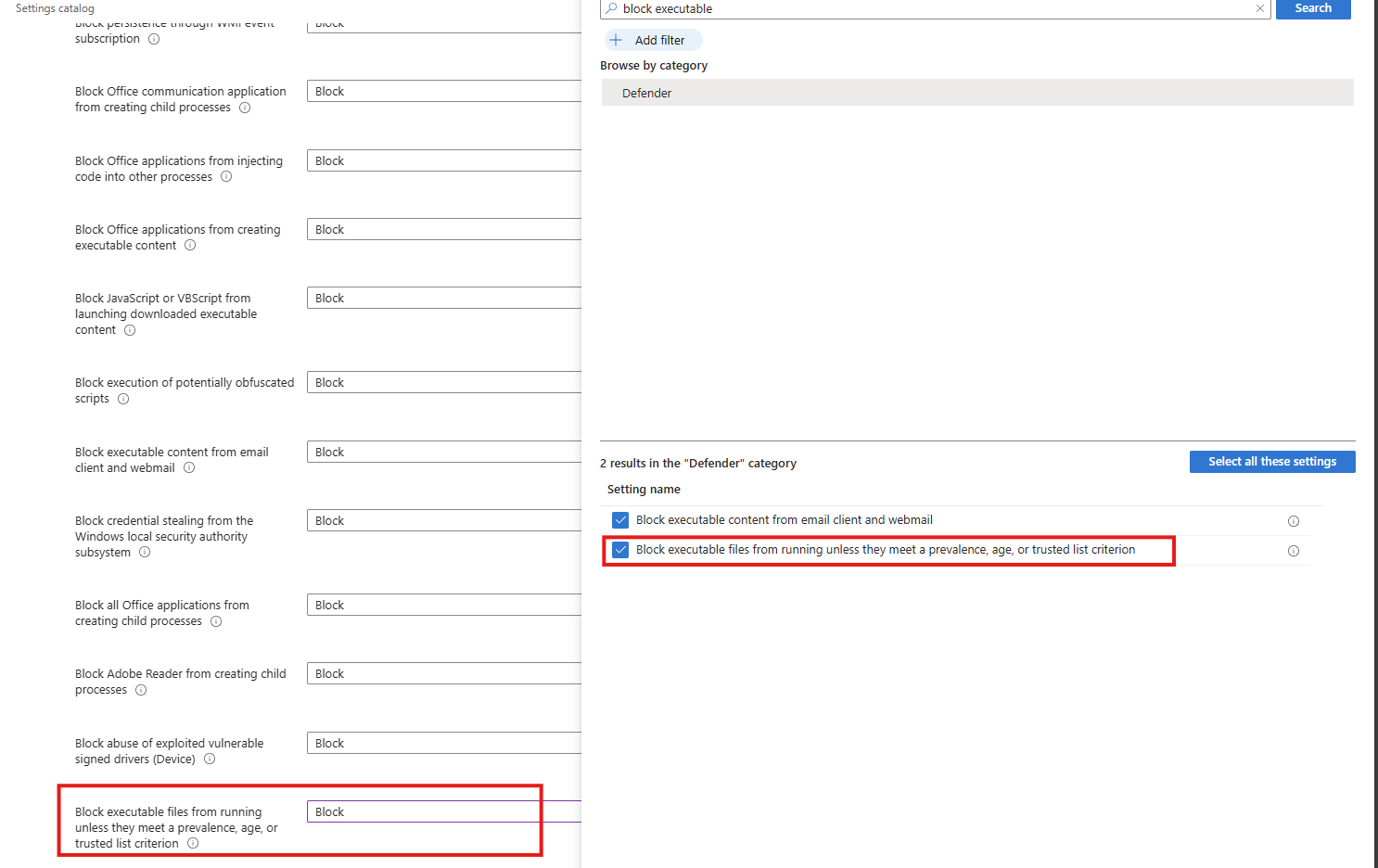
Select the option on the right and then block it on the left.
Task 14: Turn on Microsoft Defender Credential Guard
This recommendation wants us to enable the Microsoft Defender Credential Guard. Microsoft Defender Credential Guard is enabled, isolating credentials in a protected virtualization-based environment to reduce the risk of credential theft from memory by malicious software.
Search for the setting:
- Credential Guard
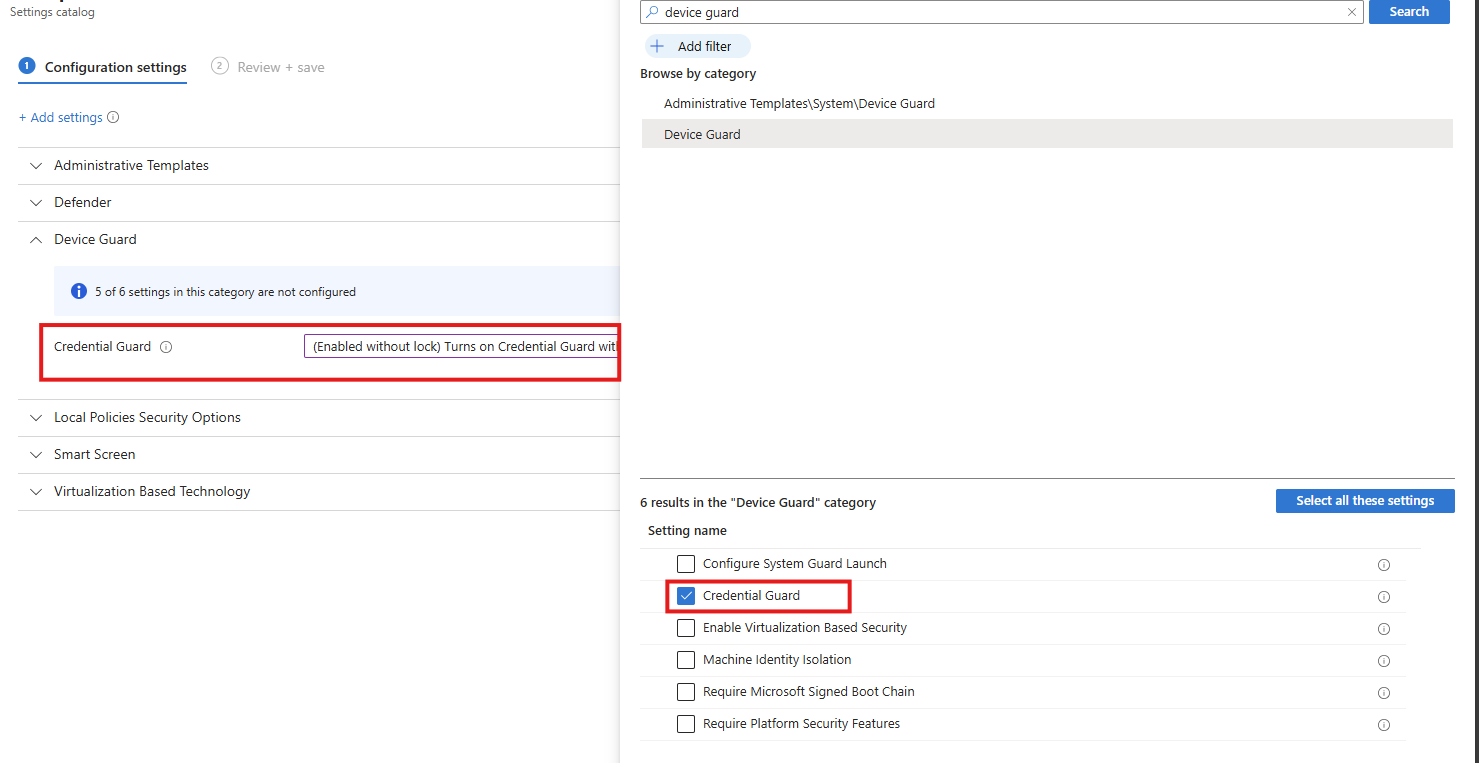
Select the option on the right and then enable it on the left (with or without UEFI lock)
Task 15: Set UAC to automatically deny elevation requests
This recommendation wants us to configure User Account Control to automatically deny elevation requests for non-admins, preventing users and malware from gaining administrative privileges and reducing the risk of privilege escalation. This blocks windows they don’t have permission to either.
Search for the setting
- User Account Control Behaviour Of The Elevation Prompt For Standard Users
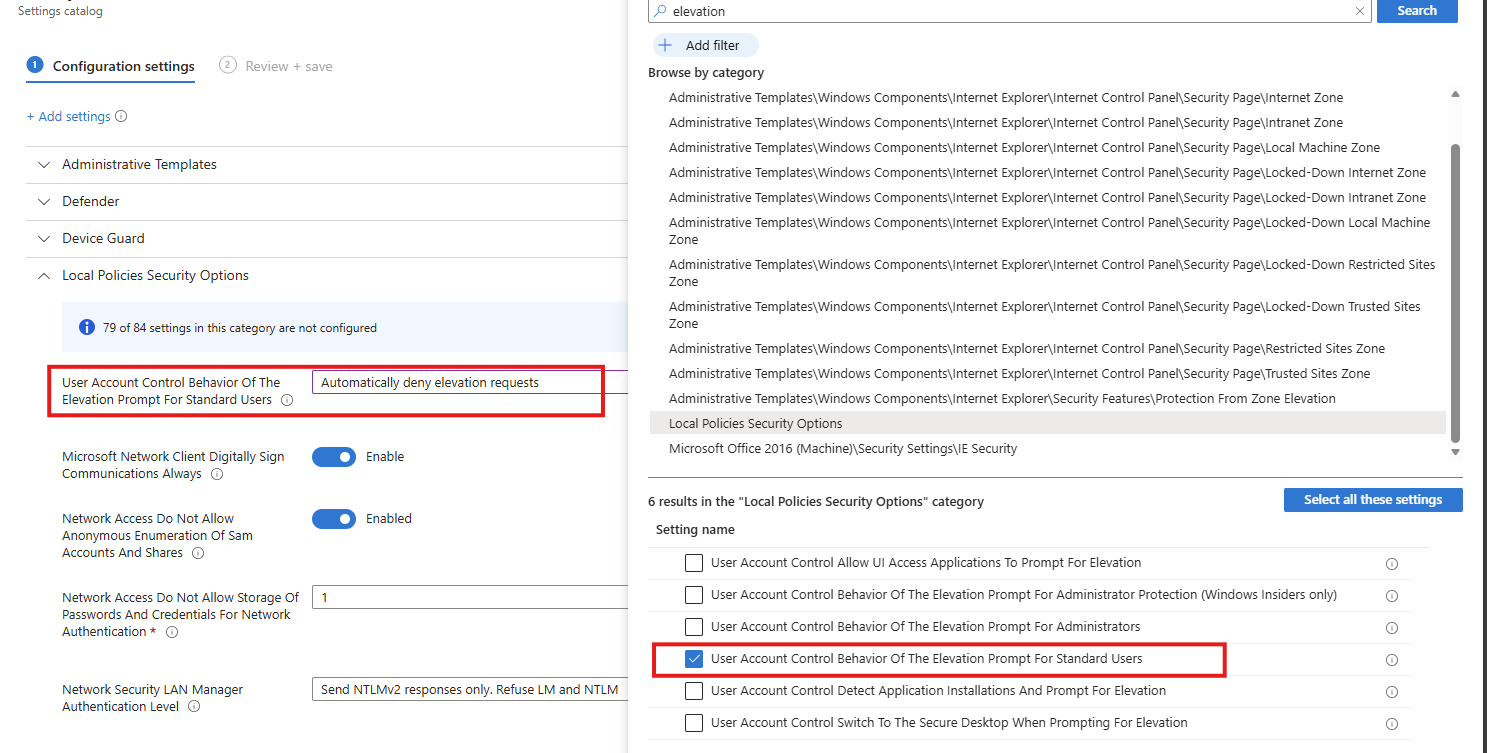
Select the option on the right and then enable it on the left.
Task 16: Enable scanning of removable drives during a full scan
This recommendation wants us to enable removable drives to be included in full antivirus scans, increasing the chance of detecting and blocking malware introduced via USB or other external media.
Search for the setting
- Allow Full Scan Removable Drive Scanning
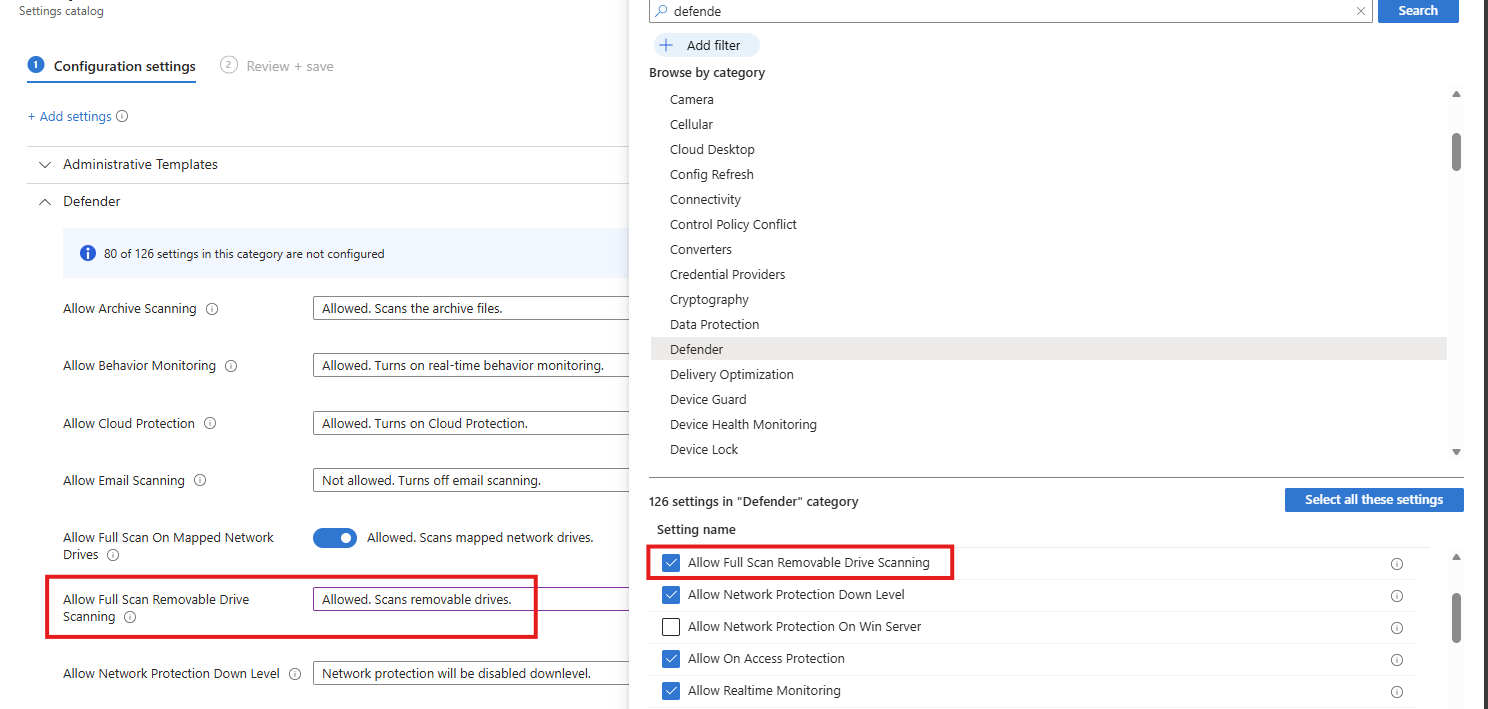
Select the option on the right and then enable it on the left.
Task 17: Enable ‘Require additional authentication at startup’
This recommendation wants us to enable additional authentication to be required at system startup, ensuring the device cannot boot without user verification and reducing the risk of unauthorized access if the device is lost or stolen.
Search for the setting
- Require additional authentication on startup
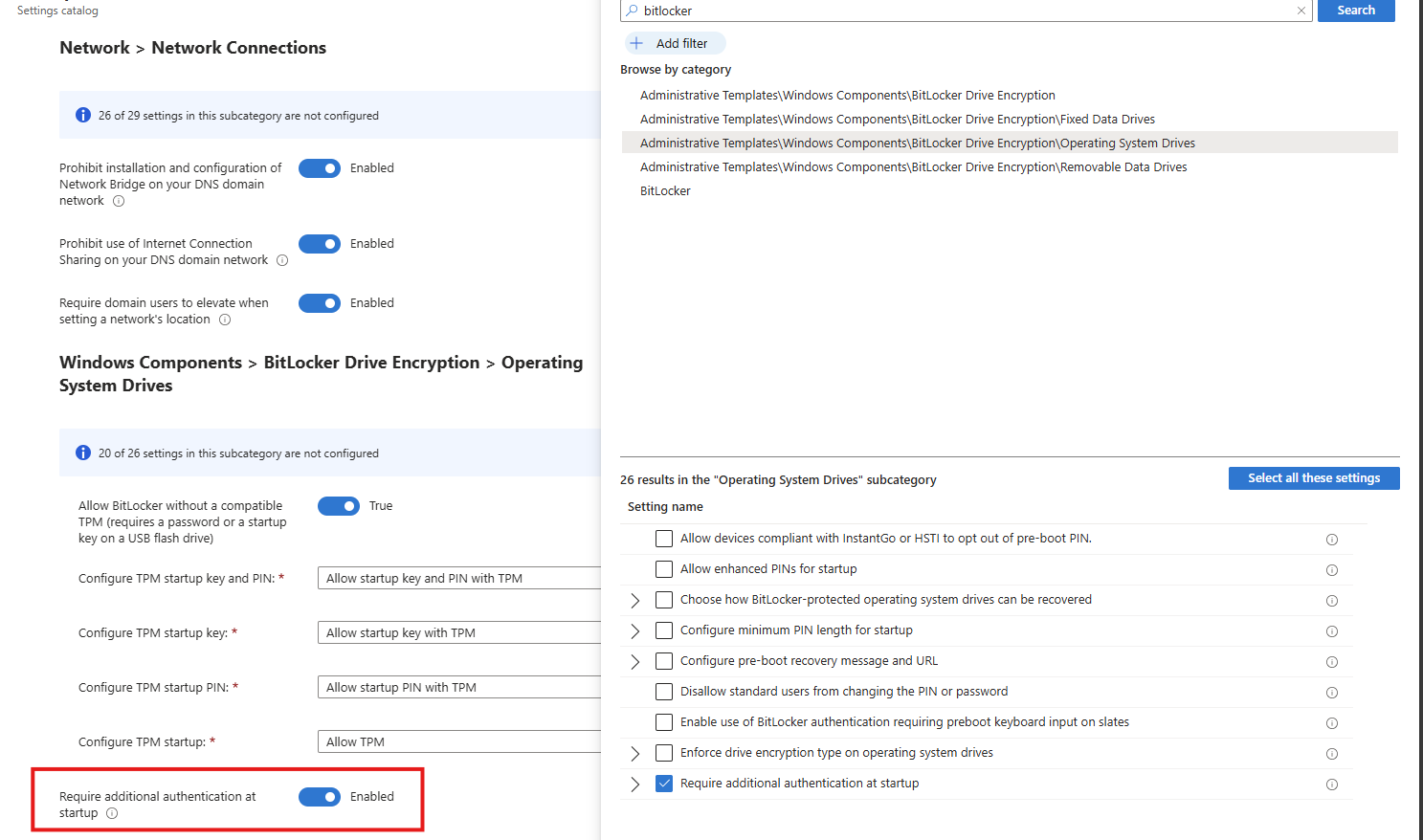
Select the option on the right and then enable it on the left.
Task 18: Set Minimum PIN length for startup to 6 or more characters
This recommendation wants us to enforce a minimum Windows PIN of 6 characters. A minimum startup PIN length of six characters is enforced, increasing resistance to brute-force and guess-based attacks during pre-boot authentication.
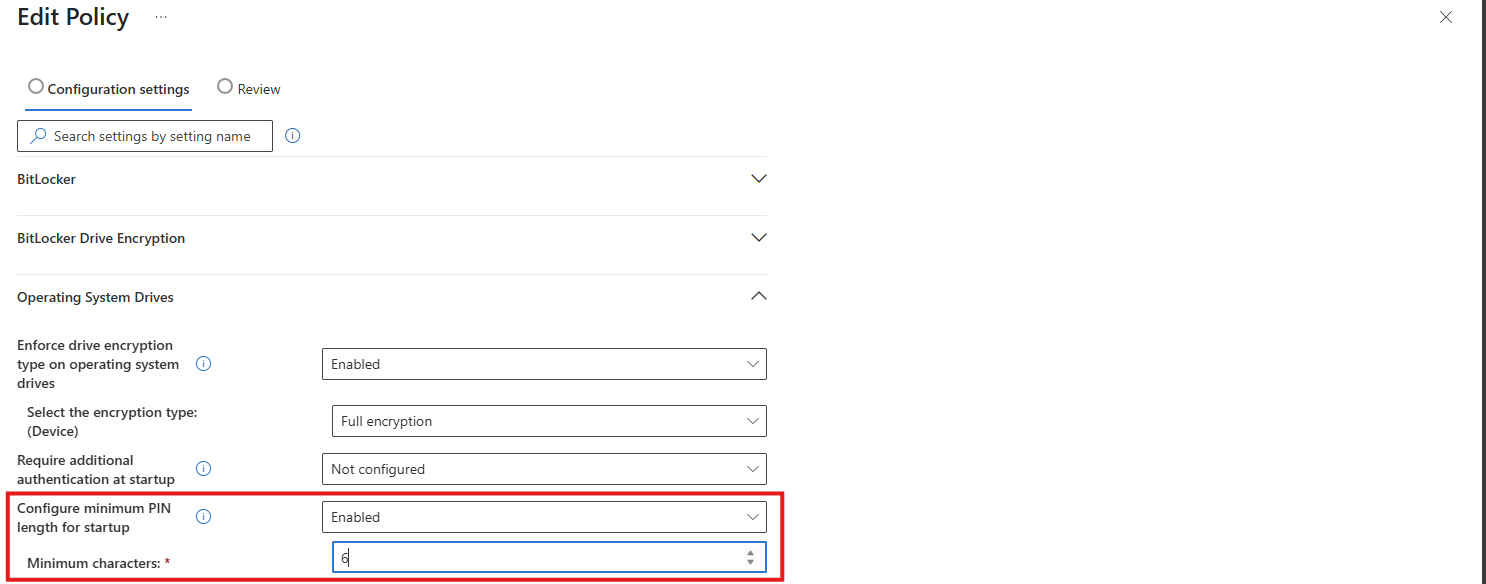
This can be found under the Drive Encryption settings:
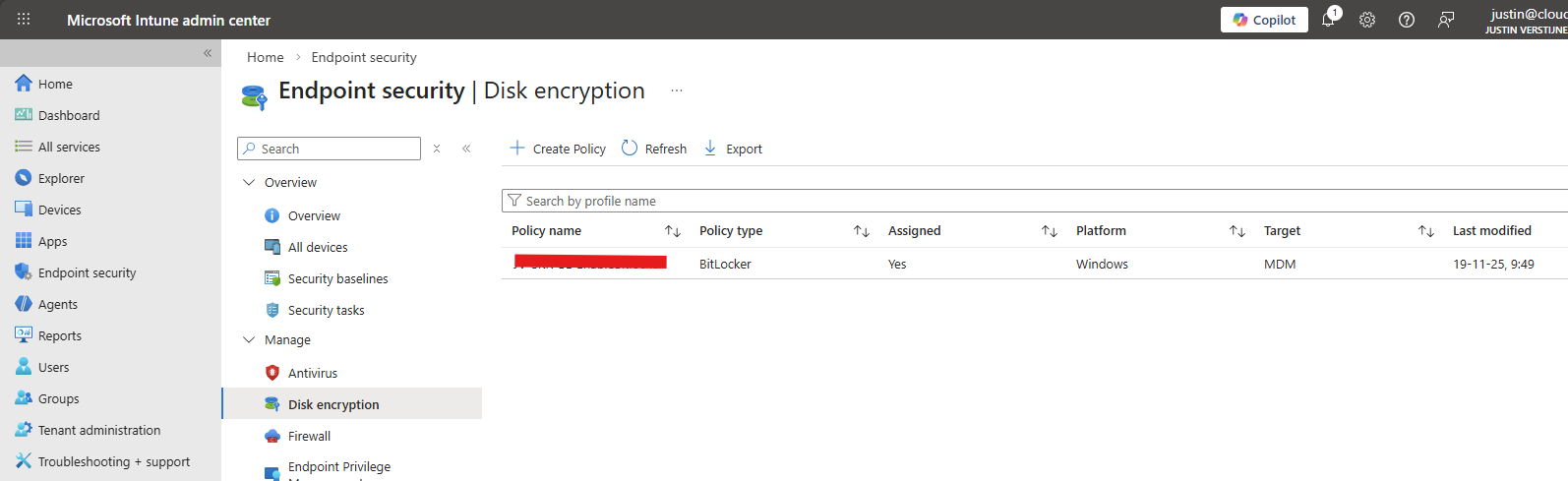
Download my Intune configuration policy
To be generous and if you don’t want to click through the Intune portal, I have my Intune configuration policy here to download:
Download Configuration policy from GitHub
End of the page 🎉
You have reached the end of the page. You can navigate through other blog posts as well, share this post on X, LinkedIn and Reddit or return to the blog posts collection page. Thank you for visiting this post.
If you think something is wrong with this post or you want to know more, you can send me a message to one of my social profiles at: https://justinverstijnen.nl/about/
If you find this page and blog very useful and you want to leave a donation, you can use the button below to buy me a beer. Hosting and maintaining a website takes a lot of time and money. Thank you in advance and cheers :)

The terms and conditions apply to this post.