Using Azure Update Manager to manage updates at scale
Categories:
Azure Update Manager is a tool from Microsoft and is developed to automate, installing and documenting Windows updates or updates to Linux server on Azure. This all in a single pane of glass and without installing any additional software.
Requirements
- Around 15 minutes of your time
- An Azure subsciption
- An Azure server or Azure Arc server
Supported systems
Azure Update Manager supports the following systems for assessments and installing updates, therefore managing them:
- Azure Windows VMs (SQL/Non-SQL)
- Azure Arc Windows VMs (SQL/Non-SQL)
- Azure Linux VMs (Some distributions: See support here)
- Azure Arc Linux VMs (Some distributions: See support here)
Windows client (10/11) OSs are not supported.
Features
Azure Update Manager has the following features:
- Automatic assessments: for new updates, this will check for new updates every 24 hours
- One time install: When there are critical updates you can perform a one-time install to install updates at scale on all managed servers
- Automatic installation: this is the action that installs all updates to your servers by following the rules in your maintenance configuration
- Maintenance configurations: this is a set of rules how your updates will be deployed and on what schedule
Enroll a new server into Azure Update Manager
To enroll a new server into Azure Update Manager, open your VM and under “Operations”, open “Updates”
Click on the “Update settings”
Select under periodic assessment the option “Enable” to enable the service to automatically scan for new updates and under “Patch Orchestration” select “Customer Managed Schedules”.
Does your VM support Hotpatching, this must be disabled to take benefit from Azure Update Manager.
Enroll a bunch of servers into Azure Update Manager
In our work, most of the time we want to do things at scale. To enroll servers into Azure Update Manager, go to the Azure Update Manager-Machines blade.
Select all machines and click on “Update settings”.
Here you can do the same for all servers on your subscriptions (and Lighthouse managed subscriptions too)
By using the top drop down menu’s you can bulk change the options of the VMs to the desired settings. In my case i want to install updates on all servers with the same schedule.
Creating Maintenance configurations
With the maintenance configurations option, you can define how Azure will install the updates and if the server may reboot yes or no.
The options in a configuration are:
- A scope/selection of the machines
- What schedule to install the updates (when, frequency and reboot action)
- What category of updates to install
- Events; you can define an event to happen before Azure installs the update. For example a Email message or notification.
You can configure as many configurations as you want:
The Result
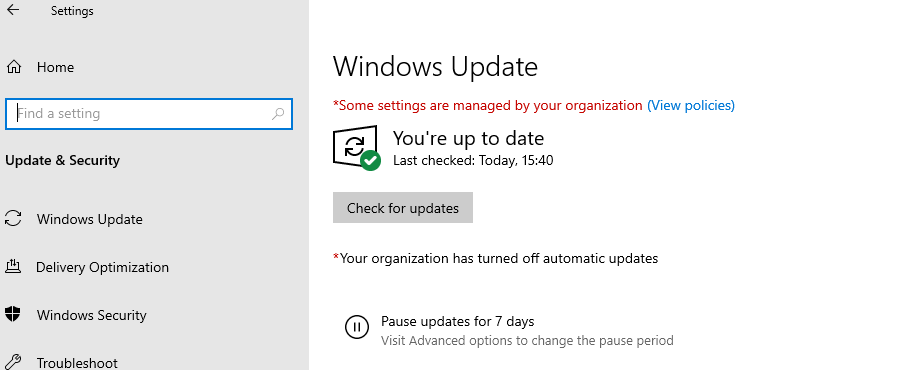
On the server we see after a succesful run + reboot the updates are installed succesfully:
Summary & Tips
- Install updates in “rings”, and do not bulk deploy updates onto all servers
- Installing updates always have a 0,1% chance to fail. Have backups and personnel ready
- Reboot servers after installing updates in their maintenance window
End of the page 🎉
You have reached the end of the page. You can navigate through other blog posts as well, share this post on X, LinkedIn and Reddit or return to the blog posts collection page. Thank you for visiting this post.
If you think something is wrong with this post or you want to know more, you can send me a message to one of my social profiles at: https://justinverstijnen.nl/about/
If you find this page and blog very useful and you want to leave a donation, you can use the button below to buy me a beer. Hosting and maintaining a website takes a lot of time and money. Thank you in advance and cheers :)

The terms and conditions apply to this post.